

Requirements
- An account in OneLogin
API_URLis the public DNS name of the hoop gateway instance
API_URL address.
Identity Provider Configuration
Create an Application
Create a new application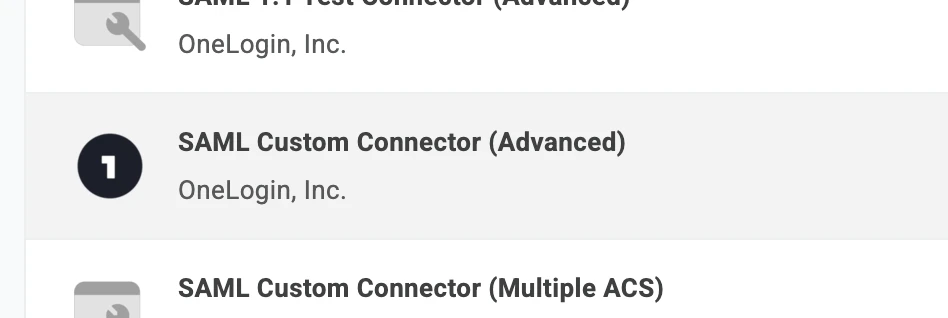
- Go to Applications and click on the Add App button
- Search for
saml - Select “SAML Custom Connector (Advanced)”
- Add a display name and click on Save
Confirm your user is allowed to login
- Click on Users in the left sidebar
- Confirm your user is allowed to login
If your is not included by default, make sure to add manually through the Users menu.
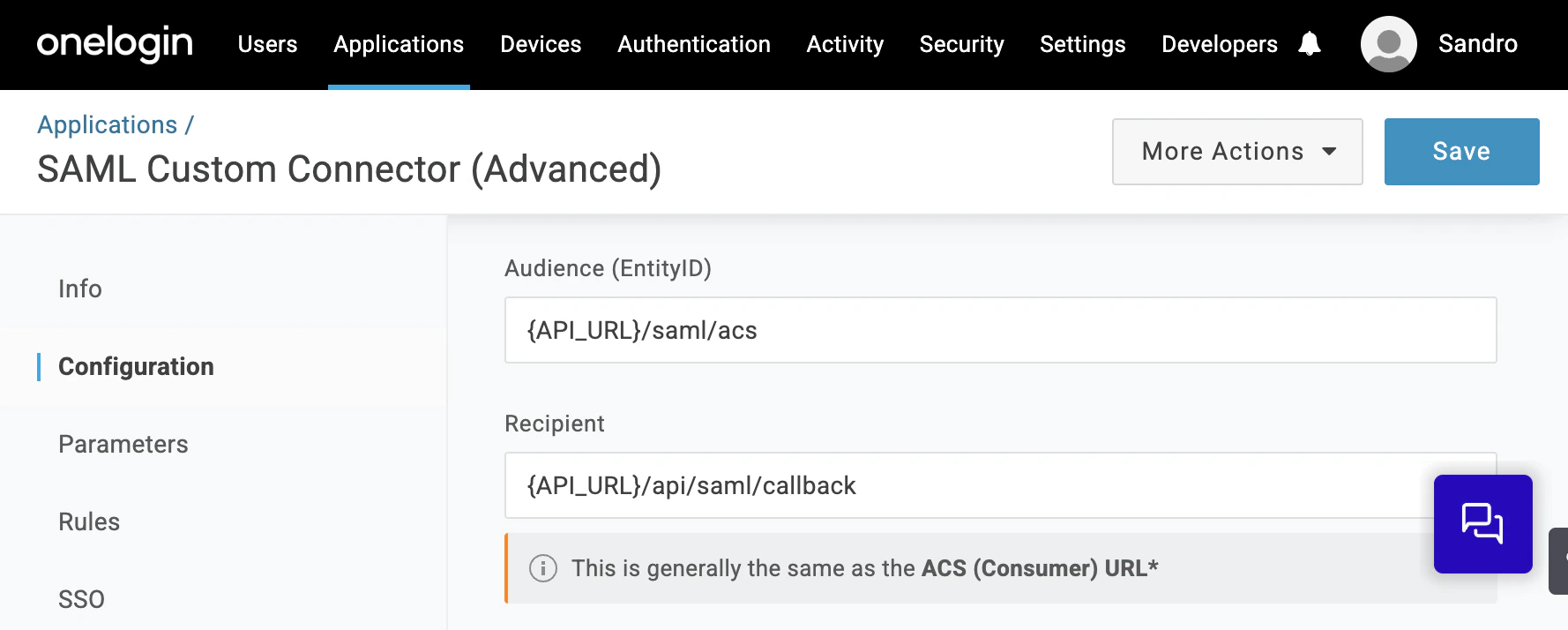
Configure Audience, Recipient and Expiration Time
- Navigate to Configuration in the left sidebar
- In
Audience (EntityID)add the value{API_URL}/saml/acs - In
Recipientadd the value{API_URL}/api/saml/callback - In
SAML not valid on or afteradd the value60(minutes) - Click on Save to persist the changes
The SAML Not Valid on Or After defines the access token duration when issuing the token on Hoop,
so you can adjust this value according to your needs.
Parameters Configuration
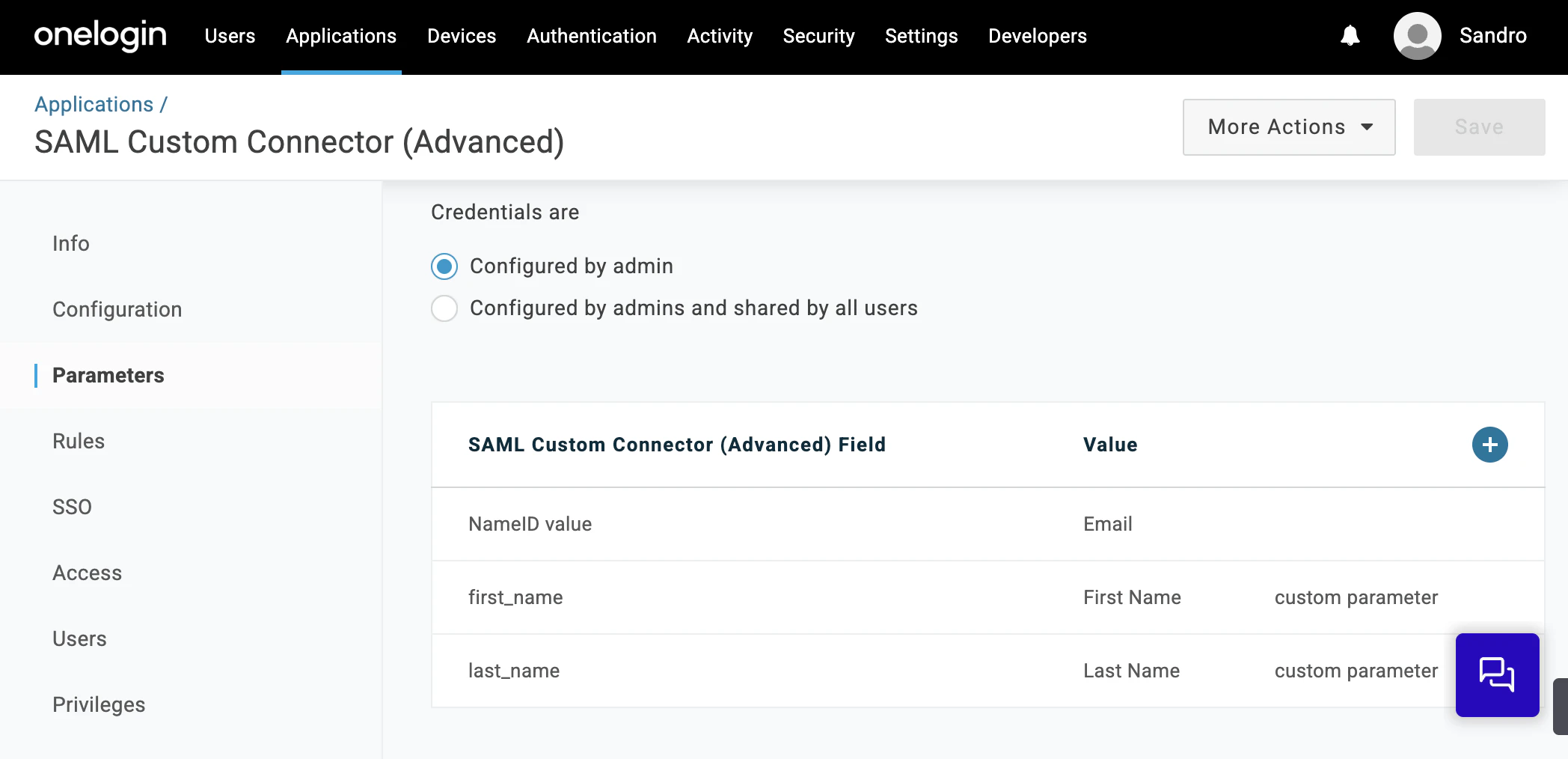
To propagate the Display name of users and synchronize with Hoop, make sure to add the following parameters:- Field Name:
first_name, Value:First Name - Field Name:
last_name, Value:Last Name
Groups Configuration
To propagate group to Hoop via SAML is creating User Roles and propagating as SAML assertions values.Create a User Role
- Go to Users > Roles
- Click on New Role
- Add the name of your group and click on Save

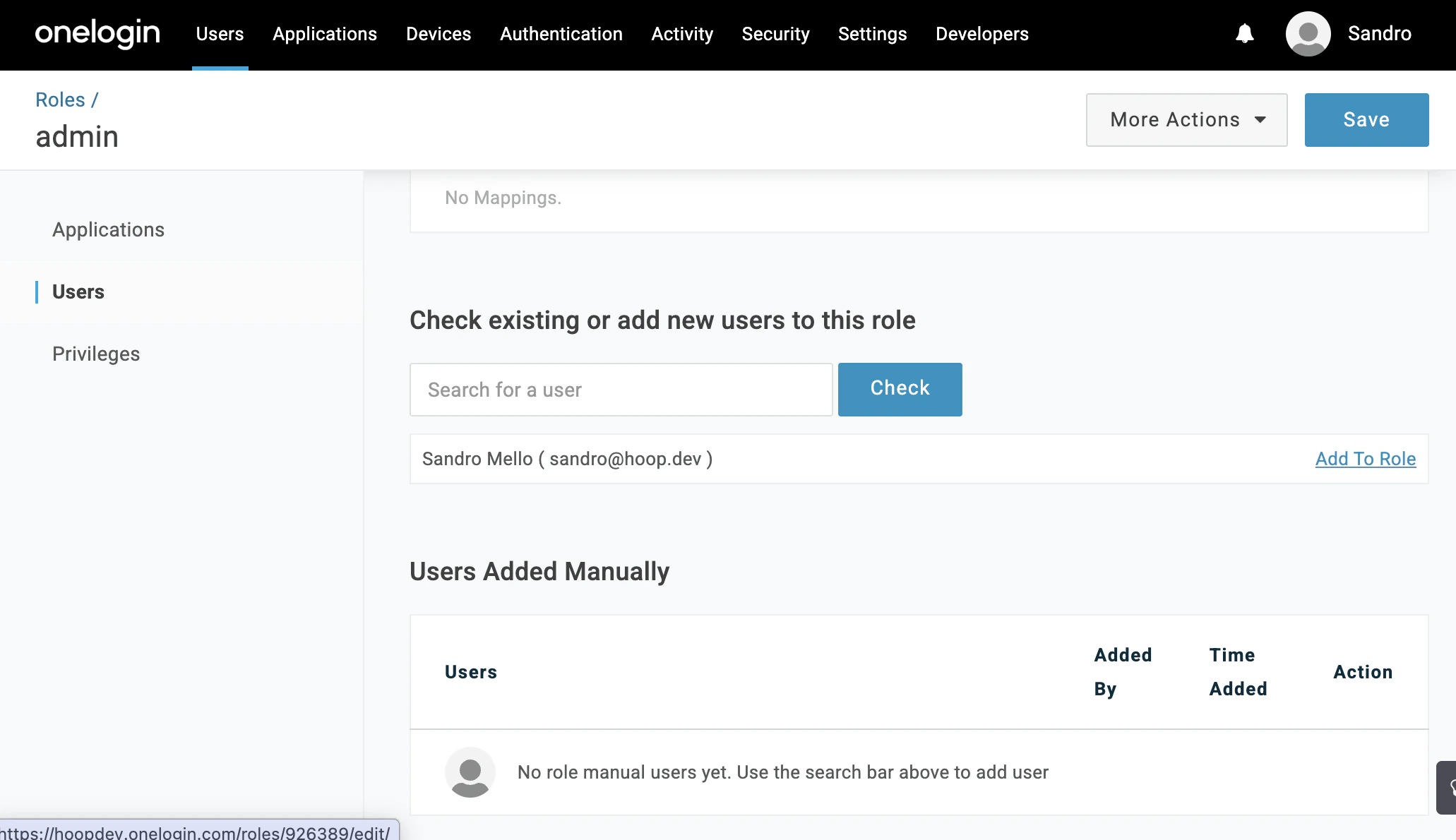
Associate Users to Role
- Return to Users > Roles
- Select the created role
- Click in Users in the left side bar
- Add the email on the input “Check existing or add new users to this role”
- Click in “Add to Role” and then Save
You could create a mapping to add users automatically to this role.
Create an Application Mapping
- Go to Applications > Your App > Parameters
- Add a new field with the name
groups - Select the checkbox “Include SAML assertion” and “Multi-value parameter”
- Click on Save
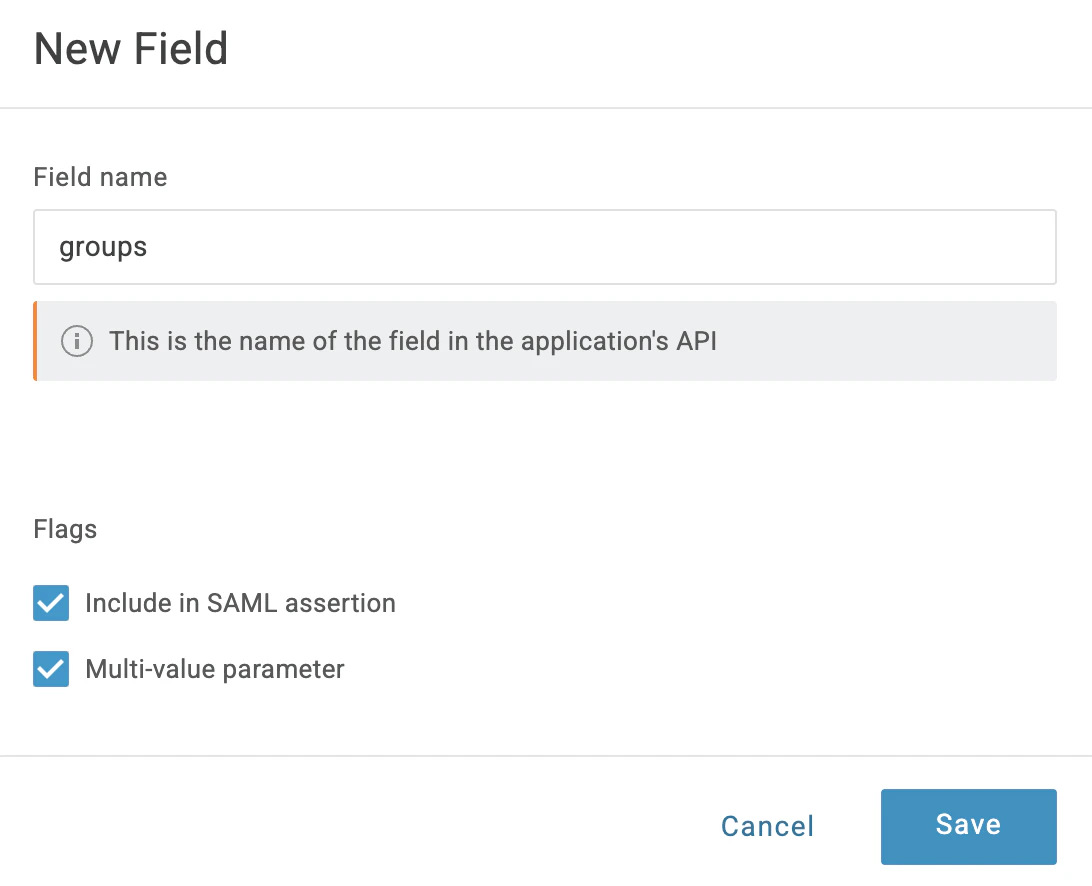
- In the second dropdown field, select “User Roles”
- In the next one, select “Semicolon Delimited Input (Multi-value output)”
- Click on Save
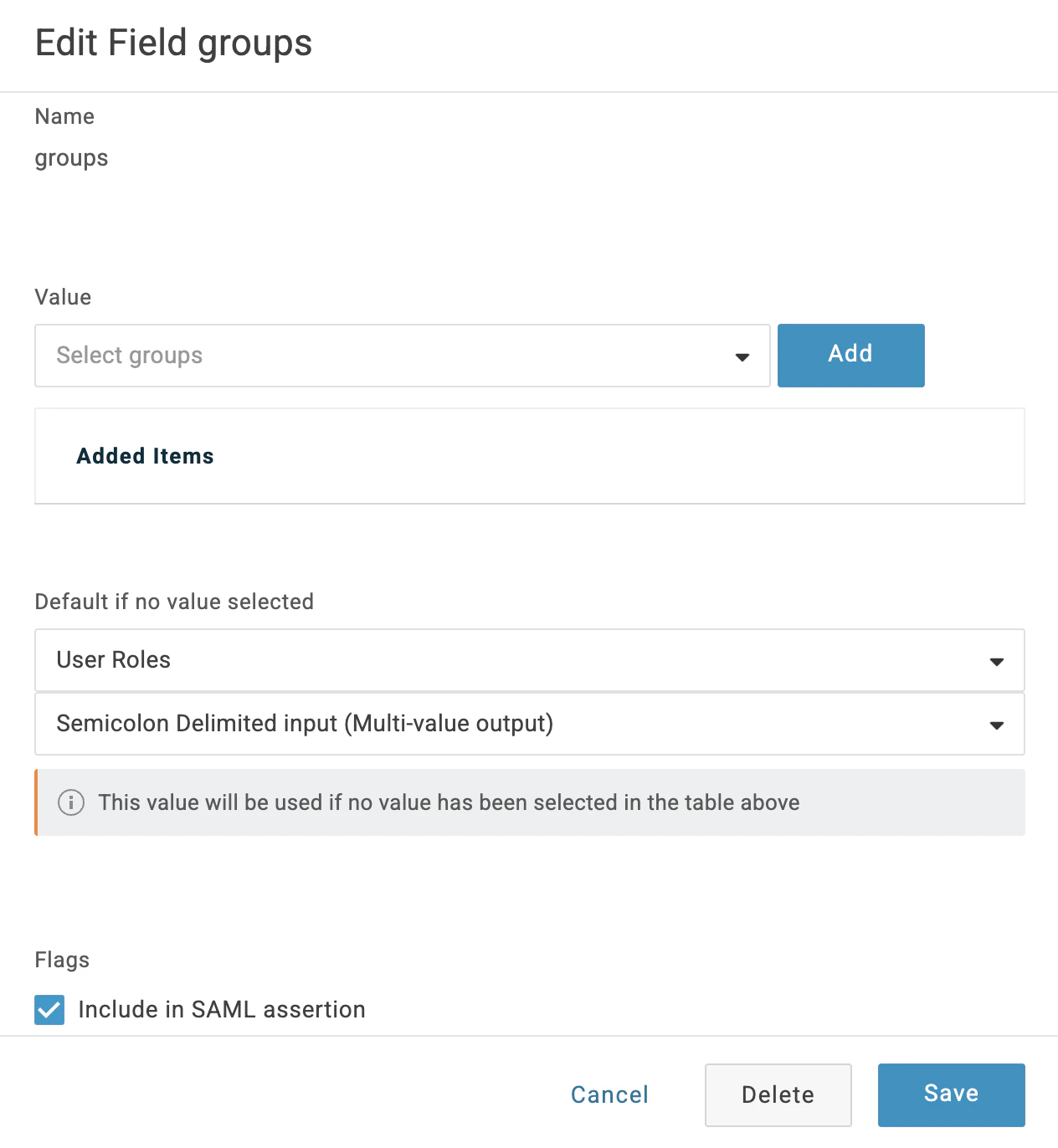
Fields from other integrations, such as Active Directory, can likely be propagated by following the same pattern, however this has not been officially validated yet.