

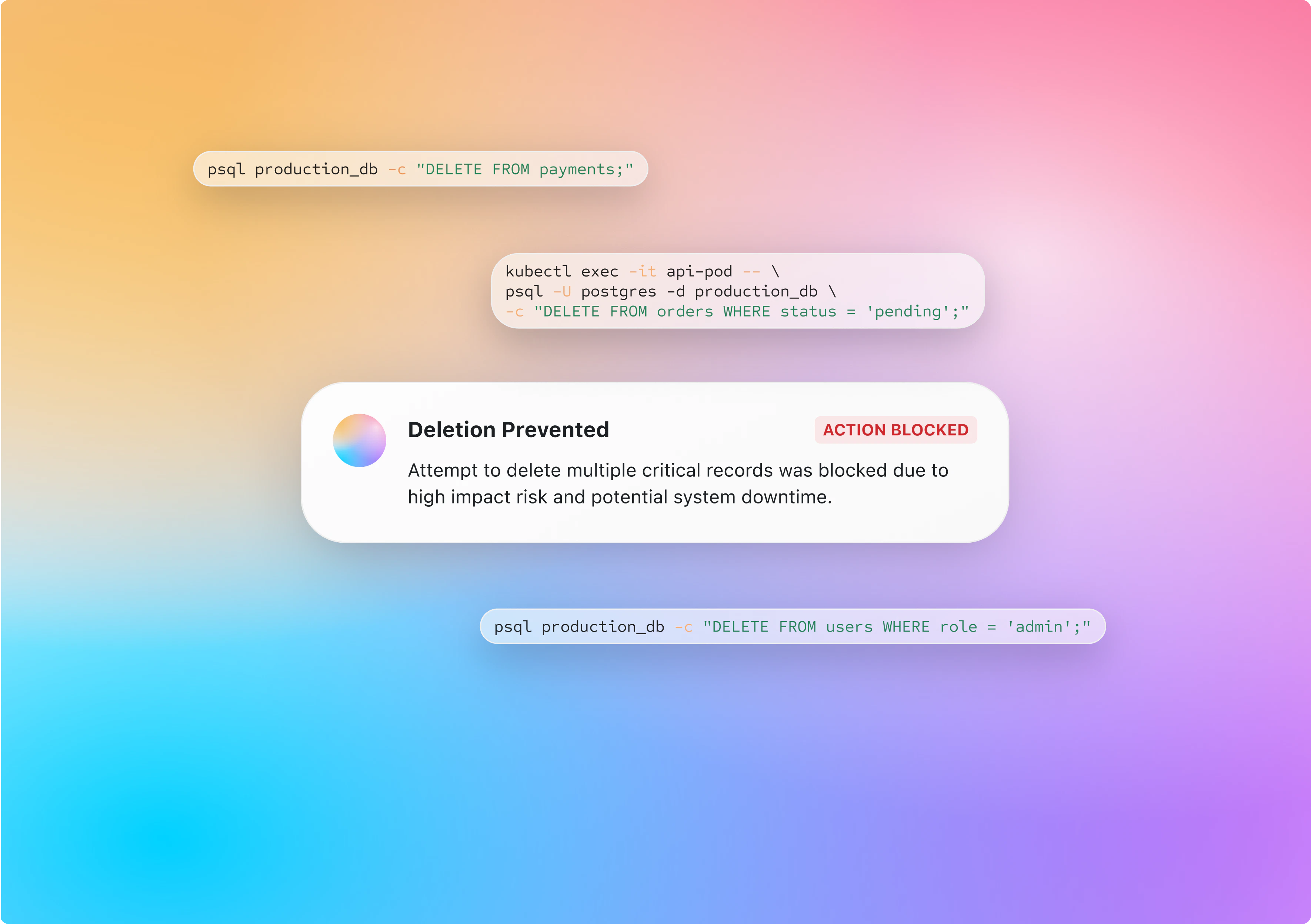
This feature is only available when executing ad-hoc sessions (Webapp & hoop exec cli)
What You’ll Accomplish
AI Session Analyzer is Hoop’s AI-powered risk analysis capability for one-off sessions. It evaluates commands before execution and applies configured policies automatically, so you can:- Detect risky commands in real time before impact
- Block destructive or high-risk operations proactively
- Apply consistent policy decisions across resources
How It Works
1
Configure Provider and Rules
Configure the AI provider and define risk rules.
2
Command Is Analyzed
A command runs and is analyzed in real time by AI.
3
Action Is Applied
Based on the rules and AI analysis, the command is allowed or blocked.
Runtime Analysis Experience
In-Terminal Behavior
When a terminal session starts:- Terminal shows an in-session status card:
AI Session Analyzer is thinking... - Analyzer evaluates activity in real time
- If no rule is violated, show Allowed/success status (non-blocking notification)
- If any configured risk rule is triggered, show Blocked status (prominent restriction notification)
Session Details Review
In the session detailed view:- Top status list includes AI Session Analyzer item
- Item displays action status: Allowed or Blocked
- A dedicated card shows:
- Title plus risk level indicator (Low Risk, Medium Risk, High Risk)
- Action applied by rule (Allowed or Blocked)
Status Types
Best Practices
Recommended Risk Evaluation
Use the recommended risk evaluation to apply policies based on each session’s risk profile.
Scope by Role
Apply stricter policies to privileged roles and production-facing resources first.
Review Outcomes Weekly
Audit Allowed/Blocked trends and tune rules for false positives or blind spots.
Ready to turn it on? The AI Session Analyzer configuration guide walks through connecting an AI provider, creating risk rules, and verifying results.
Next Steps
Guardrails
Add deterministic query and command controls
Live Data Masking
Protect sensitive output with automatic redaction
Session Recording
Audit command history and investigation trails
Access Requests
Require approvals for sensitive operations