

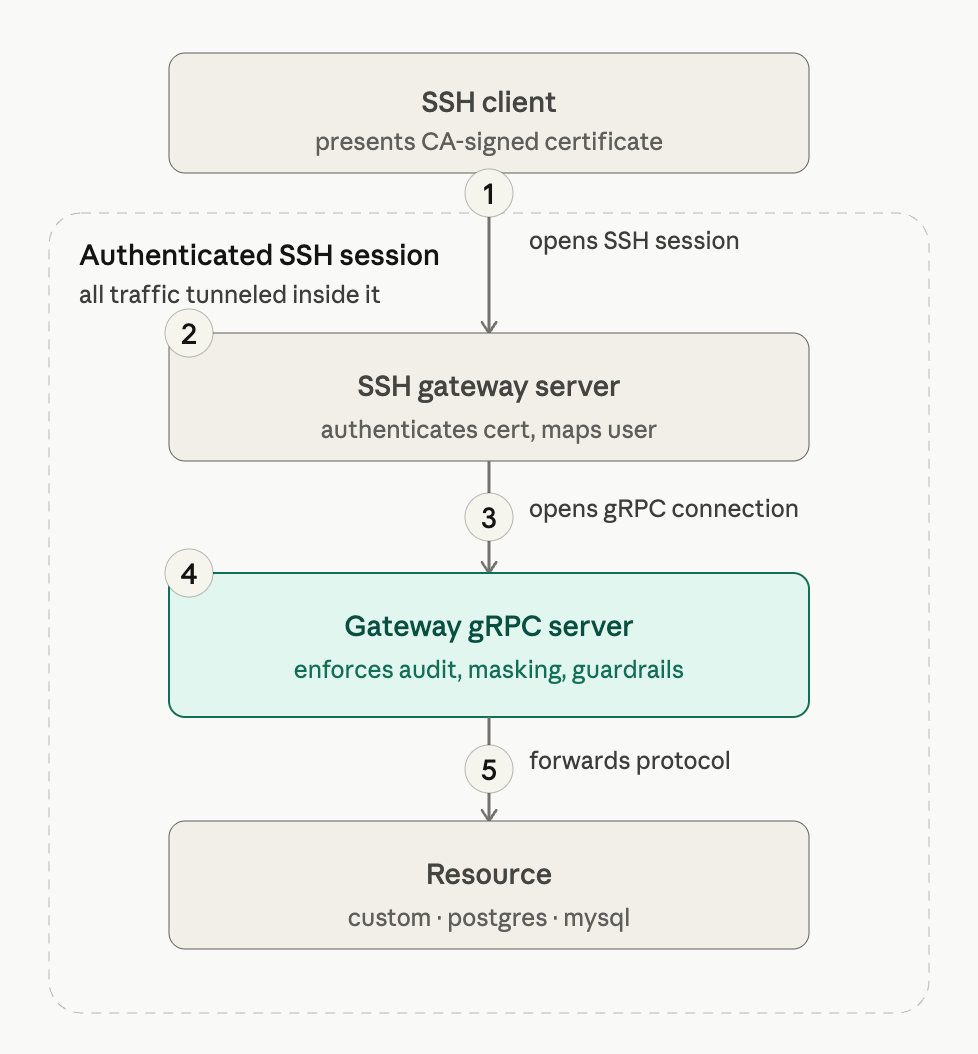
1
SSH client presents a certificate
The user’s SSH client authenticates using a certificate signed by a trusted CA. No passwords or API tokens are needed — the certificate is the only credential.
2
SSH gateway server validates and maps the user
The Hoop SSH gateway verifies the certificate signature against the configured trusted CA. It then extracts the configured certificate attribute (
principal or key_id) and maps it to a known Hoop user via the configured user attribute (user_id, subject, or email). The connection is rejected if no matching user is found or if the certificate is expired or unsigned.3
Internal gRPC connection is opened
Once the user is authenticated, the SSH gateway opens an internal gRPC connection to the core Hoop gateway server, passing the resolved user identity and the requested resource role.
4
Policies are enforced and the protocol is forwarded
The gRPC server applies all configured policies for that resource role and user — session recording, data masking, guardrails, and access reviews — and simultaneously proxies the underlying protocol to the target resource. For
custom resource roles this is a PTY or stdin stream; for postgres and mysql it is a raw TCP port-forward. From this point, the session is indistinguishable from a native Hoop session.How It Works
The Hoop gateway exposes an SSH server that validates incoming connections via SSH certificate extensions. Access is granted or denied based on the following extensions present in the certificate:
Hoop uses the standard SSH protocol as a secure authenticated transport layer and forwards the underlying protocols internally over gRPC.
Certificate Attributes
The certificate is validated against Hoop user attributes to identify the connecting user. Configure which certificate field maps to which Hoop user attribute: Certificate attribute (source):
Hoop user attribute (target):
Configuration
Use thehoop admin sshserver apply command to configure the SSH server on your gateway. At minimum you need to provide the trusted CA public key, a listen address, and the attribute mapping between the certificate and a Hoop user.
The SSH server restarts automatically after each
apply to pick up the new configuration. Existing connections will be dropped briefly during the restart.--trusted-ca once per CA to trust certificates from more than one authority:
key_id from the certificate and match it against the user’s subject:
Generating Certificates
The examples below use
ssh-keygen to operate a self-managed CA — suitable for testing and small deployments. For production environments, use a dedicated PKI solution such as HashiCorp Vault SSH Secrets Engine, Smallstep, or AWS Private CA to handle certificate issuance, renewal, and revocation at scale.ca) must be kept secret; the public key (ca.pub) is registered with the Hoop gateway via --trusted-ca.
alice-cert.pub alongside the existing alice and alice.pub files. The SSH client automatically uses the certificate when alice is passed as the identity file.
The
-n principals list must contain the value the Hoop gateway will look up. For example, if the gateway is configured with --cert-attr principal and --user-attr user_id, one of the principals must be the user’s Hoop user_id.Supported Resource Role Types
Clients connect to Hoop resources by specifying a Resource Role name as the SSH command argument. Each resource role type maps to a different access pattern:custom
Interactive terminal sessions and ad-hoc command execution. The user connects to a predefined entrypoint (e.g.
bash, python) and cannot escape the command defined in the resource role.Postgres
Port-forwards a PostgreSQL connection to your local machine. Connect with any IDE or the
psql CLI as if the database were running locally.MySQL
Port-forwards a MySQL connection to your local machine. Connect with any IDE or the
mysql CLI as if the database were running locally.Client Usage
Terminal Access
When the resource role is configured with a shell or REPL entrypoint, the SSH client opens an interactive terminal session. Use the-t flag to request a pseudo-TTY allocation:
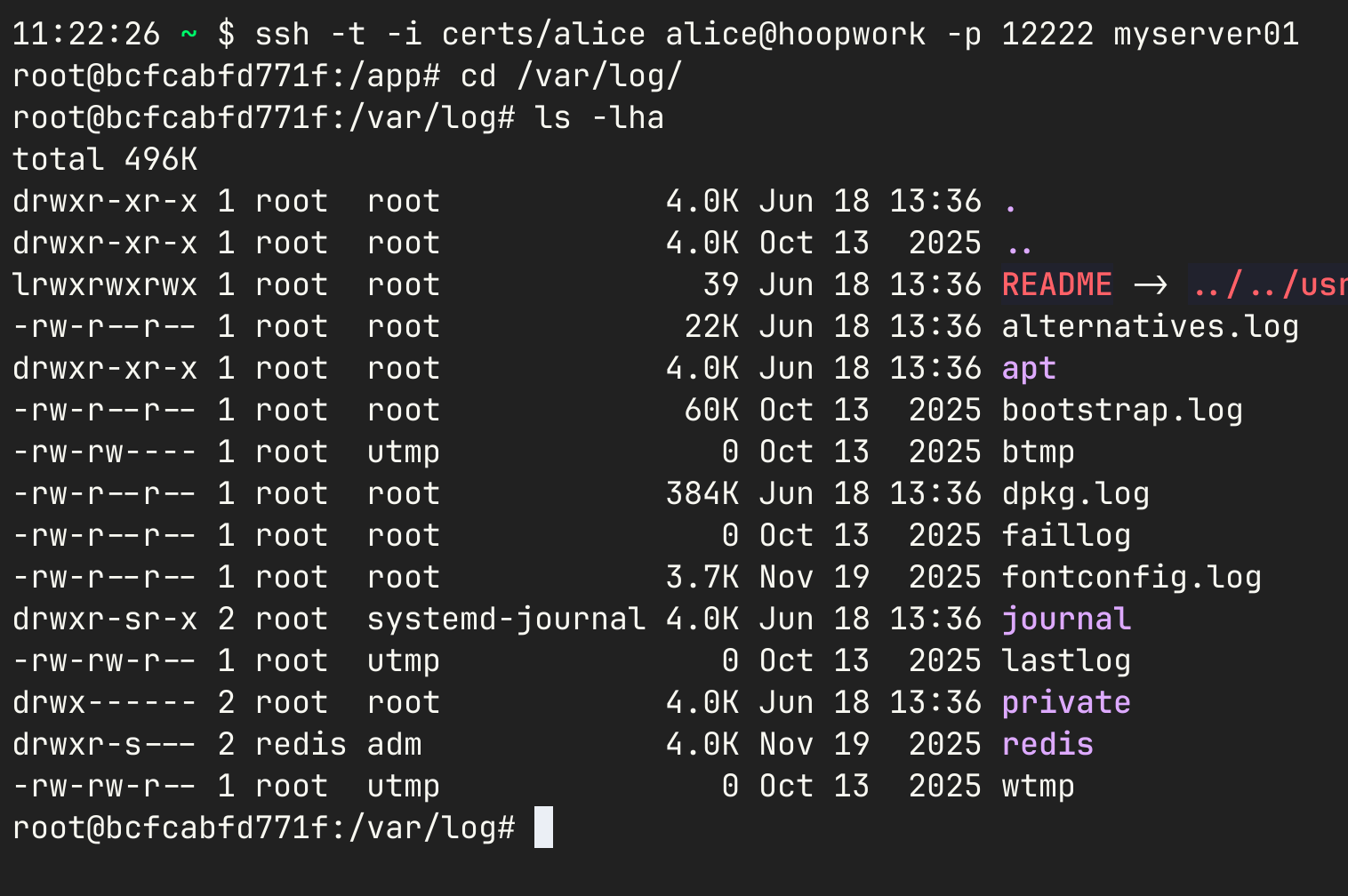
Live demonstration of an interactive terminal session connected to a real server via Hoop.
Ad-Hoc Command Execution
Over the same resource role you can run one-off commands without opening an interactive session. The command is passed as an argument after the resource role name: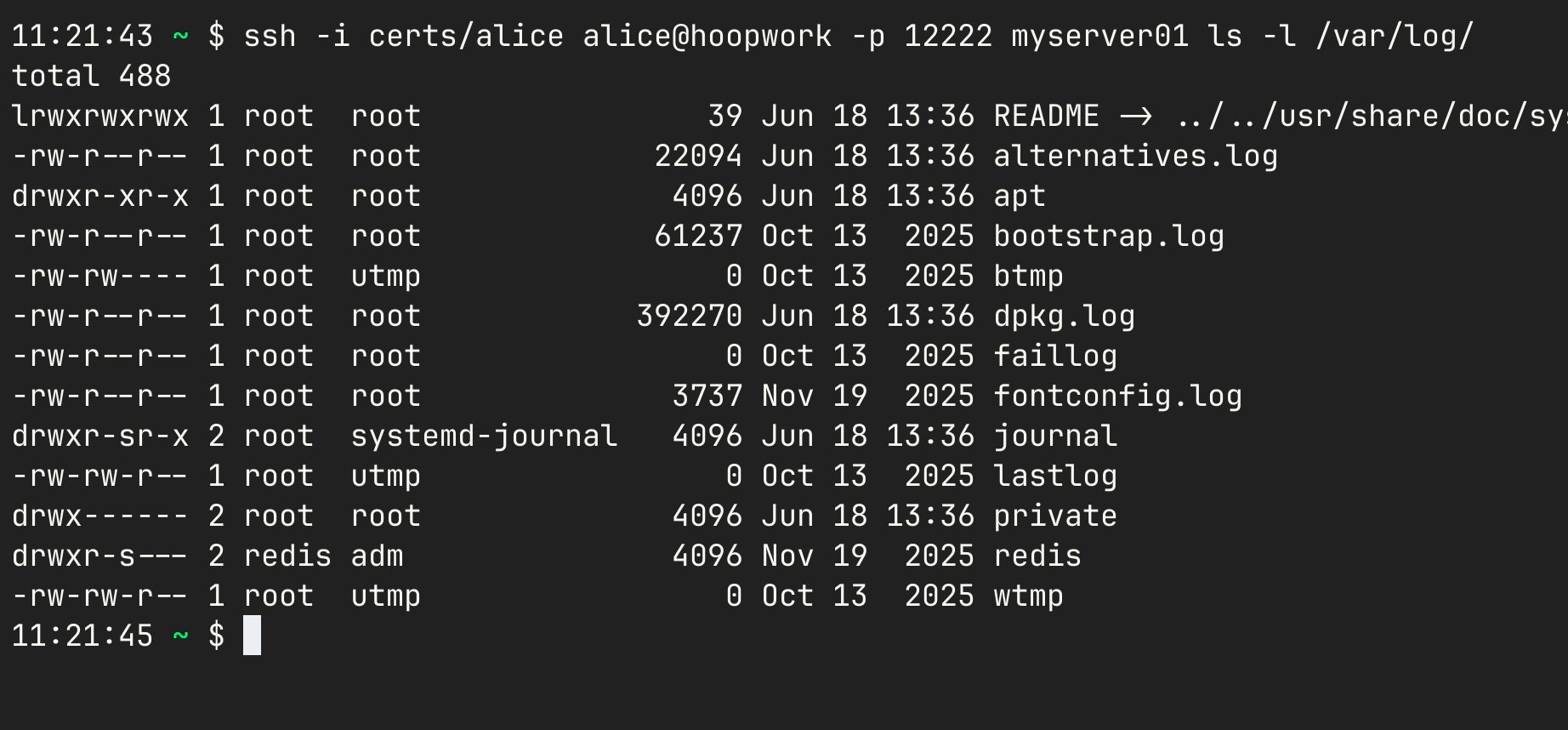
Live demonstration of ad-hoc command execution against a real server via Hoop.
Piping Standard Input
For tools that consume complex or multi-line input, pipe stdin directly into the SSH command: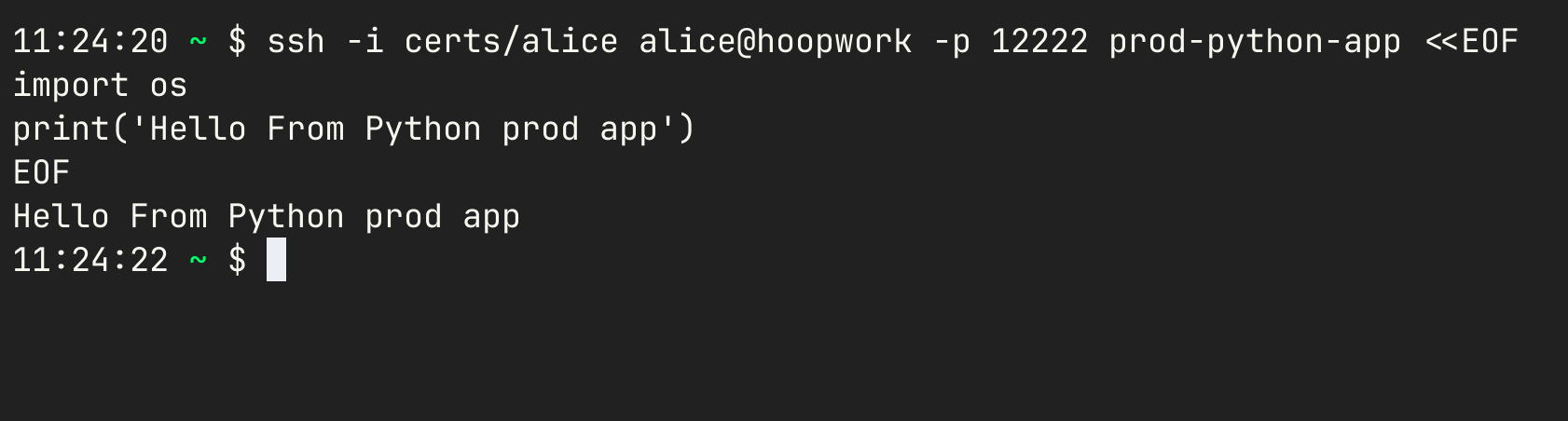
Live demonstration of stdin piping against a real server via Hoop.
Database Port Forwarding
Port-forward a database resource role to your local machine and connect with any IDE or CLI tool: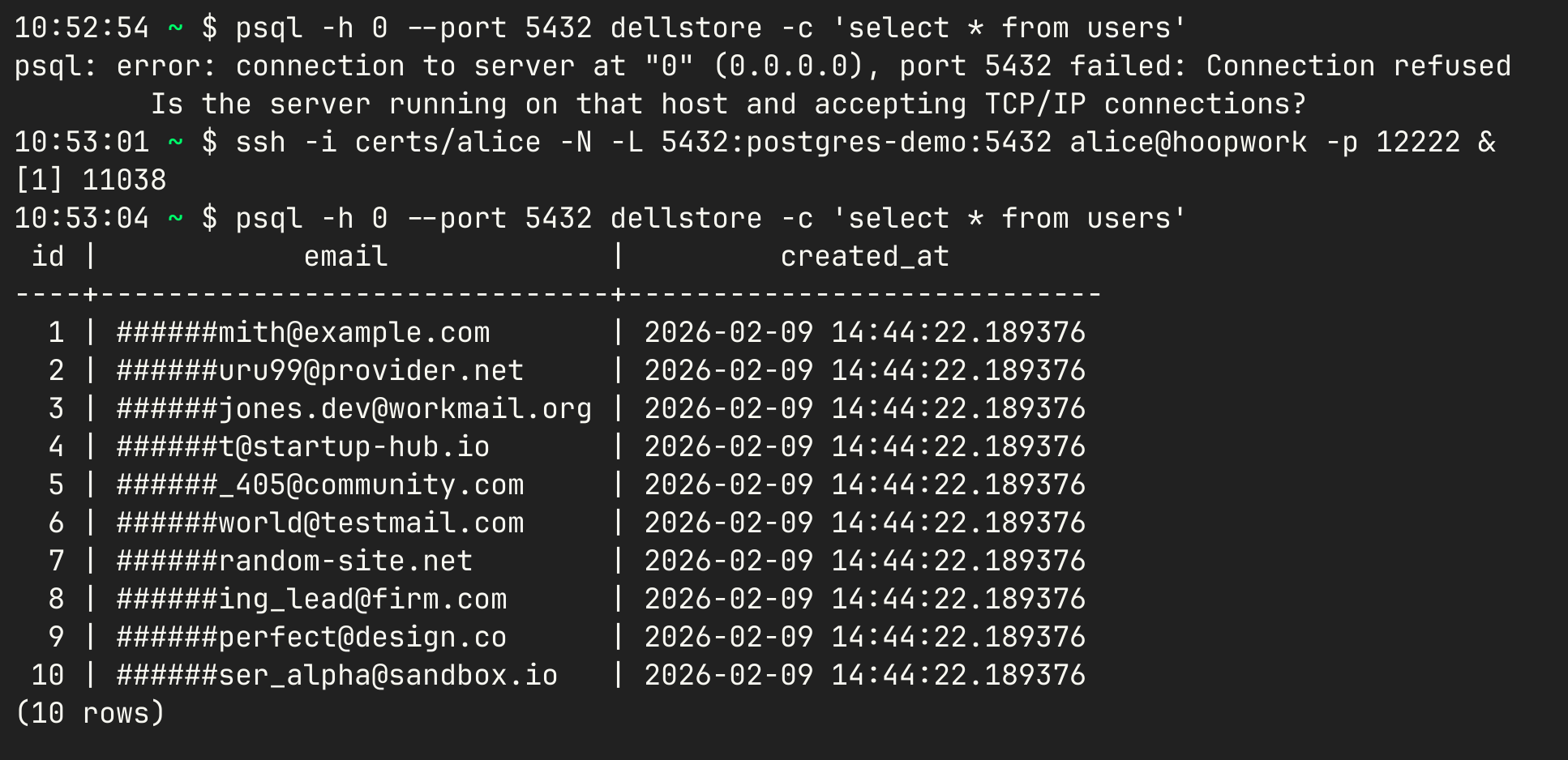
Live demonstration of port-forwarding to a real PostgreSQL server via Hoop. Sensitive column values are automatically redacted by Hoop's Data Masking feature.
Running as a Jump Host
You can configure a standardsshd server to forward specific users through Hoop, extending your existing bastion with Hoop’s capabilities rather than replacing it.
sshd Configuration
Add the following directives to yoursshd_config on the bastion server:
The bastion and Hoop gateway must share the same CA key (
TrustedUserCAKeys) and host key (HostKey) so that clients do not encounter host verification errors when jumping between them.