
Before you start

To get the most out of this guide, you will need to:

Features

The table below outlines the features available for this type of connection.
  • Native - Indicates the connectivity happens through the Hoop command line (hoop connect <connection-name>) or acessing the protocol port directly on the gateway.
  • One Off - This term refers to accessing the resource from Hoop Web Console.
FeatureNativeOne OffDescription
TLS Termination ProxyThe local proxy terminates the connection with TLS, enabling the connection with the remote server to be TLS encrypted.
AuditThe gateway stores and audits the queries being issued by the client.
Data Masking (Google DLP)A policy can be enabled to mask sensitive fields dynamically when performing queries in the database.
Data Masking (MS Presidio)A policy can be enabled to mask sensitive fields dynamically when performing queries in the database.
GuardrailsAn intelligent layer of protection with smart access controls and monitoring mechanisms.
Credentials OffloadThe user authenticates via SSO instead of using database credentials.
Interactive AccessInteractive access is available when using an IDE or connecting via a terminal to perform analysis exploration.

EKS Access Setup

This guide explains how to enable access to an EKS cluster using AWS IAM roles and Kubernetes RBAC.

Role X and Role Y

  • Role X: the Hoop agent’s runtime identity (EC2, IRSA, or injected credentials)
  • Role Y: the IAM role used only to authenticate to EKS
The Hoop agent uses Role X to assume Role Y and generate the EKS token.

Step 1 — Create IAM Role Y

Create a role that represents the Kubernetes identity (Role Y). Use a clear name like arn:aws:iam::<AWS_ACCOUNT_ID>:role/eks-access-role. Example trust policy (allow Role X to assume Role Y):
{
  "Version": "2012-10-17",
  "Statement": [
    {
      "Effect": "Allow",
      "Principal": {
        "AWS": "arn:aws:iam::<AWS_ACCOUNT_ID>:role/<role-x>"
      },
      "Action": "sts:AssumeRole"
    }
  ]
}

Step 2 — Allow AssumeRole (Role X -> Role Y)

Attach a policy to Role X:
{
  "Effect": "Allow",
  "Action": "sts:AssumeRole",
  "Resource": "arn:aws:iam::<AWS_ACCOUNT_ID>:role/eks-access-role"
}

Step 3 — Create the EKS Access Entry

aws eks create-access-entry \
  --cluster-name <cluster-name> \
  --principal-arn arn:aws:iam::<AWS_ACCOUNT_ID>:role/eks-access-role \
  --type STANDARD \
  --username "eks-access-role:{{SessionNameRaw}}"
The username template becomes the Kubernetes username that RBAC evaluates.

Step 4 — Create the Kubernetes ClusterRoleBinding

kubectl apply -f - <<EOF
apiVersion: rbac.authorization.k8s.io/v1
kind: ClusterRoleBinding
metadata:
  name: eks-access-role-cluster-admin
subjects:
- kind: User
  name: eks-access-role:developers
roleRef:
  kind: ClusterRole
  name: cluster-admin
  apiGroup: rbac.authorization.k8s.io
EOF
roleRef points to the Kubernetes role that will be granted. You can replace cluster-admin with a least-privilege ClusterRole or use a namespace-scoped Role and RoleBinding if you do not need cluster-wide access. You can create multiple bindings for different groups or users. For example, bind eks-access-role:developers to a read-only role and eks-access-role:admins to an admin role. The developers suffix is the session name value. It can represent a user, group, or role binding name as long as it matches your RBAC subject.

Configure the Hoop agent to assume Role Y
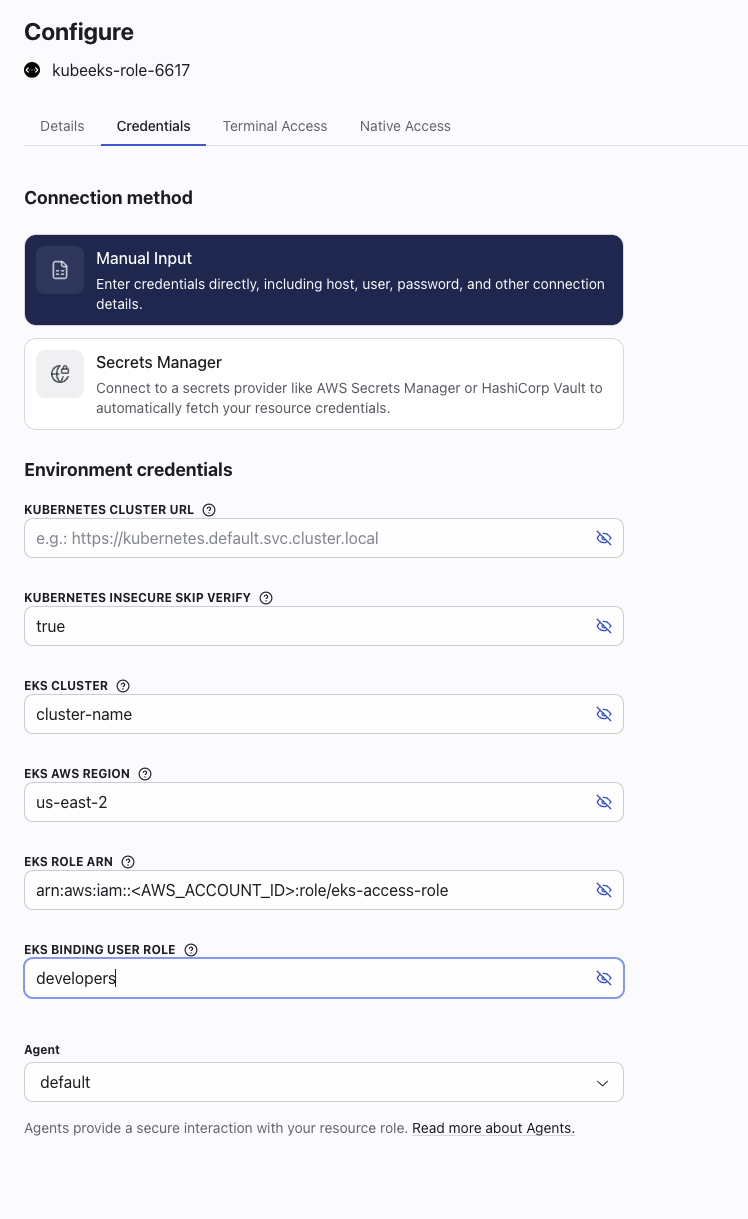
Kubernetes EKS credentials configuration In the Hoop UI, select the Kubernetes EKS connection and set:
  • EKS_ROLE_ARN to arn:aws:iam::<AWS_ACCOUNT_ID>:role/eks-access-role
  • EKS_BINDING_USER_ROLE to your binding name (for example developers)
Save the configuration and reload the connection so the agent picks up the new values.