> ## Documentation Index
> Fetch the complete documentation index at: https://mintlify.hoop.dev/docs/llms.txt
> Use this file to discover all available pages before exploring further.
# Resource Provisioning Configuration
> Build a database inventory, configure admin credentials, and provision PostgreSQL roles with a plan/apply workflow — in the Web App or via the CLI.
For an introduction to what the Provisioning hub does and how the plan/apply model works, see the [Resource Provisioning overview](/learn/features/resource-provisioning).
## Prerequisites
* Either [create an account in our managed instance](https://use.hoop.dev) or [deploy your own hoop.dev instance](/setup/deployment/overview)
* Have admin access to your hoop.dev instance
* At least one PostgreSQL Resource Role registered in Hoop
* Admin credentials (username + password) for each database you want to manage
* The agent serving those Resource Roles must be online
***
## Step 1: Build the Inventory
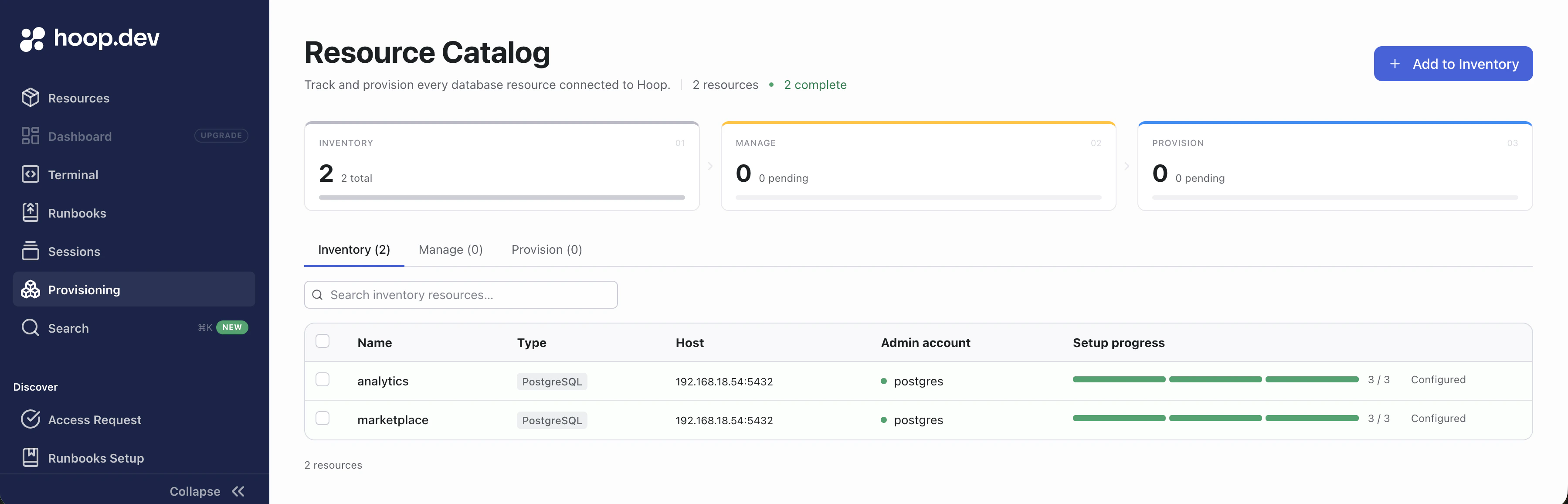
Navigate to **Provisioning** in the left sidebar. The Resource Catalog opens on the **Inventory** tab.
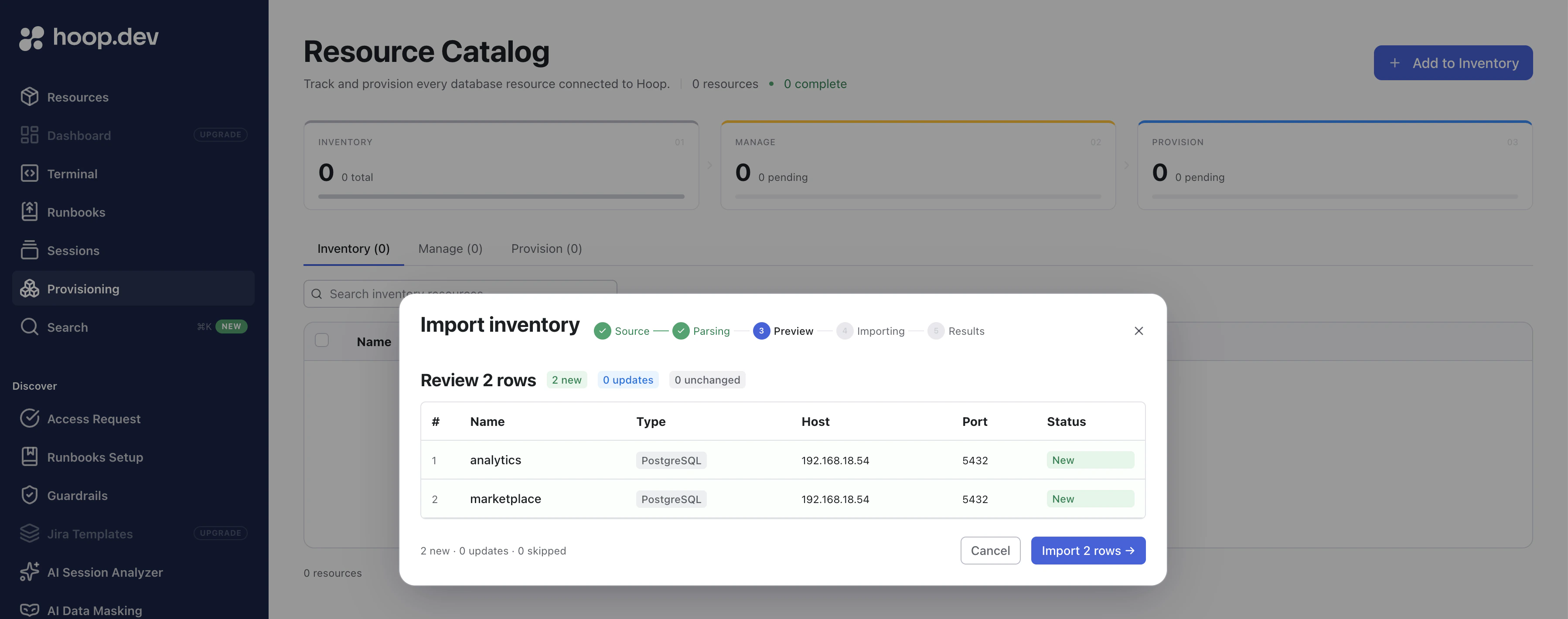
Click **Add to Inventory**. You can enter resources manually or upload a CSV file. The wizard previews the rows before importing, flagging new additions, updates, and unchanged entries.
The CSV must use the following format:
```csv theme={"dark"}
name,type,host,port
analytics,PostgreSQL,192.168.18.54,5432
marketplace,PostgreSQL,192.168.18.54,5432
```
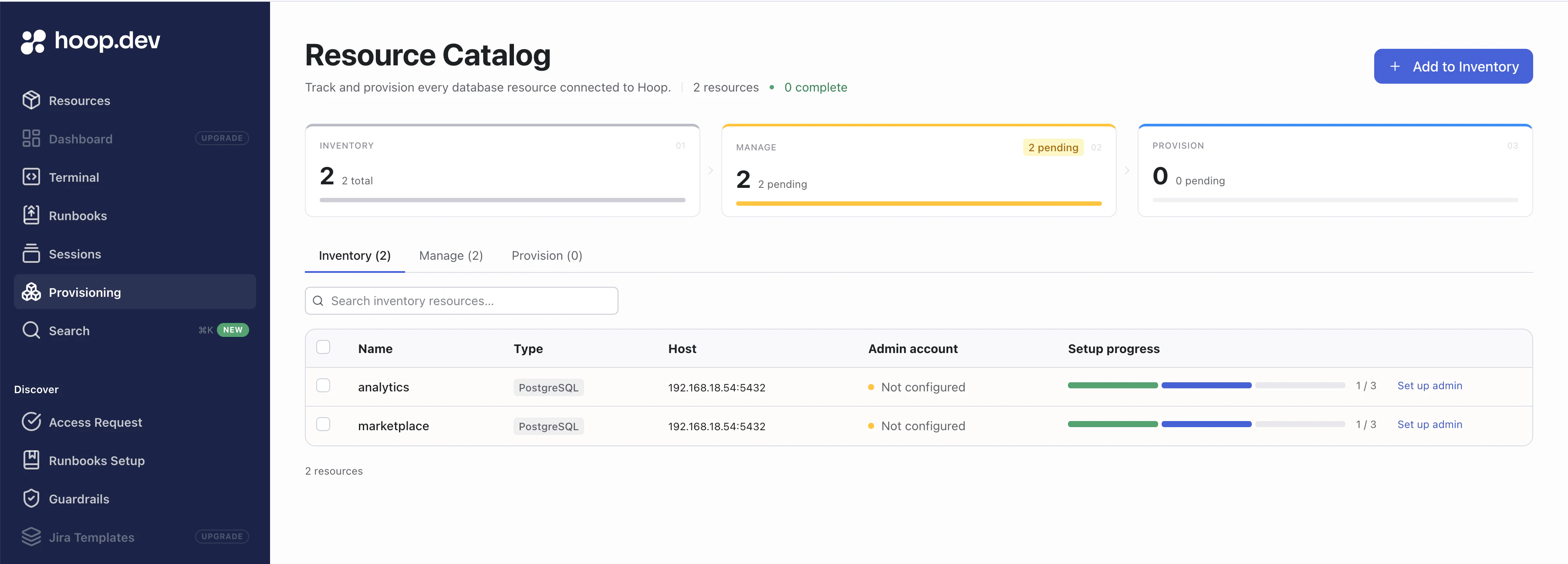
Once imported, the Inventory tab lists every resource with its current **Setup progress** (a three-step bar: Inventory → Manage → Provision).
***
## Step 2: Configure Admin Accounts
After import, the **Manage** funnel counter shows how many resources still need admin credentials. Click **Set up admin** next to any resource (or select multiple and use the bulk action bar) to open the admin account editor.
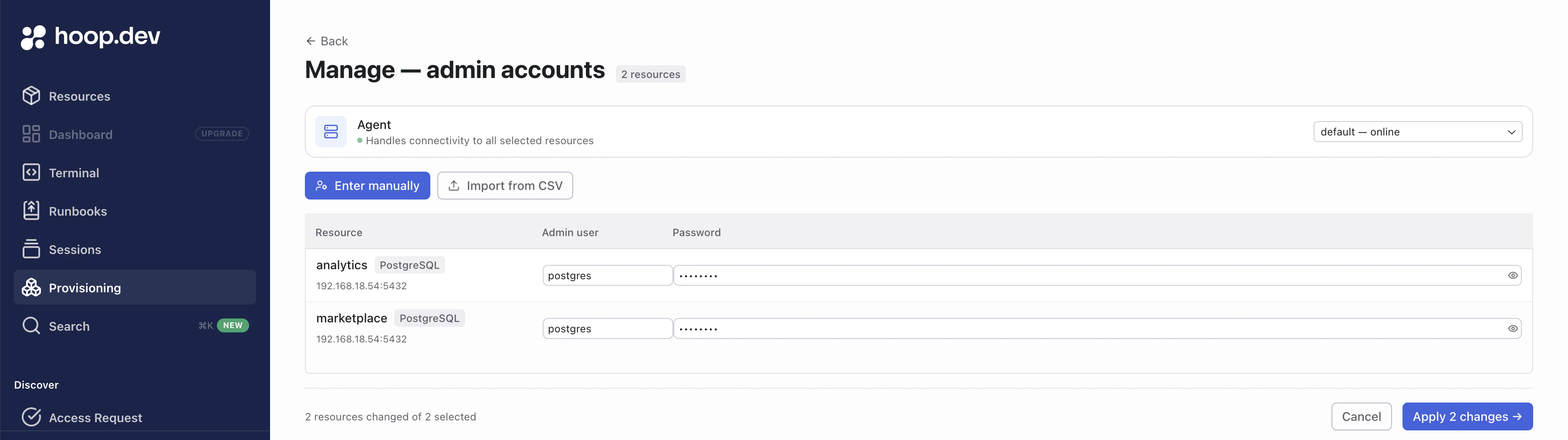
Enter the **Admin user** (typically `postgres` or another superuser) and the corresponding **Password** for each resource. You can also import credentials from a CSV if you're configuring many resources at once.
Select the **Agent** that has network access to the databases — the dropdown shows all online agents. Click **Apply changes** to save. Hoop validates connectivity before storing the credentials.
Once every resource has credentials, the Manage counter drops to zero and the **Provision** counter shows the pending count.
***
## Step 3: Provision Roles
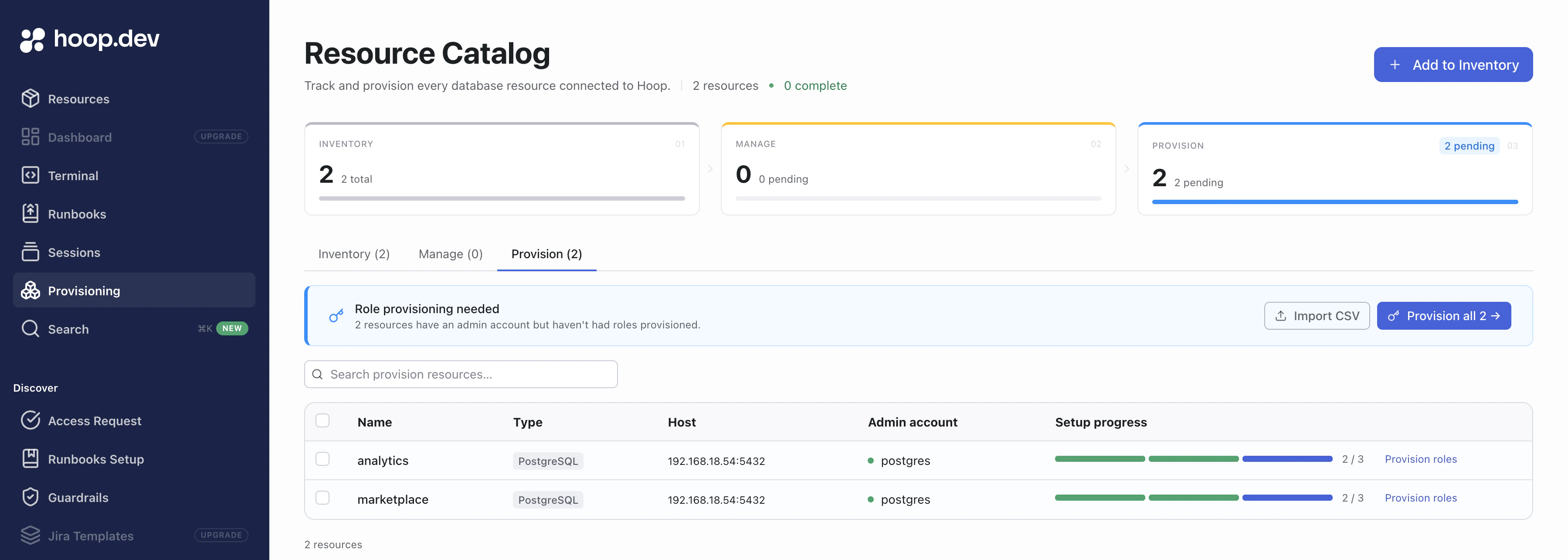
Open the **Provision** tab. Resources that have admin credentials but no provisioned roles appear here.
You can configure roles in two ways:
### Option A: Import from CSV
Click **Import CSV** to upload a role definition file. Each row defines one role:
```csv theme={"dark"}
resource_name,type,role,scopes,permissions,source_role
analytics,managed,ro,analytics.public;legacy;app,SELECT,
analytics,managed,rw,analytics,SELECT;INSERT;UPDATE,
marketplace,external,ro,,,pg_read_all_data
```
| Column | Description |
| --------------- | ------------------------------------------------------------------------------------------------------------------------------------------------------------------ |
| `resource_name` | Name of the resource in the inventory |
| `type` | `managed` or `external` |
| `role` | Short label appended to the generated role name (e.g. `ro` → `hoopdev_analytics_ro_`) |
| `scopes` | Semicolon-separated scopes for managed roles. Use `database` to target all schemas or `database.schema` for a specific schema (e.g. `analytics.public;legacy;app`) |
| `permissions` | Semicolon-separated Postgres privileges for managed roles (e.g. `SELECT` or `SELECT;INSERT;UPDATE`) |
| `source_role` | Existing Postgres role to inherit from — used only with `external` type |
### Option B: Provision roles individually
Click **Provision roles** next to a specific resource to open the role configuration wizard for that resource.
### Running the Plan
After configuring your roles, click **Provision all** (or select individual resources and click **Provision roles**). Hoop runs a **dry-run plan** — it connects to each Postgres cluster, inspects the live catalog state, and computes the exact SQL statements needed.
Each role appears with:
* The generated role name (e.g. `hoopdev_analytics_ro_6079a443`)
* The target scopes or inherited role
* A **View session** link to inspect the full plan output
* **Plan ready** status — meaning the plan computed successfully and is safe to apply
Role names follow the pattern `hoopdev__
### Applying the Plan
Review the plan sessions to confirm the SQL looks correct. When satisfied, click **Apply** on individual roles or **Apply N roles** to apply all at once. Hoop executes the SQL against each Postgres cluster.
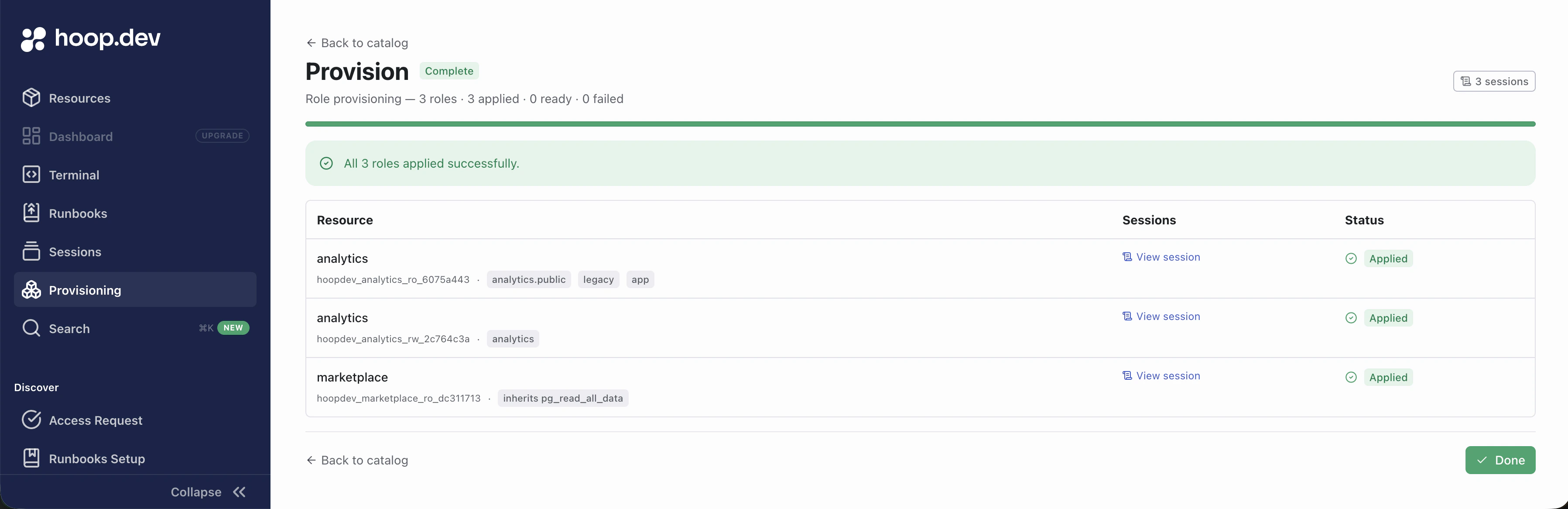
On completion, every role shows **Applied** status and the Inventory tab reflects the fully configured state.
***
## Audit Sessions
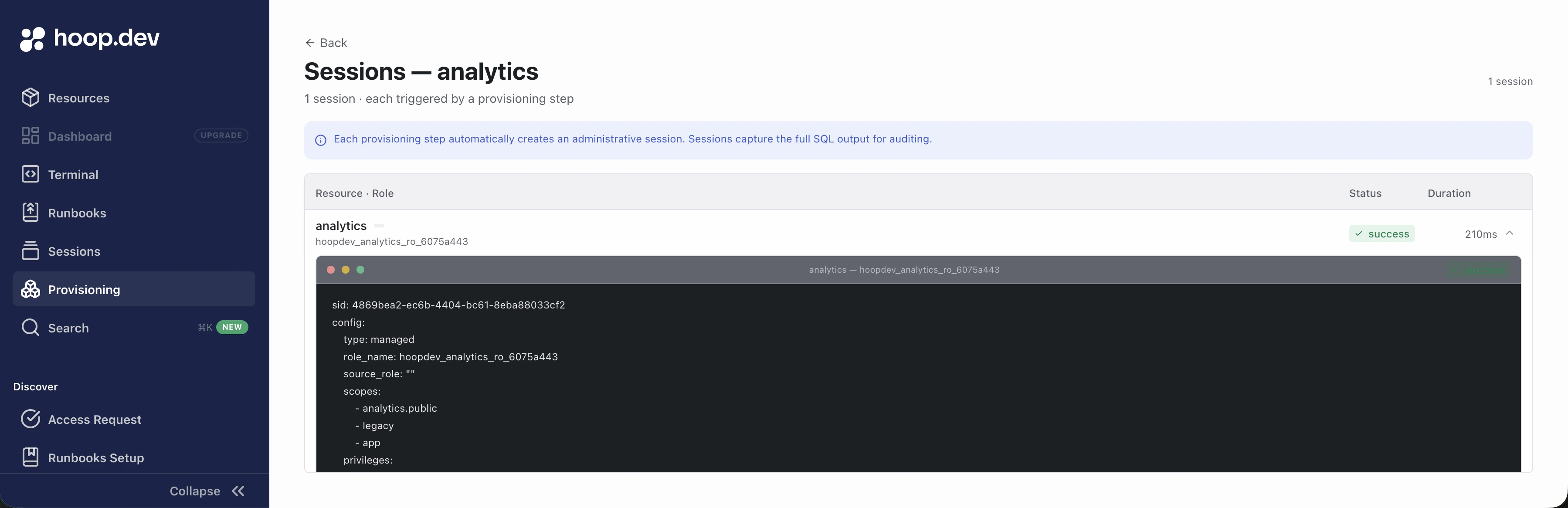
Every plan and apply step creates an administrative session that captures the full SQL output. Click **View session** on any role in the Provision view (or navigate to **Sessions** in the Provision tab) to inspect the raw output.
The session output contains several sections:
```yaml theme={"dark"}
sid: 986e35ce-f3fc-4f79-b136-512eada7b850
config:
type: managed
role_name: hoopdev_analytics_ro_6075a443
source_role: ""
scopes:
- analytics.public
- legacy
- app
privileges:
- SELECT
rotate_password: false
current_state:
role: hoopdev_analytics_ro_6075a443
requires_migration: true
exists: false
attributes: {}
memberships: []
scope_states:
analytics.public:
bulk_privileges: []
table_count: 1
status: out-of-sync/unprovisioned
exceptions:
missing: {}
extra: {}
app.public:
bulk_privileges: []
table_count: 4
status: out-of-sync/unprovisioned
exceptions:
missing: {}
extra: {}
legacy.public:
bulk_privileges: []
table_count: 1
status: out-of-sync/unprovisioned
exceptions:
missing: {}
extra: {}
sql_plan: |+
-- =========================================================
-- Role: hoopdev_analytics_ro_6075a443
-- =========================================================
-- Role does not exist yet; create it with the desired attributes.
-- The password below is randomly generated — capture it before applying.
CREATE ROLE "hoopdev_analytics_ro_6075a443" WITH PASSWORD 'ROLE_PASSWORD_PLACEHOLDER' INHERIT LOGIN;
-- =========================================================
-- Database: analytics
-- =========================================================
\connect "analytics"
BEGIN;
GRANT CONNECT ON DATABASE "analytics" TO "hoopdev_analytics_ro_6075a443";
GRANT USAGE ON SCHEMA "public" TO "hoopdev_analytics_ro_6075a443";
GRANT SELECT ON ALL TABLES IN SCHEMA "public" TO "hoopdev_analytics_ro_6075a443";
COMMIT;
-- =========================================================
-- Database: app
-- =========================================================
\connect "app"
BEGIN;
GRANT CONNECT ON DATABASE "app" TO "hoopdev_analytics_ro_6075a443";
GRANT USAGE ON SCHEMA "public" TO "hoopdev_analytics_ro_6075a443";
GRANT SELECT ON ALL TABLES IN SCHEMA "public" TO "hoopdev_analytics_ro_6075a443";
COMMIT;
-- =========================================================
-- Database: legacy
-- =========================================================
\connect "legacy"
BEGIN;
GRANT CONNECT ON DATABASE "legacy" TO "hoopdev_analytics_ro_6075a443";
GRANT USAGE ON SCHEMA "public" TO "hoopdev_analytics_ro_6075a443";
GRANT SELECT ON ALL TABLES IN SCHEMA "public" TO "hoopdev_analytics_ro_6075a443";
COMMIT;
sql_plan_checksum: c6da4a8cc008b923114f8a0adcfa201b527b8e05536f4befd2373fe962647e71
command_output: ""
```
**`config`** — The role definition as submitted: type, target role name, scopes, privileges, and whether a password rotation was requested.
**`current_state`** — A snapshot of the live Postgres cluster at plan time. `exists: false` means the role does not yet exist. Each scope entry shows how many tables were found and whether the scope is `out-of-sync/unprovisioned` (needs work) or `in-sync` (already correct). The `requires_migration: true` flag tells Hoop the plan must be applied.
**`sql_plan`** — The exact SQL that will be executed on apply, organized per database. For a new managed role this includes `CREATE ROLE` with a randomly generated password, followed by `GRANT CONNECT`, `GRANT USAGE ON SCHEMA`, and `GRANT SELECT ON ALL TABLES` for each scope.
**`sql_plan_checksum`** — A SHA-256 digest of the plan. Hoop re-computes this checksum at apply time and rejects the apply if the live Postgres state has drifted since the plan was run, preventing stale plans from being applied.
Sessions are queryable in the **Sessions** page and are included in any connected SIEM or webhook export.
***
## Managing via the CLI
All provisioning operations available in the Web App are also accessible from the `hoop resources` command group.
This makes it straightforward to automate provisioning from CI pipelines or scripts.
### Health Check
Test connectivity to a resource before running a plan:
```bash theme={"dark"}
hoop resources health analytics
hoop resources health analytics --json
```
Exits 0 and prints `status: ok` on success. On failure the agent error is returned.
### Plan
Compute a dry-run SQL diff for a single resource:
```bash theme={"dark"}
hoop resources plan analytics \
--role ro \
--scopes analytics.public,legacy,app \
--privileges SELECT
```
On success, the full plan YAML is printed to stdout (including `current_state`, `sql_plan`, and `sql_plan_checksum`). To save the result for a later apply, pipe it to a file with `-o`:
```bash theme={"dark"}
hoop resources plan analytics \
--role ro \
--scopes analytics.public,legacy,app \
--privileges SELECT \
-o result.yaml
```
For multiple resources at once, write a YAML plan file and pass it with `-f`:
```bash theme={"dark"}
hoop resources plan -f plan.yaml -o result.yaml
```
**plan.yaml** format:
```yaml theme={"dark"}
items:
- resource_name: analytics
type: managed
role: ro
scopes:
- analytics.public
- legacy
- app
privileges:
- SELECT
- resource_name: analytics
type: managed
role: rw
scopes:
- analytics
privileges:
- SELECT
- INSERT
- UPDATE
- resource_name: marketplace
type: external
role: ro
source_role: pg_read_all_data
```
| Flag | Description |
| ------------------- | ------------------------------------------------------------------- |
| `--role` | Role label (e.g. `ro`, `rw`) — required without `-f` |
| `--type` | `managed` (default) or `external` |
| `--scopes` | Database or `database.schema` scope — comma-separated or repeatable |
| `--privileges` | Postgres privileges — comma-separated or repeatable |
| `--rotate-password` | Force password rotation on the next apply |
| `-f ` | YAML plan file for batch operations |
| `-o ` | Write plan results to a file (input for `apply -f`) |
To inspect the output of an existing plan session:
```bash theme={"dark"}
hoop resources plan status
```
### Apply
Apply a plan using the SID returned by `plan`:
```bash theme={"dark"}
hoop resources apply analytics --sid 986e35ce-f3fc-4f79-b136-512eada7b850
```
Apply all entries from a plan result file (only entries with `out-of-sync` status are sent to Postgres — already-in-sync entries are skipped automatically):
```bash theme={"dark"}
hoop resources apply -f result.yaml
```
| Flag | Description |
| ----------- | ------------------------------------------------------- |
| `--sid` | Session ID of the plan to apply — required without `-f` |
| `-f ` | Plan result file from `plan -o` |
### Full CI Workflow
```bash theme={"dark"}
# 1. Plan
hoop resources plan -f plan.yaml -o result.yaml
# 2. Review result.yaml — inspect SQL and checksums
# 3. Apply
hoop resources apply -f result.yaml
```
Hoop re-verifies the plan checksum against live Postgres state at apply time. If the cluster has changed since the plan was run, the apply is rejected and a fresh plan must be produced.
 Click **Add to Inventory**. You can enter resources manually or upload a CSV file. The wizard previews the rows before importing, flagging new additions, updates, and unchanged entries.
The CSV must use the following format:
```csv theme={"dark"}
name,type,host,port
analytics,PostgreSQL,192.168.18.54,5432
marketplace,PostgreSQL,192.168.18.54,5432
```
Once imported, the Inventory tab lists every resource with its current **Setup progress** (a three-step bar: Inventory → Manage → Provision).
Click **Add to Inventory**. You can enter resources manually or upload a CSV file. The wizard previews the rows before importing, flagging new additions, updates, and unchanged entries.
The CSV must use the following format:
```csv theme={"dark"}
name,type,host,port
analytics,PostgreSQL,192.168.18.54,5432
marketplace,PostgreSQL,192.168.18.54,5432
```
Once imported, the Inventory tab lists every resource with its current **Setup progress** (a three-step bar: Inventory → Manage → Provision).
 ***
## Step 2: Configure Admin Accounts
After import, the **Manage** funnel counter shows how many resources still need admin credentials. Click **Set up admin** next to any resource (or select multiple and use the bulk action bar) to open the admin account editor.
***
## Step 2: Configure Admin Accounts
After import, the **Manage** funnel counter shows how many resources still need admin credentials. Click **Set up admin** next to any resource (or select multiple and use the bulk action bar) to open the admin account editor.
 Enter the **Admin user** (typically `postgres` or another superuser) and the corresponding **Password** for each resource. You can also import credentials from a CSV if you're configuring many resources at once.
Select the **Agent** that has network access to the databases — the dropdown shows all online agents. Click **Apply changes** to save. Hoop validates connectivity before storing the credentials.
Once every resource has credentials, the Manage counter drops to zero and the **Provision** counter shows the pending count.
***
## Step 3: Provision Roles
Open the **Provision** tab. Resources that have admin credentials but no provisioned roles appear here.
Enter the **Admin user** (typically `postgres` or another superuser) and the corresponding **Password** for each resource. You can also import credentials from a CSV if you're configuring many resources at once.
Select the **Agent** that has network access to the databases — the dropdown shows all online agents. Click **Apply changes** to save. Hoop validates connectivity before storing the credentials.
Once every resource has credentials, the Manage counter drops to zero and the **Provision** counter shows the pending count.
***
## Step 3: Provision Roles
Open the **Provision** tab. Resources that have admin credentials but no provisioned roles appear here.
 You can configure roles in two ways:
### Option A: Import from CSV
Click **Import CSV** to upload a role definition file. Each row defines one role:
```csv theme={"dark"}
resource_name,type,role,scopes,permissions,source_role
analytics,managed,ro,analytics.public;legacy;app,SELECT,
analytics,managed,rw,analytics,SELECT;INSERT;UPDATE,
marketplace,external,ro,,,pg_read_all_data
```
| Column | Description |
| --------------- | ------------------------------------------------------------------------------------------------------------------------------------------------------------------ |
| `resource_name` | Name of the resource in the inventory |
| `type` | `managed` or `external` |
| `role` | Short label appended to the generated role name (e.g. `ro` → `hoopdev_analytics_ro_
You can configure roles in two ways:
### Option A: Import from CSV
Click **Import CSV** to upload a role definition file. Each row defines one role:
```csv theme={"dark"}
resource_name,type,role,scopes,permissions,source_role
analytics,managed,ro,analytics.public;legacy;app,SELECT,
analytics,managed,rw,analytics,SELECT;INSERT;UPDATE,
marketplace,external,ro,,,pg_read_all_data
```
| Column | Description |
| --------------- | ------------------------------------------------------------------------------------------------------------------------------------------------------------------ |
| `resource_name` | Name of the resource in the inventory |
| `type` | `managed` or `external` |
| `role` | Short label appended to the generated role name (e.g. `ro` → `hoopdev_analytics_ro_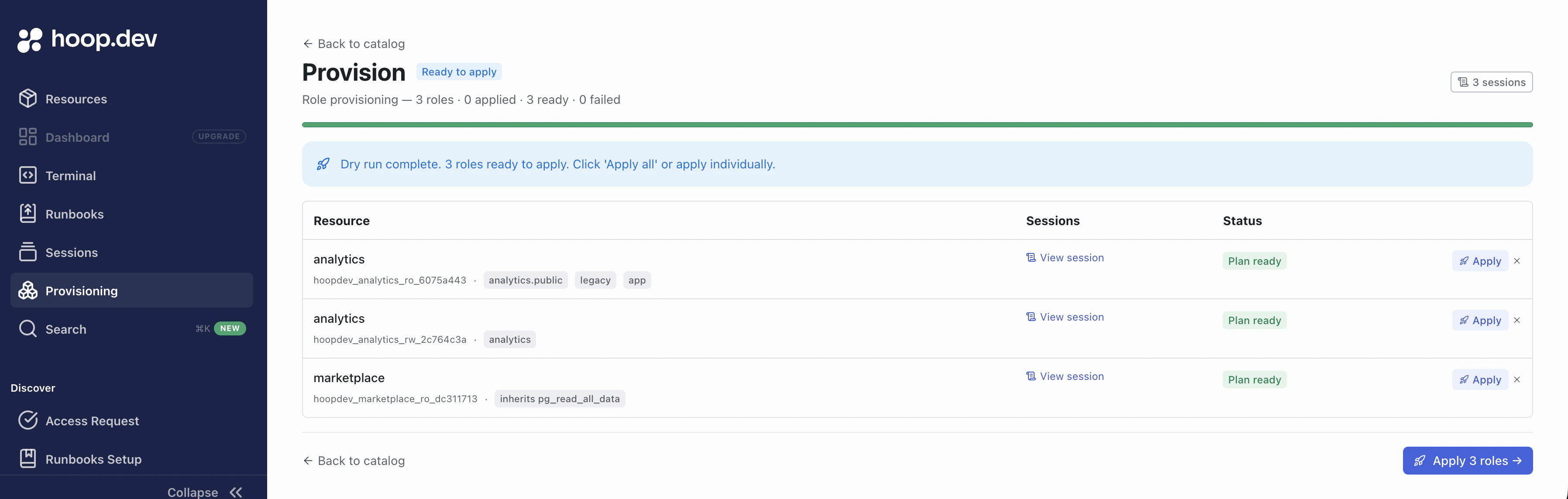 Each role appears with:
* The generated role name (e.g. `hoopdev_analytics_ro_6079a443`)
* The target scopes or inherited role
* A **View session** link to inspect the full plan output
* **Plan ready** status — meaning the plan computed successfully and is safe to apply
Each role appears with:
* The generated role name (e.g. `hoopdev_analytics_ro_6079a443`)
* The target scopes or inherited role
* A **View session** link to inspect the full plan output
* **Plan ready** status — meaning the plan computed successfully and is safe to apply
 On completion, every role shows **Applied** status and the Inventory tab reflects the fully configured state.
 ***
## Audit Sessions
Every plan and apply step creates an administrative session that captures the full SQL output. Click **View session** on any role in the Provision view (or navigate to **Sessions** in the Provision tab) to inspect the raw output.
***
## Audit Sessions
Every plan and apply step creates an administrative session that captures the full SQL output. Click **View session** on any role in the Provision view (or navigate to **Sessions** in the Provision tab) to inspect the raw output.
 The session output contains several sections:
```yaml theme={"dark"}
sid: 986e35ce-f3fc-4f79-b136-512eada7b850
config:
type: managed
role_name: hoopdev_analytics_ro_6075a443
source_role: ""
scopes:
- analytics.public
- legacy
- app
privileges:
- SELECT
rotate_password: false
current_state:
role: hoopdev_analytics_ro_6075a443
requires_migration: true
exists: false
attributes: {}
memberships: []
scope_states:
analytics.public:
bulk_privileges: []
table_count: 1
status: out-of-sync/unprovisioned
exceptions:
missing: {}
extra: {}
app.public:
bulk_privileges: []
table_count: 4
status: out-of-sync/unprovisioned
exceptions:
missing: {}
extra: {}
legacy.public:
bulk_privileges: []
table_count: 1
status: out-of-sync/unprovisioned
exceptions:
missing: {}
extra: {}
sql_plan: |+
-- =========================================================
-- Role: hoopdev_analytics_ro_6075a443
-- =========================================================
-- Role does not exist yet; create it with the desired attributes.
-- The password below is randomly generated — capture it before applying.
CREATE ROLE "hoopdev_analytics_ro_6075a443" WITH PASSWORD 'ROLE_PASSWORD_PLACEHOLDER' INHERIT LOGIN;
-- =========================================================
-- Database: analytics
-- =========================================================
\connect "analytics"
BEGIN;
GRANT CONNECT ON DATABASE "analytics" TO "hoopdev_analytics_ro_6075a443";
GRANT USAGE ON SCHEMA "public" TO "hoopdev_analytics_ro_6075a443";
GRANT SELECT ON ALL TABLES IN SCHEMA "public" TO "hoopdev_analytics_ro_6075a443";
COMMIT;
-- =========================================================
-- Database: app
-- =========================================================
\connect "app"
BEGIN;
GRANT CONNECT ON DATABASE "app" TO "hoopdev_analytics_ro_6075a443";
GRANT USAGE ON SCHEMA "public" TO "hoopdev_analytics_ro_6075a443";
GRANT SELECT ON ALL TABLES IN SCHEMA "public" TO "hoopdev_analytics_ro_6075a443";
COMMIT;
-- =========================================================
-- Database: legacy
-- =========================================================
\connect "legacy"
BEGIN;
GRANT CONNECT ON DATABASE "legacy" TO "hoopdev_analytics_ro_6075a443";
GRANT USAGE ON SCHEMA "public" TO "hoopdev_analytics_ro_6075a443";
GRANT SELECT ON ALL TABLES IN SCHEMA "public" TO "hoopdev_analytics_ro_6075a443";
COMMIT;
sql_plan_checksum: c6da4a8cc008b923114f8a0adcfa201b527b8e05536f4befd2373fe962647e71
command_output: ""
```
**`config`** — The role definition as submitted: type, target role name, scopes, privileges, and whether a password rotation was requested.
**`current_state`** — A snapshot of the live Postgres cluster at plan time. `exists: false` means the role does not yet exist. Each scope entry shows how many tables were found and whether the scope is `out-of-sync/unprovisioned` (needs work) or `in-sync` (already correct). The `requires_migration: true` flag tells Hoop the plan must be applied.
**`sql_plan`** — The exact SQL that will be executed on apply, organized per database. For a new managed role this includes `CREATE ROLE` with a randomly generated password, followed by `GRANT CONNECT`, `GRANT USAGE ON SCHEMA`, and `GRANT SELECT ON ALL TABLES` for each scope.
**`sql_plan_checksum`** — A SHA-256 digest of the plan. Hoop re-computes this checksum at apply time and rejects the apply if the live Postgres state has drifted since the plan was run, preventing stale plans from being applied.
Sessions are queryable in the **Sessions** page and are included in any connected SIEM or webhook export.
***
## Managing via the CLI
All provisioning operations available in the Web App are also accessible from the `hoop resources` command group.
This makes it straightforward to automate provisioning from CI pipelines or scripts.
### Health Check
Test connectivity to a resource before running a plan:
```bash theme={"dark"}
hoop resources health analytics
hoop resources health analytics --json
```
Exits 0 and prints `status: ok` on success. On failure the agent error is returned.
### Plan
Compute a dry-run SQL diff for a single resource:
```bash theme={"dark"}
hoop resources plan analytics \
--role ro \
--scopes analytics.public,legacy,app \
--privileges SELECT
```
On success, the full plan YAML is printed to stdout (including `current_state`, `sql_plan`, and `sql_plan_checksum`). To save the result for a later apply, pipe it to a file with `-o`:
```bash theme={"dark"}
hoop resources plan analytics \
--role ro \
--scopes analytics.public,legacy,app \
--privileges SELECT \
-o result.yaml
```
For multiple resources at once, write a YAML plan file and pass it with `-f`:
```bash theme={"dark"}
hoop resources plan -f plan.yaml -o result.yaml
```
**plan.yaml** format:
```yaml theme={"dark"}
items:
- resource_name: analytics
type: managed
role: ro
scopes:
- analytics.public
- legacy
- app
privileges:
- SELECT
- resource_name: analytics
type: managed
role: rw
scopes:
- analytics
privileges:
- SELECT
- INSERT
- UPDATE
- resource_name: marketplace
type: external
role: ro
source_role: pg_read_all_data
```
| Flag | Description |
| ------------------- | ------------------------------------------------------------------- |
| `--role` | Role label (e.g. `ro`, `rw`) — required without `-f` |
| `--type` | `managed` (default) or `external` |
| `--scopes` | Database or `database.schema` scope — comma-separated or repeatable |
| `--privileges` | Postgres privileges — comma-separated or repeatable |
| `--rotate-password` | Force password rotation on the next apply |
| `-f
The session output contains several sections:
```yaml theme={"dark"}
sid: 986e35ce-f3fc-4f79-b136-512eada7b850
config:
type: managed
role_name: hoopdev_analytics_ro_6075a443
source_role: ""
scopes:
- analytics.public
- legacy
- app
privileges:
- SELECT
rotate_password: false
current_state:
role: hoopdev_analytics_ro_6075a443
requires_migration: true
exists: false
attributes: {}
memberships: []
scope_states:
analytics.public:
bulk_privileges: []
table_count: 1
status: out-of-sync/unprovisioned
exceptions:
missing: {}
extra: {}
app.public:
bulk_privileges: []
table_count: 4
status: out-of-sync/unprovisioned
exceptions:
missing: {}
extra: {}
legacy.public:
bulk_privileges: []
table_count: 1
status: out-of-sync/unprovisioned
exceptions:
missing: {}
extra: {}
sql_plan: |+
-- =========================================================
-- Role: hoopdev_analytics_ro_6075a443
-- =========================================================
-- Role does not exist yet; create it with the desired attributes.
-- The password below is randomly generated — capture it before applying.
CREATE ROLE "hoopdev_analytics_ro_6075a443" WITH PASSWORD 'ROLE_PASSWORD_PLACEHOLDER' INHERIT LOGIN;
-- =========================================================
-- Database: analytics
-- =========================================================
\connect "analytics"
BEGIN;
GRANT CONNECT ON DATABASE "analytics" TO "hoopdev_analytics_ro_6075a443";
GRANT USAGE ON SCHEMA "public" TO "hoopdev_analytics_ro_6075a443";
GRANT SELECT ON ALL TABLES IN SCHEMA "public" TO "hoopdev_analytics_ro_6075a443";
COMMIT;
-- =========================================================
-- Database: app
-- =========================================================
\connect "app"
BEGIN;
GRANT CONNECT ON DATABASE "app" TO "hoopdev_analytics_ro_6075a443";
GRANT USAGE ON SCHEMA "public" TO "hoopdev_analytics_ro_6075a443";
GRANT SELECT ON ALL TABLES IN SCHEMA "public" TO "hoopdev_analytics_ro_6075a443";
COMMIT;
-- =========================================================
-- Database: legacy
-- =========================================================
\connect "legacy"
BEGIN;
GRANT CONNECT ON DATABASE "legacy" TO "hoopdev_analytics_ro_6075a443";
GRANT USAGE ON SCHEMA "public" TO "hoopdev_analytics_ro_6075a443";
GRANT SELECT ON ALL TABLES IN SCHEMA "public" TO "hoopdev_analytics_ro_6075a443";
COMMIT;
sql_plan_checksum: c6da4a8cc008b923114f8a0adcfa201b527b8e05536f4befd2373fe962647e71
command_output: ""
```
**`config`** — The role definition as submitted: type, target role name, scopes, privileges, and whether a password rotation was requested.
**`current_state`** — A snapshot of the live Postgres cluster at plan time. `exists: false` means the role does not yet exist. Each scope entry shows how many tables were found and whether the scope is `out-of-sync/unprovisioned` (needs work) or `in-sync` (already correct). The `requires_migration: true` flag tells Hoop the plan must be applied.
**`sql_plan`** — The exact SQL that will be executed on apply, organized per database. For a new managed role this includes `CREATE ROLE` with a randomly generated password, followed by `GRANT CONNECT`, `GRANT USAGE ON SCHEMA`, and `GRANT SELECT ON ALL TABLES` for each scope.
**`sql_plan_checksum`** — A SHA-256 digest of the plan. Hoop re-computes this checksum at apply time and rejects the apply if the live Postgres state has drifted since the plan was run, preventing stale plans from being applied.
Sessions are queryable in the **Sessions** page and are included in any connected SIEM or webhook export.
***
## Managing via the CLI
All provisioning operations available in the Web App are also accessible from the `hoop resources` command group.
This makes it straightforward to automate provisioning from CI pipelines or scripts.
### Health Check
Test connectivity to a resource before running a plan:
```bash theme={"dark"}
hoop resources health analytics
hoop resources health analytics --json
```
Exits 0 and prints `status: ok` on success. On failure the agent error is returned.
### Plan
Compute a dry-run SQL diff for a single resource:
```bash theme={"dark"}
hoop resources plan analytics \
--role ro \
--scopes analytics.public,legacy,app \
--privileges SELECT
```
On success, the full plan YAML is printed to stdout (including `current_state`, `sql_plan`, and `sql_plan_checksum`). To save the result for a later apply, pipe it to a file with `-o`:
```bash theme={"dark"}
hoop resources plan analytics \
--role ro \
--scopes analytics.public,legacy,app \
--privileges SELECT \
-o result.yaml
```
For multiple resources at once, write a YAML plan file and pass it with `-f`:
```bash theme={"dark"}
hoop resources plan -f plan.yaml -o result.yaml
```
**plan.yaml** format:
```yaml theme={"dark"}
items:
- resource_name: analytics
type: managed
role: ro
scopes:
- analytics.public
- legacy
- app
privileges:
- SELECT
- resource_name: analytics
type: managed
role: rw
scopes:
- analytics
privileges:
- SELECT
- INSERT
- UPDATE
- resource_name: marketplace
type: external
role: ro
source_role: pg_read_all_data
```
| Flag | Description |
| ------------------- | ------------------------------------------------------------------- |
| `--role` | Role label (e.g. `ro`, `rw`) — required without `-f` |
| `--type` | `managed` (default) or `external` |
| `--scopes` | Database or `database.schema` scope — comma-separated or repeatable |
| `--privileges` | Postgres privileges — comma-separated or repeatable |
| `--rotate-password` | Force password rotation on the next apply |
| `-f