> ## Documentation Index
> Fetch the complete documentation index at: https://mintlify.hoop.dev/docs/llms.txt
> Use this file to discover all available pages before exploring further.
# AI Session Analyzer for HTTP Proxy
> Configure an AI provider and risk rules to analyze HTTP Proxy traffic per request, in real time
This guide covers AI Session Analyzer on **HTTP Proxy** resources, where each HTTP request is analyzed individually. For ad-hoc terminal sessions (Web App terminal & `hoop exec` CLI), see the [AI Session Analyzer configuration guide](/setup/configuration/ai-session-analyzer-configuration). For the conceptual overview, see the [AI Session Analyzer guide](/learn/features/ai-session-analyzer).
## Prerequisites
* Either [create an account in our managed instance](https://use.hoop.dev) or [deploy your own hoop.dev instance](/setup/deployment/overview)
* Admin access to your hoop.dev instance
* A valid AI provider account and API key
* An [HTTP Proxy resource](/quickstart/web-applications/http-proxy) with an agent assigned
* The `experimental.http_session_analyzer` feature flag enabled for your org (see Step 1)
## Step 1: Enable the Feature Flag
Per-request analysis of HTTP Proxy traffic is gated behind a feature flag:
1. Go to **Organization > Settings > Experimental**.
2. Toggle `experimental.http_session_analyzer` to **On**.
The flag is per-org and defaults to off. Without it, AI Session Analyzer rules are ignored for HTTP Proxy resources — requests pass through unanalyzed.
## Step 2: Configure the AI Provider
In the Web App, open the **Discover** section in the main sidebar and select **AI Session Analyzer**, then open the **Configure** tab.
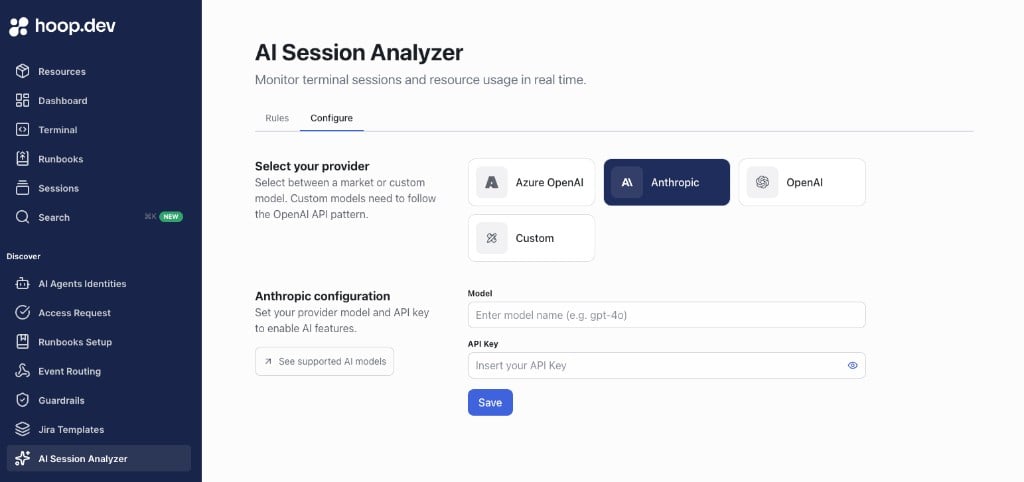 1. Select one provider:
* Azure OpenAI
* OpenAI
* Anthropic
* Custom (OpenAI-compatible API)
2. Enter the AI model
3. Enter the API key
4. Click **Save**
Required fields cannot be empty, and credentials are validated before save. On success, the UI shows: `Configuration saved.`
## Step 3: Create the Rule
In **AI Session Analyzer > Rules**:
1. Select one provider:
* Azure OpenAI
* OpenAI
* Anthropic
* Custom (OpenAI-compatible API)
2. Enter the AI model
3. Enter the API key
4. Click **Save**
Required fields cannot be empty, and credentials are validated before save. On success, the UI shows: `Configuration saved.`
## Step 3: Create the Rule
In **AI Session Analyzer > Rules**:
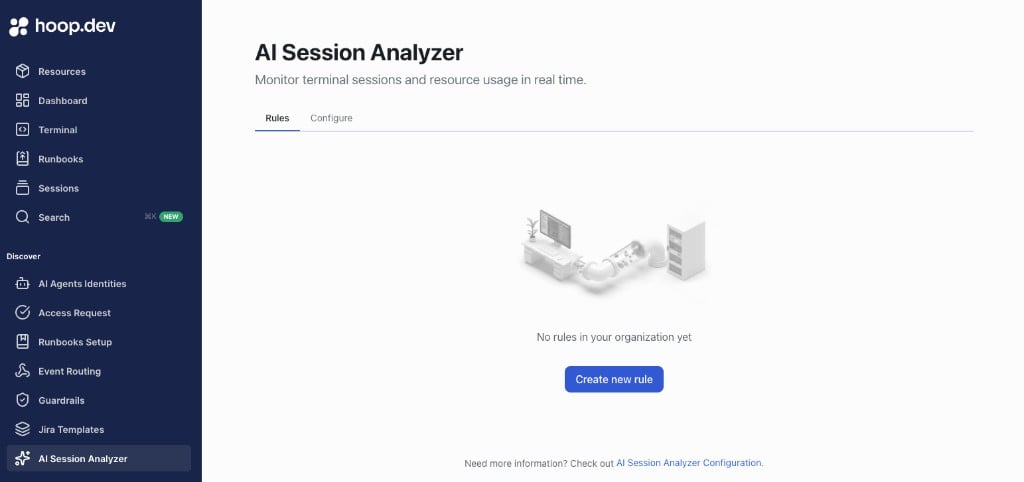 1. Click **Create new rule**
2. Add a **Name** and optional **Description**
3. In the rule scope, **select your HTTP Proxy resource**. A resource can belong to only one rule — saving fails if another rule already covers it.
4. Select the action for each risk level (**Low**, **Medium**, **High**): allow execution or block execution
5. Save the rule
**Require access request does not block HTTP Proxy traffic.** An HTTP request is synchronous and short-lived, while an access request approval is asynchronous — the proxy cannot hold a request open waiting for a human decision. On HTTP resources this action degrades to a warning: the verdict is recorded in the session, but the request is forwarded.
To stop risky requests on an HTTP Proxy resource, use **Block execution**. To gate access behind approval, require it at connection time instead with [Just-in-Time access](/setup/configuration/access-requests/jit-configuration) — approval then happens when credentials are issued, not per request.
## Step 4: Send Traffic Through the Proxy
Point your client at the HTTP Proxy resource and send requests. Each request (method, path, and body) is evaluated in real time using your configured provider and rule.
## Step 5: Verify the Result
* Allowed requests are forwarded to the upstream and the analyzer verdict appears in the session details.
* Blocked requests receive an HTTP `403 Forbidden` response with a JSON body describing the risk level, the triggered rule, and an explanation. The proxy session stays open — the block applies to that request only, and the next request is analyzed independently.
* Requests matching a **Require access request** tier are forwarded with a **warning** verdict recorded in the session details.
## How HTTP Analysis Differs from Terminal Sessions
| Behavior | Terminal / `hoop exec` | HTTP Proxy |
| ---------------------- | ------------------------------------ | ----------------------------------------------- |
| Unit of analysis | The whole ad-hoc command | Each individual HTTP request |
| Block execution | Session ends before the command runs | Request gets a `403`; the session stays open |
| Require access request | Session pauses for a one-time review | Degrades to a warning; the request is forwarded |
| WebSocket traffic | — | Only the upgrade request is analyzed |
## Troubleshooting
### Requests Are Not Being Analyzed
**Check:**
1. `experimental.http_session_analyzer` is enabled for your org
2. The AI provider is configured and saved in the **Configure** tab
3. A rule exists and its scope includes the HTTP Proxy resource
4. The resource type is **HTTP Proxy** — a TCP resource tunnels opaque bytes and cannot be analyzed
### Risky Requests Pass with Only a Warning
The rule tier for that risk level is set to **Require access request**, which does not block on HTTP resources. Change the tier action to **Block execution**.
### Save Is Blocked
**Check:**
1. All required fields are filled
2. The rule name is unique in your organization
3. No other rule already includes the selected resource
1. Click **Create new rule**
2. Add a **Name** and optional **Description**
3. In the rule scope, **select your HTTP Proxy resource**. A resource can belong to only one rule — saving fails if another rule already covers it.
4. Select the action for each risk level (**Low**, **Medium**, **High**): allow execution or block execution
5. Save the rule
**Require access request does not block HTTP Proxy traffic.** An HTTP request is synchronous and short-lived, while an access request approval is asynchronous — the proxy cannot hold a request open waiting for a human decision. On HTTP resources this action degrades to a warning: the verdict is recorded in the session, but the request is forwarded.
To stop risky requests on an HTTP Proxy resource, use **Block execution**. To gate access behind approval, require it at connection time instead with [Just-in-Time access](/setup/configuration/access-requests/jit-configuration) — approval then happens when credentials are issued, not per request.
## Step 4: Send Traffic Through the Proxy
Point your client at the HTTP Proxy resource and send requests. Each request (method, path, and body) is evaluated in real time using your configured provider and rule.
## Step 5: Verify the Result
* Allowed requests are forwarded to the upstream and the analyzer verdict appears in the session details.
* Blocked requests receive an HTTP `403 Forbidden` response with a JSON body describing the risk level, the triggered rule, and an explanation. The proxy session stays open — the block applies to that request only, and the next request is analyzed independently.
* Requests matching a **Require access request** tier are forwarded with a **warning** verdict recorded in the session details.
## How HTTP Analysis Differs from Terminal Sessions
| Behavior | Terminal / `hoop exec` | HTTP Proxy |
| ---------------------- | ------------------------------------ | ----------------------------------------------- |
| Unit of analysis | The whole ad-hoc command | Each individual HTTP request |
| Block execution | Session ends before the command runs | Request gets a `403`; the session stays open |
| Require access request | Session pauses for a one-time review | Degrades to a warning; the request is forwarded |
| WebSocket traffic | — | Only the upgrade request is analyzed |
## Troubleshooting
### Requests Are Not Being Analyzed
**Check:**
1. `experimental.http_session_analyzer` is enabled for your org
2. The AI provider is configured and saved in the **Configure** tab
3. A rule exists and its scope includes the HTTP Proxy resource
4. The resource type is **HTTP Proxy** — a TCP resource tunnels opaque bytes and cannot be analyzed
### Risky Requests Pass with Only a Warning
The rule tier for that risk level is set to **Require access request**, which does not block on HTTP resources. Change the tier action to **Block execution**.
### Save Is Blocked
**Check:**
1. All required fields are filled
2. The rule name is unique in your organization
3. No other rule already includes the selected resource