> ## Documentation Index
> Fetch the complete documentation index at: https://mintlify.hoop.dev/docs/llms.txt
> Use this file to discover all available pages before exploring further.
# Bastion SSH
> Use standard SSH clients to access Hoop resources with certificate-based authentication.
Hoop exposes an SSH server in the gateway that accepts certificate-based authentication, allowing users to access Hoop resources through the standard SSH protocol — no Hoop CLI required. This is ideal for administrators who want to integrate Hoop's audit, guardrails, and data masking capabilities into existing bastion server workflows, or replace their bastion entirely with Hoop as a jump host.
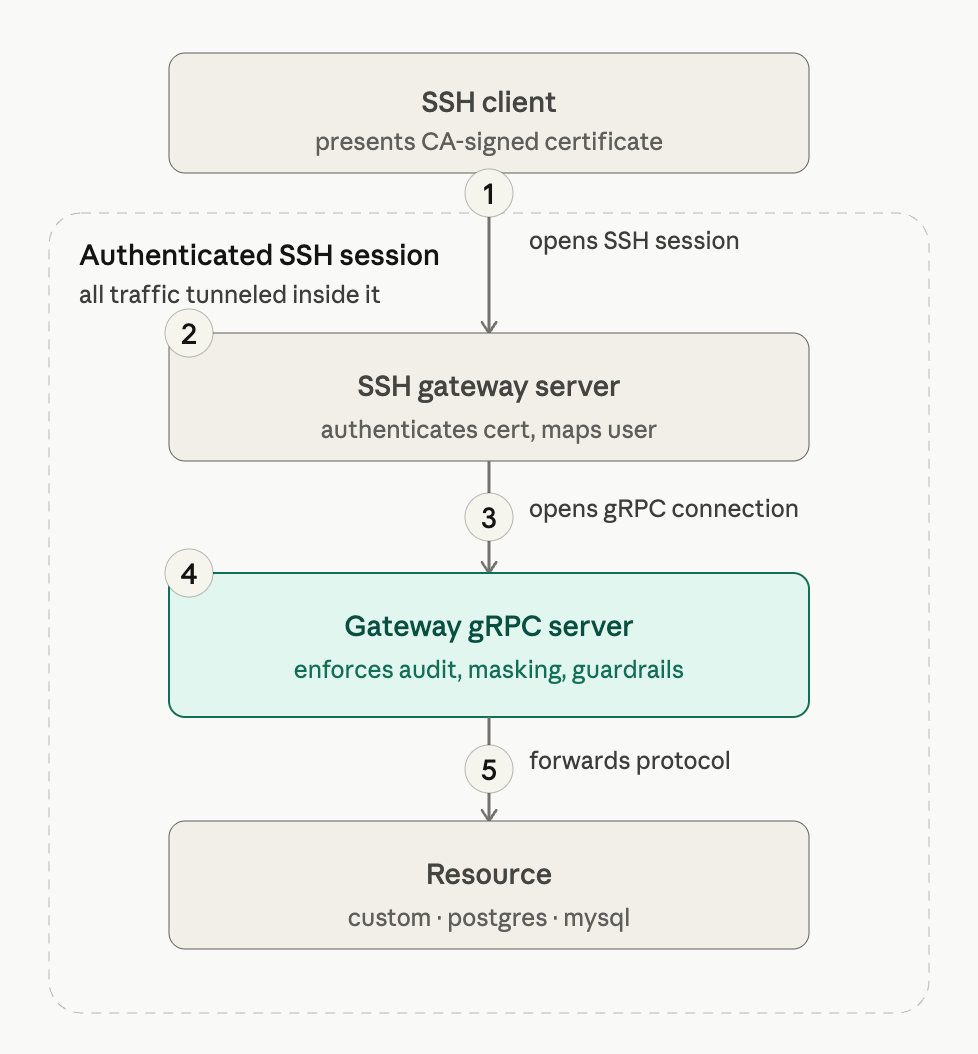
The user's SSH client authenticates using a certificate signed by a trusted CA. No passwords or API tokens are needed — the certificate is the only credential.
The Hoop SSH gateway verifies the certificate signature against the configured trusted CA. It then extracts the configured certificate attribute (`principal` or `key_id`) and maps it to a known Hoop user via the configured user attribute (`user_id`, `subject`, or `email`). The connection is rejected if no matching user is found or if the certificate is expired or unsigned.
Once the user is authenticated, the SSH gateway opens an internal gRPC connection to the core Hoop gateway server, passing the resolved user identity and the requested resource role.
The gRPC server applies all configured policies for that resource role and user — session recording, data masking, guardrails, and access reviews — and simultaneously proxies the underlying protocol to the target resource. For `custom` resource roles this is a PTY or stdin stream; for `postgres` and `mysql` it is a raw TCP port-forward. From this point, the session is indistinguishable from a native Hoop session.
## How It Works
The Hoop gateway exposes an SSH server that validates incoming connections via SSH certificate extensions. Access is granted or denied based on the following extensions present in the certificate:
| Extension | Description |
| ------------------------ | ------------------------------------------------------------------- |
| `permit-pty` | Allows the client to allocate a pseudo-TTY for interactive sessions |
| `permit-port-forwarding` | Allows the client to perform port-forwarding |
Hoop uses the standard SSH protocol as a secure authenticated transport layer and forwards the underlying protocols internally over gRPC.
## Certificate Attributes
The certificate is validated against Hoop user attributes to identify the connecting user. Configure which certificate field maps to which Hoop user attribute:
**Certificate attribute** (source):
| Attribute | Description |
| ----------- | --------------------------------------------------------------------- |
| `principal` | The certificate's principal list is used to look up a known Hoop user |
| `key_id` | The certificate's key ID is used to look up a known Hoop user |
**Hoop user attribute** (target):
| Attribute | Description |
| --------- | -------------------------------------------------------------------- |
| `user_id` | Match the certificate attribute value against the user's internal ID |
| `subject` | Match the certificate attribute value against the user's subject |
| `email` | Match the certificate attribute value against the user's email |
## Configuration
Use the `hoop admin sshserver apply` command to configure the SSH server on your gateway. At minimum you need to provide the trusted CA public key, a listen address, and the attribute mapping between the certificate and a Hoop user.
The SSH server restarts automatically after each `apply` to pick up the new configuration. Existing connections will be dropped briefly during the restart.
**Single CA:**
```sh theme={"dark"}
hoop admin sshserver apply \
--trusted-ca "$(cat ./certs/ca.pub)" \
--listen-address 0.0.0.0:12222 \
--user-attr user_id \
--cert-attr principal
```
**Multiple CAs** — pass `--trusted-ca` once per CA to trust certificates from more than one authority:
```sh theme={"dark"}
hoop admin sshserver apply \
--trusted-ca "$(cat ./certs/ca.pub)" \
--trusted-ca "$(cat ./certs/ca2.pub)" \
--listen-address 0.0.0.0:12222 \
--user-attr user_id \
--cert-attr principal
```
**Distinct attribute mapping** — use `key_id` from the certificate and match it against the user's `subject`:
```sh theme={"dark"}
hoop admin sshserver apply \
--trusted-ca "$(cat ./certs/ca.pub)" \
--listen-address 0.0.0.0:12222 \
--user-attr subject \
--cert-attr key_id
```
| Flag | Description |
| ------------------ | -------------------------------------------------------------------------- |
| `--trusted-ca` | Public key of a trusted CA. Repeat the flag to add multiple CAs. |
| `--listen-address` | Address and port the SSH server will bind to (e.g. `0.0.0.0:12222`) |
| `--user-attr` | Hoop user attribute to match against (`user_id`, `subject`, or `email`) |
| `--cert-attr` | Certificate attribute to extract for user lookup (`principal` or `key_id`) |
### Generating Certificates
The examples below use `ssh-keygen` to operate a self-managed CA — suitable for testing and small deployments. For production environments, use a dedicated PKI solution such as [HashiCorp Vault SSH Secrets Engine](https://developer.hashicorp.com/vault/docs/secrets/ssh), [Smallstep](https://smallstep.com/), or AWS Private CA to handle certificate issuance, renewal, and revocation at scale.
**Create the CA keypair**
Generate a CA keypair that will be used to sign all user certificates. The private key (`ca`) must be kept secret; the public key (`ca.pub`) is registered with the Hoop gateway via `--trusted-ca`.
```sh theme={"dark"}
ssh-keygen -t ed25519 -N "" -C "hoop-ca" -f ca
```
**Sign a user certificate**
Generate the user's keypair, then sign the public key with the CA:
```sh theme={"dark"}
# Generate the user keypair
ssh-keygen -t ed25519 -N "" -C "alice@example" -f alice
# Sign with the CA — grants full terminal and port-forwarding access
ssh-keygen -s ca \
-I "alice@example" \
-n "alice," \
-V "+52w" \
-O clear \
-O permit-pty \
-O permit-port-forwarding \
alice.pub
```
This produces `alice-cert.pub` alongside the existing `alice` and `alice.pub` files. The SSH client automatically uses the certificate when `alice` is passed as the identity file.
| Flag | Description |
| --------------------------- | -------------------------------------------------------------------------------------- |
| `-s ca` | Sign with the CA private key |
| `-I "alice@example"` | Human-readable key ID embedded in the certificate (maps to `key_id` attribute) |
| `-n "alice,"` | Comma-separated principals embedded in the certificate (maps to `principal` attribute) |
| `-V "+52w"` | Certificate validity — here, 52 weeks from now |
| `-O clear` | Clear all default permissions before adding explicit ones |
| `-O permit-pty` | Grant pseudo-TTY allocation for interactive sessions |
| `-O permit-port-forwarding` | Grant TCP port-forwarding for database access |
The `-n` principals list must contain the value the Hoop gateway will look up. For example, if the gateway is configured with `--cert-attr principal` and `--user-attr user_id`, one of the principals must be the user's Hoop `user_id`.
## Supported Resource Role Types
Clients connect to Hoop resources by specifying a **Resource Role** name as the SSH command argument. Each resource role type maps to a different access pattern:
Interactive terminal sessions and ad-hoc command execution. The user connects to a predefined entrypoint (e.g. `bash`, `python`) and cannot escape the command defined in the resource role.
Port-forwards a PostgreSQL connection to your local machine. Connect with any IDE or the `psql` CLI as if the database were running locally.
Port-forwards a MySQL connection to your local machine. Connect with any IDE or the `mysql` CLI as if the database were running locally.
All supported types are fully governed by Hoop policies: sessions are recorded, guardrails are enforced, and data masking is applied where configured.
## Client Usage
### Terminal Access
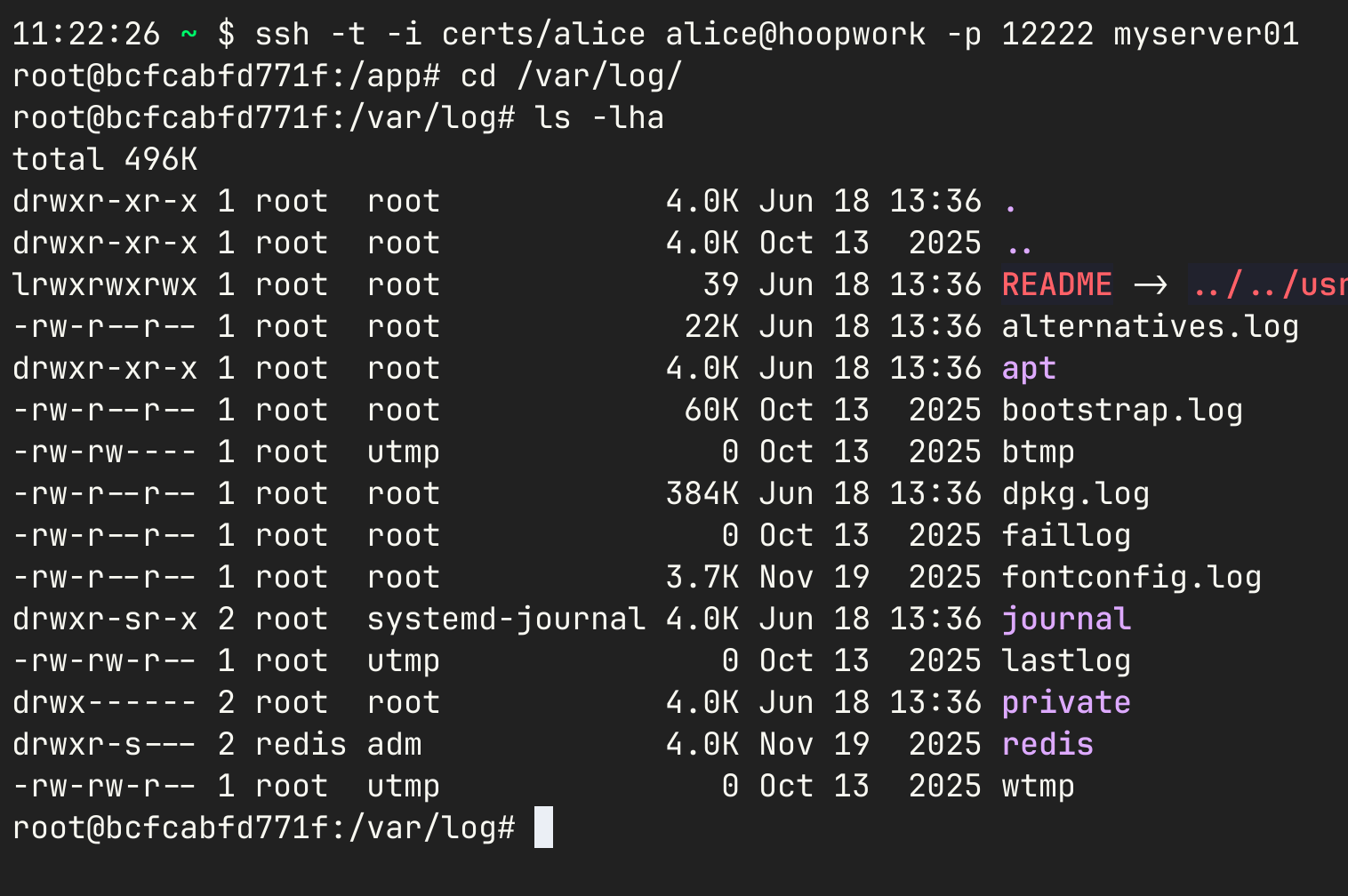
When the resource role is configured with a shell or REPL entrypoint, the SSH client opens an interactive terminal session. Use the `-t` flag to request a pseudo-TTY allocation:
```sh theme={"dark"}
ssh -t -i ./certs/alice alice@127.0.0.1 -p 12222 mybash-resource
```
 ### Ad-Hoc Command Execution
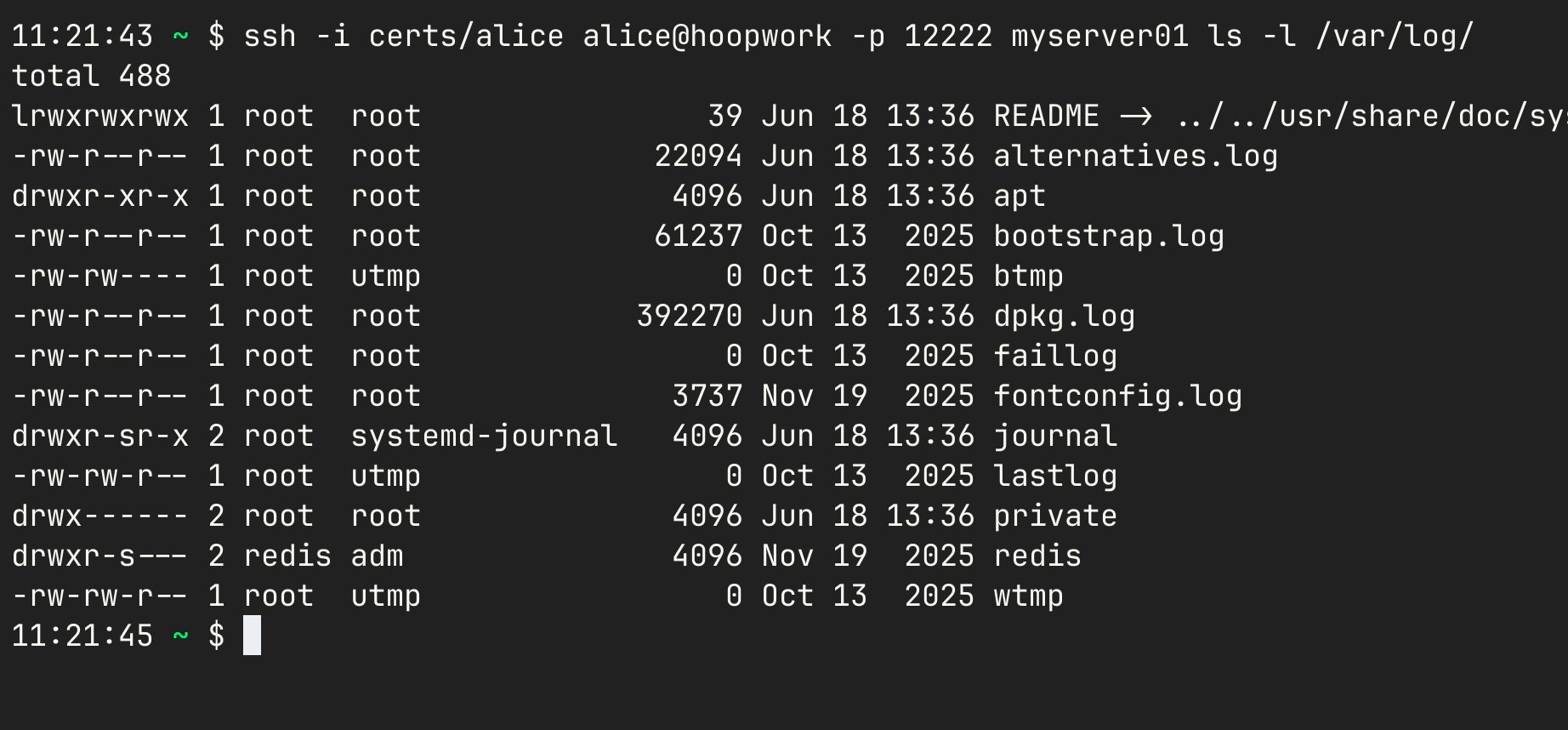
Over the same resource role you can run one-off commands without opening an interactive session. The command is passed as an argument after the resource role name:
```sh theme={"dark"}
ssh -i ./certs/alice alice@127.0.0.1 -p 12222 mybash-resource ls -l
```
You can also target a resource role that wraps any other tool or script:
```sh theme={"dark"}
ssh -i ./certs/alice alice@127.0.0.1 -p 12222 myscript
```
### Ad-Hoc Command Execution
Over the same resource role you can run one-off commands without opening an interactive session. The command is passed as an argument after the resource role name:
```sh theme={"dark"}
ssh -i ./certs/alice alice@127.0.0.1 -p 12222 mybash-resource ls -l
```
You can also target a resource role that wraps any other tool or script:
```sh theme={"dark"}
ssh -i ./certs/alice alice@127.0.0.1 -p 12222 myscript
```
 ### Piping Standard Input
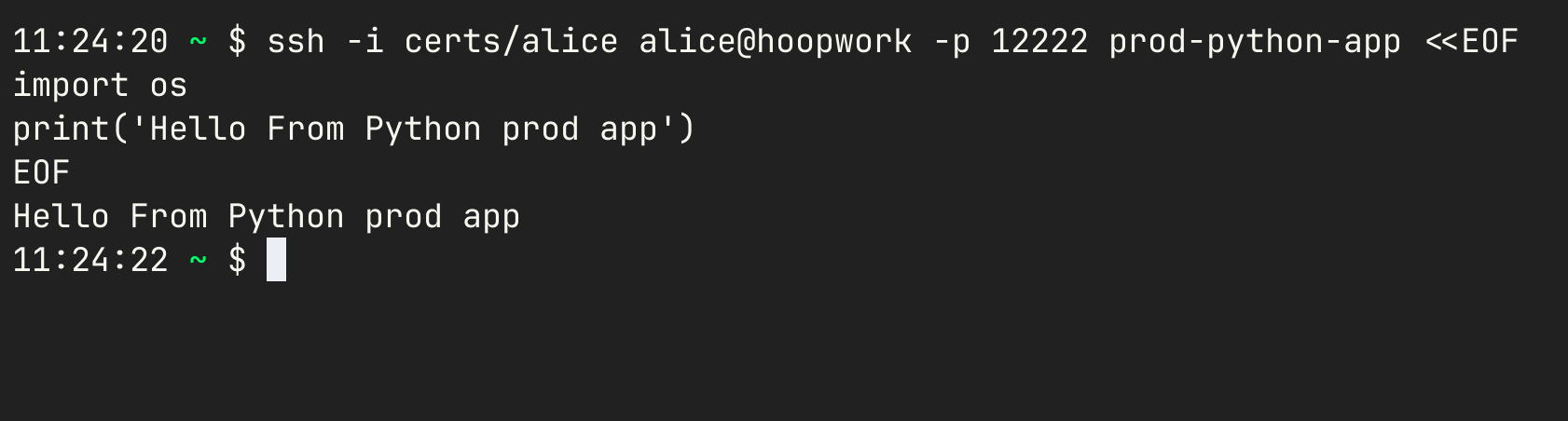
For tools that consume complex or multi-line input, pipe stdin directly into the SSH command:
```sh theme={"dark"}
echo 'SELECT NOW()' | ssh -i ./certs/alice alice@127.0.0.1 -p 12222 postgres-demo
```
### Piping Standard Input
For tools that consume complex or multi-line input, pipe stdin directly into the SSH command:
```sh theme={"dark"}
echo 'SELECT NOW()' | ssh -i ./certs/alice alice@127.0.0.1 -p 12222 postgres-demo
```
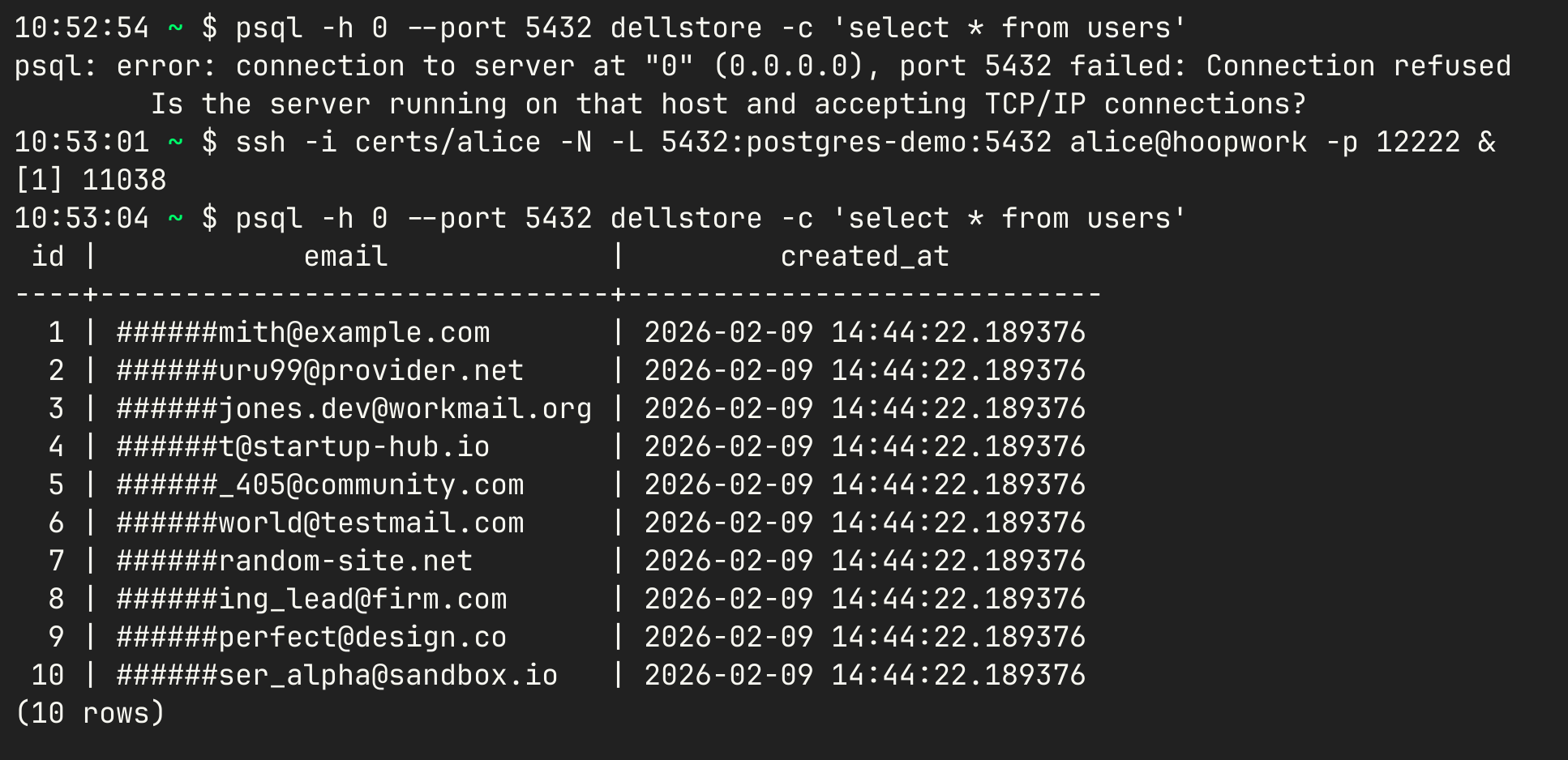
 ### Database Port Forwarding
Port-forward a database resource role to your local machine and connect with any IDE or CLI tool:
```sh theme={"dark"}
# Forwards the Hoop resource role `postgres-demo` to localhost:5432
ssh -i certs/alice -N -L 5432:postgres-demo:5432 alice@hoopwork -p 12222
```
Once forwarded, connect normally:
```sh theme={"dark"}
psql -h localhost -p 5432 -U myuser mydb
```
### Database Port Forwarding
Port-forward a database resource role to your local machine and connect with any IDE or CLI tool:
```sh theme={"dark"}
# Forwards the Hoop resource role `postgres-demo` to localhost:5432
ssh -i certs/alice -N -L 5432:postgres-demo:5432 alice@hoopwork -p 12222
```
Once forwarded, connect normally:
```sh theme={"dark"}
psql -h localhost -p 5432 -U myuser mydb
```
 ## Running as a Jump Host
You can configure a standard `sshd` server to forward specific users through Hoop, extending your existing bastion with Hoop's capabilities rather than replacing it.
### sshd Configuration
Add the following directives to your `sshd_config` on the bastion server:
```conf theme={"dark"}
# Allow port-forwarding to reach Hoop resources
AllowTcpForwarding yes
# Restrict forwarding targets to the Hoop gateway only
PermitOpen :
# Trust the same CA used by the Hoop gateway
TrustedUserCAKeys /path/to/ca.pub
# Use the same host key as the Hoop gateway to avoid known_hosts conflicts
HostKey /path/to/host/key
```
The bastion and Hoop gateway must share the same CA key (`TrustedUserCAKeys`) and host key (`HostKey`) so that clients do not encounter host verification errors when jumping between them.
### Client SSH Config
Configure the SSH client to proxy through the bastion into the Hoop gateway:
```conf theme={"dark"}
Host hoop-bastion
HostName bastion.company.org
Port 22
User alice
IdentityFile ./certs/alice
IdentitiesOnly yes
PreferredAuthentications publickey
UserKnownHostsFile /dev/null
StrictHostKeyChecking no
Host hoop-alice
HostName hoopgateway.company.org
Port 12222
User alice
IdentityFile ./certs/alice
IdentitiesOnly yes
PreferredAuthentications publickey
UserKnownHostsFile /dev/null
StrictHostKeyChecking no
ProxyJump hoop-bastion
```
With this configuration, users can access Hoop resources through the bastion transparently:
```sh theme={"dark"}
# Open an interactive terminal via the bastion
ssh -t hoop-alice mybash-resource
# Port-forward a MySQL database via the bastion
ssh -N -L 3307:mysqldemo:3307 hoop-alice
```
## Running as a Jump Host
You can configure a standard `sshd` server to forward specific users through Hoop, extending your existing bastion with Hoop's capabilities rather than replacing it.
### sshd Configuration
Add the following directives to your `sshd_config` on the bastion server:
```conf theme={"dark"}
# Allow port-forwarding to reach Hoop resources
AllowTcpForwarding yes
# Restrict forwarding targets to the Hoop gateway only
PermitOpen :
# Trust the same CA used by the Hoop gateway
TrustedUserCAKeys /path/to/ca.pub
# Use the same host key as the Hoop gateway to avoid known_hosts conflicts
HostKey /path/to/host/key
```
The bastion and Hoop gateway must share the same CA key (`TrustedUserCAKeys`) and host key (`HostKey`) so that clients do not encounter host verification errors when jumping between them.
### Client SSH Config
Configure the SSH client to proxy through the bastion into the Hoop gateway:
```conf theme={"dark"}
Host hoop-bastion
HostName bastion.company.org
Port 22
User alice
IdentityFile ./certs/alice
IdentitiesOnly yes
PreferredAuthentications publickey
UserKnownHostsFile /dev/null
StrictHostKeyChecking no
Host hoop-alice
HostName hoopgateway.company.org
Port 12222
User alice
IdentityFile ./certs/alice
IdentitiesOnly yes
PreferredAuthentications publickey
UserKnownHostsFile /dev/null
StrictHostKeyChecking no
ProxyJump hoop-bastion
```
With this configuration, users can access Hoop resources through the bastion transparently:
```sh theme={"dark"}
# Open an interactive terminal via the bastion
ssh -t hoop-alice mybash-resource
# Port-forward a MySQL database via the bastion
ssh -N -L 3307:mysqldemo:3307 hoop-alice
```