> ## Documentation Index
> Fetch the complete documentation index at: https://mintlify.hoop.dev/docs/llms.txt
> Use this file to discover all available pages before exploring further.
# IAM Federation for GCP
> Mint per-user OAuth tokens for BigQuery and other GCP resources instead of sharing a single service-account key.
## What this gives you
IAM Federation stops Hoop from sharing one Google service-account key across your team. Each user's GCP activity runs under their own principal, so a `bq query` Alice runs through Hoop shows up in Cloud Logging as Alice.
You get:
* **Per-user attribution.** Every GCP operation ties to the person who ran it.
* **No shared keys.** Users never hold a long-lived service-account key. Hoop mints short-lived tokens at session time.
* **A clean audit trail.** GCP records who ran each query, and for `gcp_iam`, through whom.
## Two ways to federate
Hoop ships two built-in GCP providers. Both deliver per-user attribution with no shared static key. They differ in what you provision on the GCP side and whose identity lands in the audit log.
| | `gcp_iam` | `gcp_oauth` |
| -------------------------------- | -------------------------------------------------------------------------- | -------------------------------------------------------------------------------------------------- |
| **Identity in GCP audit log** | A per-user service account (e.g. `alice@proj.iam.gserviceaccount.com`) | The user's real Google account (e.g. `alice@acme.com`) |
| **What you provision** | One admin SA plus one SA per user (or a shared SA) | One OAuth client (app registration), zero service accounts |
| **Admin credential Hoop stores** | Admin SA JSON key | OAuth `client_id` / `client_secret` |
| **How a token is minted** | Admin SA impersonates the user SA via `iamcredentials.GenerateAccessToken` | Each user consents once; Hoop exchanges their refresh token for an access token |
| **Per-user setup** | Admin grants `serviceAccountTokenCreator` plus data roles to each SA | Each user clicks **Connect Google account** once; data roles go on their real Google identity |
| **Web UI support** | Configurable in the connection form | Configurable in the connection form; each user clicks **Connect Google account** in the web client |
Choose `gcp_iam` for Hoop-managed service-account identities and a delegation
chain that proves every query went through Hoop. Choose `gcp_oauth` to show the
real human email in the GCP audit log and provision no service accounts.
## How It Works
A user runs `hoop connect my-bq`. The gateway reads the connection's federation policy, mints a short-lived token for that user, and hands it to the agent for the session. The minting step depends on the provider:
The policy defines the identity template, project id, and fallback rules that map the Hoop user to a GCP service account.
The gateway asks Google's `iamcredentials` API to mint a short-lived OAuth access token as the user's target service account, using the admin service account stored for your organization.
The agent uses that short-lived token for the session. Every operation after that runs as the user's service account, not the shared admin account.
Two things must be true on the GCP side:
* The admin service account must be able to impersonate each user's target principal (the `roles/iam.serviceAccountTokenCreator` grant).
* Each target principal holds the data-plane roles it needs (e.g. `roles/bigquery.user` for BigQuery).
The user opens the connection's consent URL and approves Google's OAuth screen with their own corporate Google account. Hoop stores their refresh token encrypted at rest, keyed to that user and connection.
At session open, the gateway exchanges that refresh token for a fresh, short-lived user access token. No service account is involved.
The agent uses the token for the session. Every operation runs as the user's real Google identity.
On the GCP side:
* You register one OAuth client (Web application). No service accounts.
* Each user's Google account holds the data-plane roles it needs (e.g. `roles/bigquery.user`).
## Configure per-user OAuth (`gcp_oauth`)
This walkthrough sets up the no-service-account mode. For the `gcp_iam` setup
(admin SA, Token Creator grants, and the connection form), see the
[configuration guide](/setup/configuration/iam-federation-gcp-configuration).
`gcp_oauth` works in the web UI. An admin configures it on the connection form
(Step 3), and each user connects their own Google account from the web client
(Step 4). Each step also shows the `hoop admin federation` CLI flow for
automation.
### Step 1: Create an OAuth client in GCP (no service accounts)
In the [GCP Console](https://console.cloud.google.com/) for the project that
holds your BigQuery data:
Go to **APIs & Services → Credentials** and click **+ Create credentials**.
 From the dropdown, pick **OAuth client ID** (not API key). It requests user
consent so Hoop can act as each user.
From the dropdown, pick **OAuth client ID** (not API key). It requests user
consent so Hoop can act as each user.
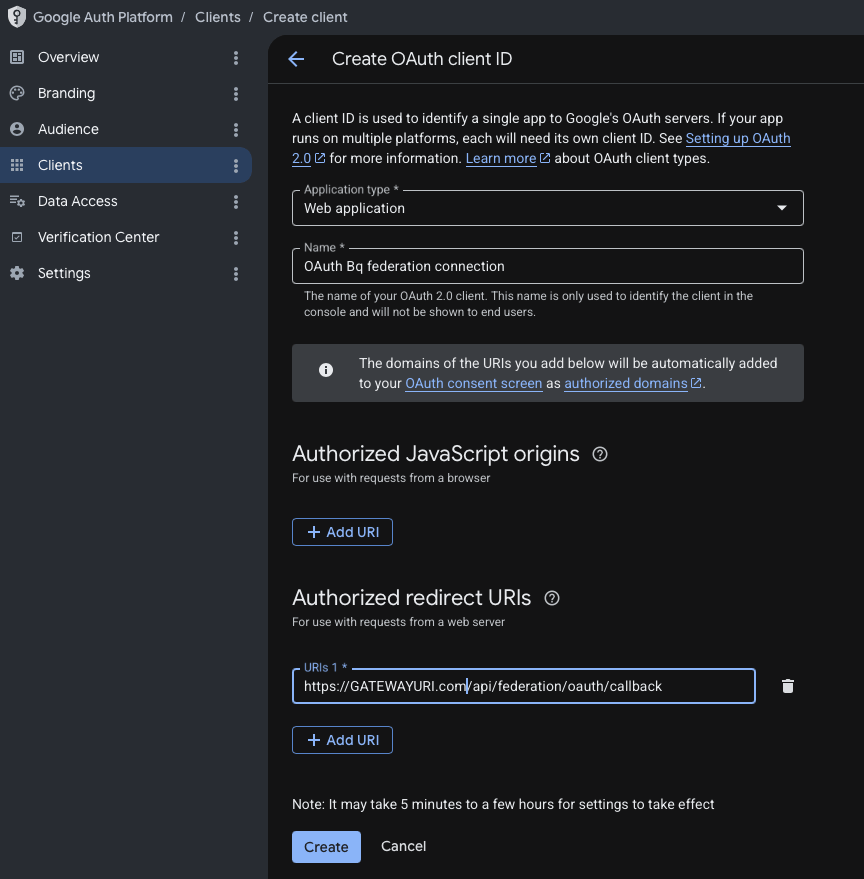
 Set **Application type** to **Web application**, give it a name (e.g.
`OAuth Bq federation connection`), and under **Authorized redirect URIs**
add your gateway's API URL plus `/api/federation/oauth/callback`:
```
https://GATEWAYURI.com/api/federation/oauth/callback
```
Replace `GATEWAYURI.com` with your gateway host (local dev:
`http://localhost:8009/api/federation/oauth/callback`). The URI must match
exactly. Click **Create**.
Set **Application type** to **Web application**, give it a name (e.g.
`OAuth Bq federation connection`), and under **Authorized redirect URIs**
add your gateway's API URL plus `/api/federation/oauth/callback`:
```
https://GATEWAYURI.com/api/federation/oauth/callback
```
Replace `GATEWAYURI.com` with your gateway host (local dev:
`http://localhost:8009/api/federation/oauth/callback`). The URI must match
exactly. Click **Create**.
 On the **OAuth consent screen**, add the scope
`https://www.googleapis.com/auth/cloud-platform` (or a narrower data scope,
e.g. BigQuery). Add your users as test users, or publish the app.
After you create the client, Google shows the **Client ID** and **Client
secret**. Copy them, or click **Download JSON**.
On the **OAuth consent screen**, add the scope
`https://www.googleapis.com/auth/cloud-platform` (or a narrower data scope,
e.g. BigQuery). Add your users as test users, or publish the app.
After you create the client, Google shows the **Client ID** and **Client
secret**. Copy them, or click **Download JSON**.
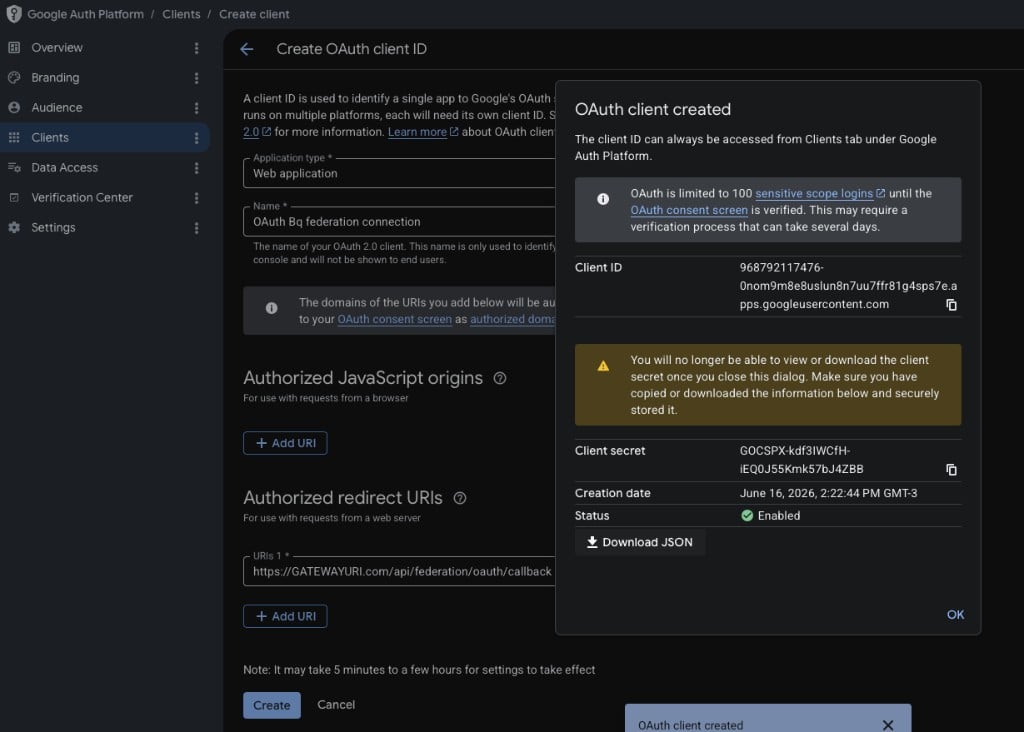 The downloaded file wraps everything under a `"web"` key with extra fields Hoop
doesn't use. Hoop needs only `client_id` and `client_secret`. Pull those two
values into a minimal JSON object:
```json theme={"dark"}
{
"client_id": "968792117476-0nom9m8e8...apps.googleusercontent.com",
"client_secret": "GOCSPX-kdf3IWCfH-..."
}
```
You'll paste this in Step 3 (or save it as `oauth-client.json` for the CLI flow).
In **Testing** mode, Google expires refresh tokens after 7 days, so federated
sessions break weekly until each user re-consents. Publish the app to remove
that cap.
### Step 2: Grant data roles to each user's Google account
There are no service accounts to grant. Give each user's Google identity the
data-plane roles it needs. For BigQuery:
```bash theme={"dark"}
export PROJECT_ID="my-proj"
gcloud projects add-iam-policy-binding "$PROJECT_ID" \
--member="user:alice@acme.com" \
--role="roles/bigquery.user"
gcloud projects add-iam-policy-binding "$PROJECT_ID" \
--member="user:alice@acme.com" \
--role="roles/bigquery.dataViewer"
```
### Step 3: Wire federation onto the connection (admin, one-time)
Open the BigQuery connection (or create one), and under **Role connection
method** choose **IAM Federation**. Then in **Federation setup**:
Set **Federation provider** to **GCP OAuth (per-user Google account)**.
The downloaded file wraps everything under a `"web"` key with extra fields Hoop
doesn't use. Hoop needs only `client_id` and `client_secret`. Pull those two
values into a minimal JSON object:
```json theme={"dark"}
{
"client_id": "968792117476-0nom9m8e8...apps.googleusercontent.com",
"client_secret": "GOCSPX-kdf3IWCfH-..."
}
```
You'll paste this in Step 3 (or save it as `oauth-client.json` for the CLI flow).
In **Testing** mode, Google expires refresh tokens after 7 days, so federated
sessions break weekly until each user re-consents. Publish the app to remove
that cap.
### Step 2: Grant data roles to each user's Google account
There are no service accounts to grant. Give each user's Google identity the
data-plane roles it needs. For BigQuery:
```bash theme={"dark"}
export PROJECT_ID="my-proj"
gcloud projects add-iam-policy-binding "$PROJECT_ID" \
--member="user:alice@acme.com" \
--role="roles/bigquery.user"
gcloud projects add-iam-policy-binding "$PROJECT_ID" \
--member="user:alice@acme.com" \
--role="roles/bigquery.dataViewer"
```
### Step 3: Wire federation onto the connection (admin, one-time)
Open the BigQuery connection (or create one), and under **Role connection
method** choose **IAM Federation**. Then in **Federation setup**:
Set **Federation provider** to **GCP OAuth (per-user Google account)**.
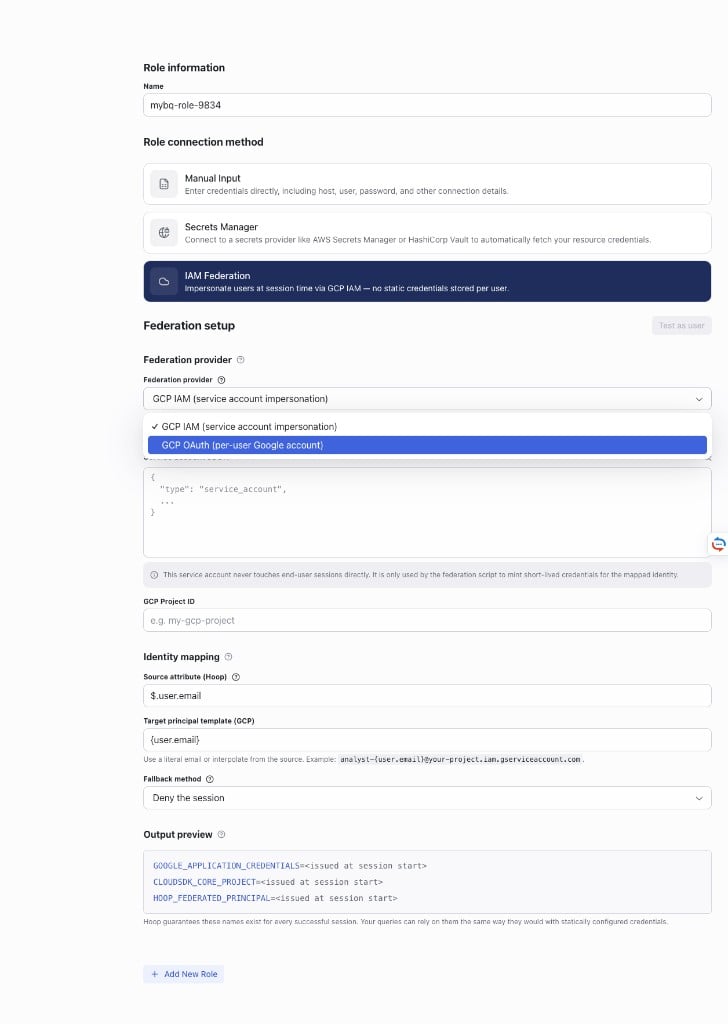 In **OAuth client credentials (JSON)**, paste the minimal
`client_id` / `client_secret` JSON from Step 1:
```json theme={"dark"}
{
"client_id": "968792117476-0nom9m8e8...apps.googleusercontent.com",
"client_secret": "GOCSPX-kdf3IWCfH-..."
}
```
The gateway uses the client secret only to exchange tokens. It never
reaches end-user sessions.
Enter your **GCP Project ID** (e.g. `my-proj`) and **Save** the
connection. Selecting `gcp_oauth` forces the fallback method to **Deny
the session**, so a session won't run without a per-user token.
In **OAuth client credentials (JSON)**, paste the minimal
`client_id` / `client_secret` JSON from Step 1:
```json theme={"dark"}
{
"client_id": "968792117476-0nom9m8e8...apps.googleusercontent.com",
"client_secret": "GOCSPX-kdf3IWCfH-..."
}
```
The gateway uses the client secret only to exchange tokens. It never
reaches end-user sessions.
Enter your **GCP Project ID** (e.g. `my-proj`) and **Save** the
connection. Selecting `gcp_oauth` forces the fallback method to **Deny
the session**, so a session won't run without a per-user token.
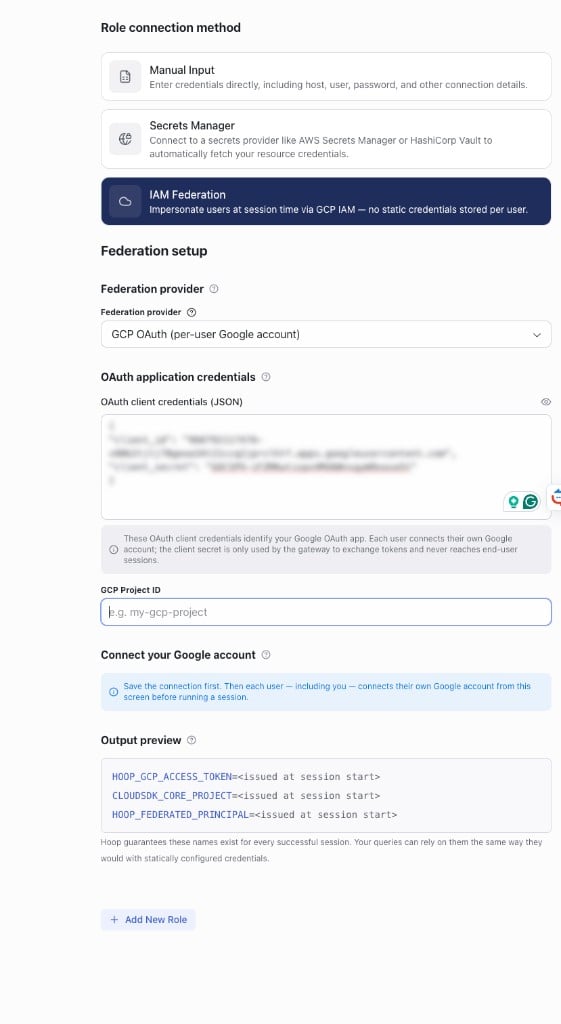 The **Connect your Google account** callout reminds you to save first;
every user (including you, as the admin) connects their own account from
this same screen before running a session — that's Step 4.
Write a policy file selecting the `gcp_oauth` provider:
```yaml theme={"dark"}
# federation-oauth.yaml
builtin_provider: gcp_oauth
fallback_policy: deny # or "static" to fall back to the connection's existing envs
token_ttl_seconds: 3600 # informational; Google controls the real token lifetime
extra_config:
project_id: my-proj
# optional, defaults to cloud-platform:
# scopes:
# - https://www.googleapis.com/auth/bigquery
```
Apply it, passing the OAuth client JSON from Step 1 as the admin credential.
It replaces the service-account key that `gcp_iam` uses:
```bash theme={"dark"}
hoop admin federation set my-bq \
--file federation-oauth.yaml \
--credentials-file ./oauth-client.json
hoop admin federation get my-bq # verify: Provider: gcp_oauth, Has Admin Credentials: yes
```
### Step 4: Each user connects their Google account (one-time)
Each user grants Hoop a refresh token once by approving the Google consent
screen with the Google account that should be attributed.
Open the federated connection in the web client. If you haven't connected
yet, a **Connect your Google account** prompt appears in the editor. Run a
query first and the run is blocked with the same **Connect Google account**
action inline ("This resource runs queries as you. Connect your Google
account once to authorize access, then run again.").
The **Connect your Google account** callout reminds you to save first;
every user (including you, as the admin) connects their own account from
this same screen before running a session — that's Step 4.
Write a policy file selecting the `gcp_oauth` provider:
```yaml theme={"dark"}
# federation-oauth.yaml
builtin_provider: gcp_oauth
fallback_policy: deny # or "static" to fall back to the connection's existing envs
token_ttl_seconds: 3600 # informational; Google controls the real token lifetime
extra_config:
project_id: my-proj
# optional, defaults to cloud-platform:
# scopes:
# - https://www.googleapis.com/auth/bigquery
```
Apply it, passing the OAuth client JSON from Step 1 as the admin credential.
It replaces the service-account key that `gcp_iam` uses:
```bash theme={"dark"}
hoop admin federation set my-bq \
--file federation-oauth.yaml \
--credentials-file ./oauth-client.json
hoop admin federation get my-bq # verify: Provider: gcp_oauth, Has Admin Credentials: yes
```
### Step 4: Each user connects their Google account (one-time)
Each user grants Hoop a refresh token once by approving the Google consent
screen with the Google account that should be attributed.
Open the federated connection in the web client. If you haven't connected
yet, a **Connect your Google account** prompt appears in the editor. Run a
query first and the run is blocked with the same **Connect Google account**
action inline ("This resource runs queries as you. Connect your Google
account once to authorize access, then run again.").
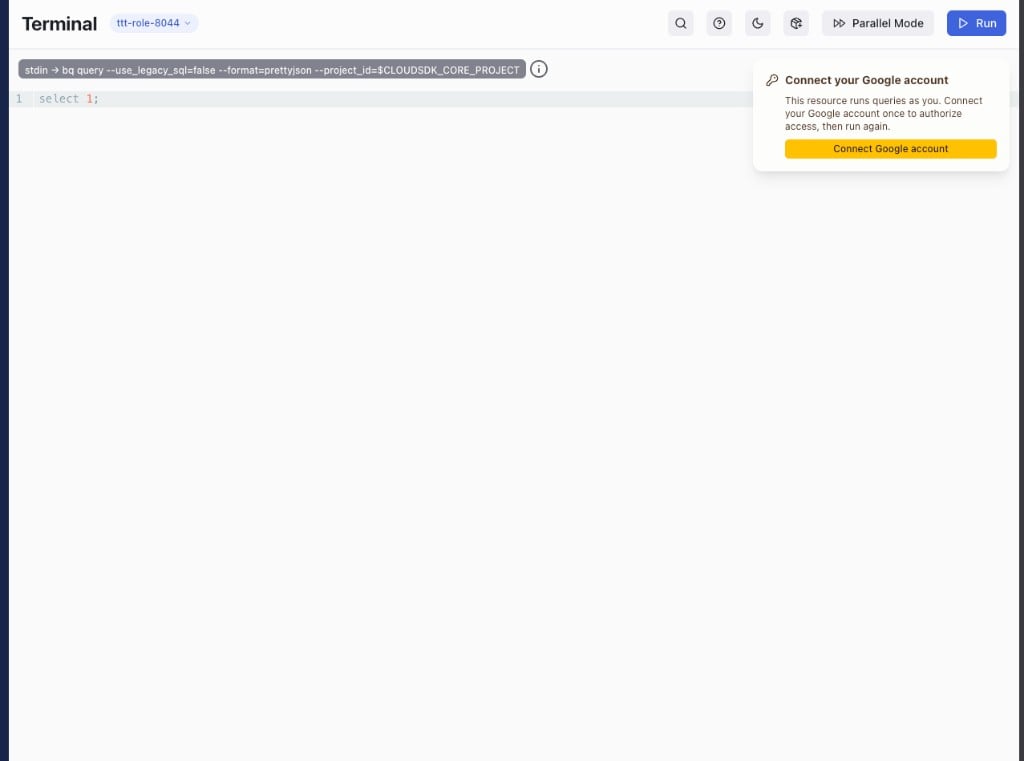 Click it to reach Google's consent screen. **Approve with the same Google
account you use to sign in to Hoop** — Hoop attributes the session to the
consented identity, so it must match your Hoop user. After you approve, Hoop
returns you to the same page, shows a "Google account connected"
confirmation, and clears the prompt; rerun the query and it executes as you.
Admins can also connect or disconnect from the connection's **Federation
setup** section in the connection form.
Ask Hoop for the consent URL (it uses the user's own Hoop token, not an admin
token), then open it in a browser:
```bash theme={"dark"}
# The user's Hoop access token (from `hoop login`)
TOKEN=""
curl -s -H "Authorization: Bearer $TOKEN" \
"https://hoop.your-company.com/api/connections/my-bq/federation/oauth/authorize"
# → {"url":"https://accounts.google.com/o/oauth2/auth?...&state=..."}
```
Open the returned `url` and approve consent. Google redirects back to the
gateway, which stores the encrypted refresh token and returns the browser to
the app with `?federation_oauth=success`.
Approve the consent screen with the same identity you use in Hoop. Hoop records
the consented Google account as the session's principal, so it appears in every
BigQuery audit entry. Connecting a different Google account misattributes that
user's activity.
To revoke (disconnect the Google account for a connection), use the
**Disconnect** action in the web client, or the API:
```bash theme={"dark"}
curl -s -X DELETE -H "Authorization: Bearer $TOKEN" \
"https://hoop.your-company.com/api/connections/my-bq/federation/oauth"
```
Once connected, `hoop connect my-bq` mints a fresh user token per session and
injects `HOOP_GCP_ACCESS_TOKEN`, `CLOUDSDK_CORE_PROJECT`, and
`HOOP_FEDERATED_PRINCIPAL` (and strips any legacy
`GOOGLE_APPLICATION_CREDENTIALS`).
**Test as user** doesn't apply to `gcp_oauth`, and the connection form hides it
for this provider. A dry run can't consent on the user's behalf, so there's
nothing to validate ahead of time. Validate by running a real session after
Step 4.
## Project scope and cross-project queries
The Project ID you set on the connection (`extra_config.project_id`, injected
into the session as `CLOUDSDK_CORE_PROJECT`) is not a data boundary. It sets the
default billing and job project: where BigQuery runs and bills each query, and
what unqualified table names resolve against.
It does not limit which data a user can read. The minted token authenticates as
the user (with the `https://www.googleapis.com/auth/cloud-platform` scope by
default), so a session can query any project the user already has IAM access to.
The user's own grants govern that, not the connection's project.
Two things follow:
* **One OAuth client covers every connection.** For `gcp_oauth`, the project
where you registered the OAuth client is just the app's home and has no bearing
on data access. Reuse the same `client_id` / `client_secret` across your
BigQuery connections.
* **One connection reads across projects.** You don't need a connection per data
project. Only the billing project is pinned. Add a separate connection when you
want jobs billed to a different project.
### Querying a dataset in another project
Qualify the table with the other project's ID: `` `project.dataset.table` ``
(BigQuery Standard SQL; the connection runs with `--use_legacy_sql=false`). The
job still bills to the connection's `project_id`. The reference points wherever
the data lives.
The connection below is pinned to `analytics-prod`; the data lives in
`raw-data-project`:
```sql theme={"dark"}
SELECT *
FROM `raw-data-project.events.logs`
LIMIT 100;
```
Cross-project join (billed to `analytics-prod`, reading from two other projects):
```sql theme={"dark"}
SELECT u.id, e.event_name
FROM `raw-data-project.events.logs` AS e
JOIN `customer-project.crm.users` AS u
ON u.id = e.user_id
WHERE e.event_date = CURRENT_DATE();
```
The user's identity (their Google account for `gcp_oauth`, or their target
service account for `gcp_iam`) needs:
* `roles/bigquery.jobUser` on the billing project (`analytics-prod`) to create
the job, and
* `roles/bigquery.dataViewer` (or finer) on the data datasets in
`raw-data-project` / `customer-project` to read them.
Unqualified names like `` `events.logs` `` resolve against the connection's
`project_id`. Qualify with a project prefix when the data lives elsewhere.
Backticks are required because project IDs contain hyphens.
## The Audit Trail
Both providers attribute every operation to the individual. The shape of the
audit record differs.
`gcp_iam` records a `serviceAccountDelegationInfo` chain showing who ran the
query (the user's service account) and through whom (the Hoop admin SA):
```yaml theme={"dark"}
protoPayload.authenticationInfo.principalEmail: alice@my-proj.iam.gserviceaccount.com
protoPayload.authenticationInfo.serviceAccountDelegationInfo:
- firstPartyPrincipal:
principalEmail: hoop-admin@my-proj.iam.gserviceaccount.com
```
That chain proves every query in a project went through Hoop and flags any that
bypassed it. The configuration guide covers enabling, querying, and sinking these
logs.
`gcp_oauth` records the user's Google account as the principal, with no
delegation chain. The human is the caller:
```yaml theme={"dark"}
protoPayload.authenticationInfo.principalEmail: alice@acme.com
```
***
For `gcp_iam`, the [IAM Federation for GCP configuration guide](/setup/configuration/iam-federation-gcp-configuration) covers the GCP IAM setup (admin service account, Token Creator grants, verification), wiring the policy onto a connection, and enabling the audit logs. For `gcp_oauth`, follow [Configure per-user OAuth](#configure-per-user-oauth-gcp-oauth) above.
## Next Steps
Grant Token Creator and wire federation onto a connection
`hoop admin federation set` and `test` flag reference
Create the connection federation attaches to
Audit every federated session inside Hoop
Click it to reach Google's consent screen. **Approve with the same Google
account you use to sign in to Hoop** — Hoop attributes the session to the
consented identity, so it must match your Hoop user. After you approve, Hoop
returns you to the same page, shows a "Google account connected"
confirmation, and clears the prompt; rerun the query and it executes as you.
Admins can also connect or disconnect from the connection's **Federation
setup** section in the connection form.
Ask Hoop for the consent URL (it uses the user's own Hoop token, not an admin
token), then open it in a browser:
```bash theme={"dark"}
# The user's Hoop access token (from `hoop login`)
TOKEN=""
curl -s -H "Authorization: Bearer $TOKEN" \
"https://hoop.your-company.com/api/connections/my-bq/federation/oauth/authorize"
# → {"url":"https://accounts.google.com/o/oauth2/auth?...&state=..."}
```
Open the returned `url` and approve consent. Google redirects back to the
gateway, which stores the encrypted refresh token and returns the browser to
the app with `?federation_oauth=success`.
Approve the consent screen with the same identity you use in Hoop. Hoop records
the consented Google account as the session's principal, so it appears in every
BigQuery audit entry. Connecting a different Google account misattributes that
user's activity.
To revoke (disconnect the Google account for a connection), use the
**Disconnect** action in the web client, or the API:
```bash theme={"dark"}
curl -s -X DELETE -H "Authorization: Bearer $TOKEN" \
"https://hoop.your-company.com/api/connections/my-bq/federation/oauth"
```
Once connected, `hoop connect my-bq` mints a fresh user token per session and
injects `HOOP_GCP_ACCESS_TOKEN`, `CLOUDSDK_CORE_PROJECT`, and
`HOOP_FEDERATED_PRINCIPAL` (and strips any legacy
`GOOGLE_APPLICATION_CREDENTIALS`).
**Test as user** doesn't apply to `gcp_oauth`, and the connection form hides it
for this provider. A dry run can't consent on the user's behalf, so there's
nothing to validate ahead of time. Validate by running a real session after
Step 4.
## Project scope and cross-project queries
The Project ID you set on the connection (`extra_config.project_id`, injected
into the session as `CLOUDSDK_CORE_PROJECT`) is not a data boundary. It sets the
default billing and job project: where BigQuery runs and bills each query, and
what unqualified table names resolve against.
It does not limit which data a user can read. The minted token authenticates as
the user (with the `https://www.googleapis.com/auth/cloud-platform` scope by
default), so a session can query any project the user already has IAM access to.
The user's own grants govern that, not the connection's project.
Two things follow:
* **One OAuth client covers every connection.** For `gcp_oauth`, the project
where you registered the OAuth client is just the app's home and has no bearing
on data access. Reuse the same `client_id` / `client_secret` across your
BigQuery connections.
* **One connection reads across projects.** You don't need a connection per data
project. Only the billing project is pinned. Add a separate connection when you
want jobs billed to a different project.
### Querying a dataset in another project
Qualify the table with the other project's ID: `` `project.dataset.table` ``
(BigQuery Standard SQL; the connection runs with `--use_legacy_sql=false`). The
job still bills to the connection's `project_id`. The reference points wherever
the data lives.
The connection below is pinned to `analytics-prod`; the data lives in
`raw-data-project`:
```sql theme={"dark"}
SELECT *
FROM `raw-data-project.events.logs`
LIMIT 100;
```
Cross-project join (billed to `analytics-prod`, reading from two other projects):
```sql theme={"dark"}
SELECT u.id, e.event_name
FROM `raw-data-project.events.logs` AS e
JOIN `customer-project.crm.users` AS u
ON u.id = e.user_id
WHERE e.event_date = CURRENT_DATE();
```
The user's identity (their Google account for `gcp_oauth`, or their target
service account for `gcp_iam`) needs:
* `roles/bigquery.jobUser` on the billing project (`analytics-prod`) to create
the job, and
* `roles/bigquery.dataViewer` (or finer) on the data datasets in
`raw-data-project` / `customer-project` to read them.
Unqualified names like `` `events.logs` `` resolve against the connection's
`project_id`. Qualify with a project prefix when the data lives elsewhere.
Backticks are required because project IDs contain hyphens.
## The Audit Trail
Both providers attribute every operation to the individual. The shape of the
audit record differs.
`gcp_iam` records a `serviceAccountDelegationInfo` chain showing who ran the
query (the user's service account) and through whom (the Hoop admin SA):
```yaml theme={"dark"}
protoPayload.authenticationInfo.principalEmail: alice@my-proj.iam.gserviceaccount.com
protoPayload.authenticationInfo.serviceAccountDelegationInfo:
- firstPartyPrincipal:
principalEmail: hoop-admin@my-proj.iam.gserviceaccount.com
```
That chain proves every query in a project went through Hoop and flags any that
bypassed it. The configuration guide covers enabling, querying, and sinking these
logs.
`gcp_oauth` records the user's Google account as the principal, with no
delegation chain. The human is the caller:
```yaml theme={"dark"}
protoPayload.authenticationInfo.principalEmail: alice@acme.com
```
***
For `gcp_iam`, the [IAM Federation for GCP configuration guide](/setup/configuration/iam-federation-gcp-configuration) covers the GCP IAM setup (admin service account, Token Creator grants, verification), wiring the policy onto a connection, and enabling the audit logs. For `gcp_oauth`, follow [Configure per-user OAuth](#configure-per-user-oauth-gcp-oauth) above.
## Next Steps
Grant Token Creator and wire federation onto a connection
`hoop admin federation set` and `test` flag reference
Create the connection federation attaches to
Audit every federated session inside Hoop