> ## Documentation Index
> Fetch the complete documentation index at: https://mintlify.hoop.dev/docs/llms.txt
> Use this file to discover all available pages before exploring further.
# AI Session Analyzer
> Analyze terminal sessions in real time and enforce risk-based actions before execution
 This feature is only available when executing ad-hoc sessions (Webapp & hoop exec cli)
## What You'll Accomplish
AI Session Analyzer is Hoop's AI-powered risk analysis capability for one-off sessions. It evaluates commands before execution and applies configured policies automatically, so you can:
* Detect risky commands in real time before impact
* Block destructive or high-risk operations proactively
* Apply consistent policy decisions across resources
***
## How It Works
Configure the AI provider and define risk rules.
A command runs and is analyzed in real time by AI.
Based on the rules and AI analysis, the command is allowed or blocked.
***
## Runtime Analysis Experience
### In-Terminal Behavior
When a terminal session starts:
* Terminal shows an in-session status card: `AI Session Analyzer is thinking...`
* Analyzer evaluates activity in real time
* If no rule is violated, show Allowed/success status (non-blocking notification)
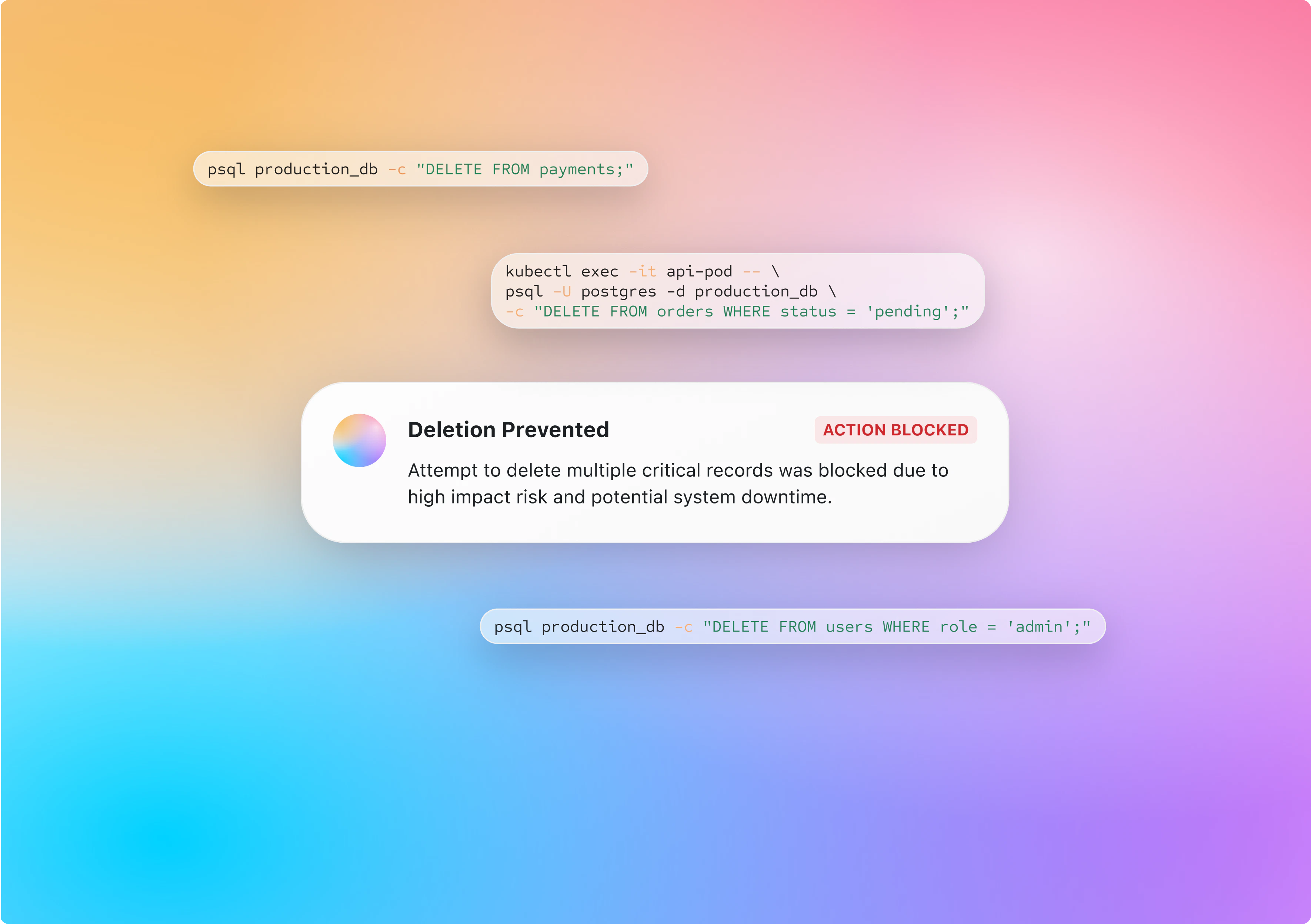
* If any configured risk rule is triggered, show Blocked status (prominent restriction notification)
### Session Details Review
In the session detailed view:
* Top status list includes **AI Session Analyzer** item
* Item displays action status: **Allowed** or **Blocked**
* A dedicated card shows:
* Title plus risk level indicator (**Low Risk**, **Medium Risk**, **High Risk**)
* Action applied by rule (**Allowed** or **Blocked**)
***
## Status Types
| Status | Meaning |
| ----------- | -------------------------------------------------- |
| **Allowed** | Session complies with configured risk rules |
| **Blocked** | Session violates one or more configured risk rules |
***
## Best Practices
Use the recommended risk evaluation to apply policies based on each session's risk profile.
Apply stricter policies to privileged roles and production-facing resources first.
Audit Allowed/Blocked trends and tune rules for false positives or blind spots.
***
Ready to turn it on? The [AI Session Analyzer configuration guide](/setup/configuration/ai-session-analyzer-configuration) walks through connecting an AI provider, creating risk rules, and verifying results.
## Next Steps
Add deterministic query and command controls
Protect sensitive output with automatic redaction
Audit command history and investigation trails
Require approvals for sensitive operations
This feature is only available when executing ad-hoc sessions (Webapp & hoop exec cli)
## What You'll Accomplish
AI Session Analyzer is Hoop's AI-powered risk analysis capability for one-off sessions. It evaluates commands before execution and applies configured policies automatically, so you can:
* Detect risky commands in real time before impact
* Block destructive or high-risk operations proactively
* Apply consistent policy decisions across resources
***
## How It Works
Configure the AI provider and define risk rules.
A command runs and is analyzed in real time by AI.
Based on the rules and AI analysis, the command is allowed or blocked.
***
## Runtime Analysis Experience
### In-Terminal Behavior
When a terminal session starts:
* Terminal shows an in-session status card: `AI Session Analyzer is thinking...`
* Analyzer evaluates activity in real time
* If no rule is violated, show Allowed/success status (non-blocking notification)
* If any configured risk rule is triggered, show Blocked status (prominent restriction notification)
### Session Details Review
In the session detailed view:
* Top status list includes **AI Session Analyzer** item
* Item displays action status: **Allowed** or **Blocked**
* A dedicated card shows:
* Title plus risk level indicator (**Low Risk**, **Medium Risk**, **High Risk**)
* Action applied by rule (**Allowed** or **Blocked**)
***
## Status Types
| Status | Meaning |
| ----------- | -------------------------------------------------- |
| **Allowed** | Session complies with configured risk rules |
| **Blocked** | Session violates one or more configured risk rules |
***
## Best Practices
Use the recommended risk evaluation to apply policies based on each session's risk profile.
Apply stricter policies to privileged roles and production-facing resources first.
Audit Allowed/Blocked trends and tune rules for false positives or blind spots.
***
Ready to turn it on? The [AI Session Analyzer configuration guide](/setup/configuration/ai-session-analyzer-configuration) walks through connecting an AI provider, creating risk rules, and verifying results.
## Next Steps
Add deterministic query and command controls
Protect sensitive output with automatic redaction
Audit command history and investigation trails
Require approvals for sensitive operations