> ## Documentation Index
> Fetch the complete documentation index at: https://mintlify.hoop.dev/docs/llms.txt
> Use this file to discover all available pages before exploring further.
# Teams
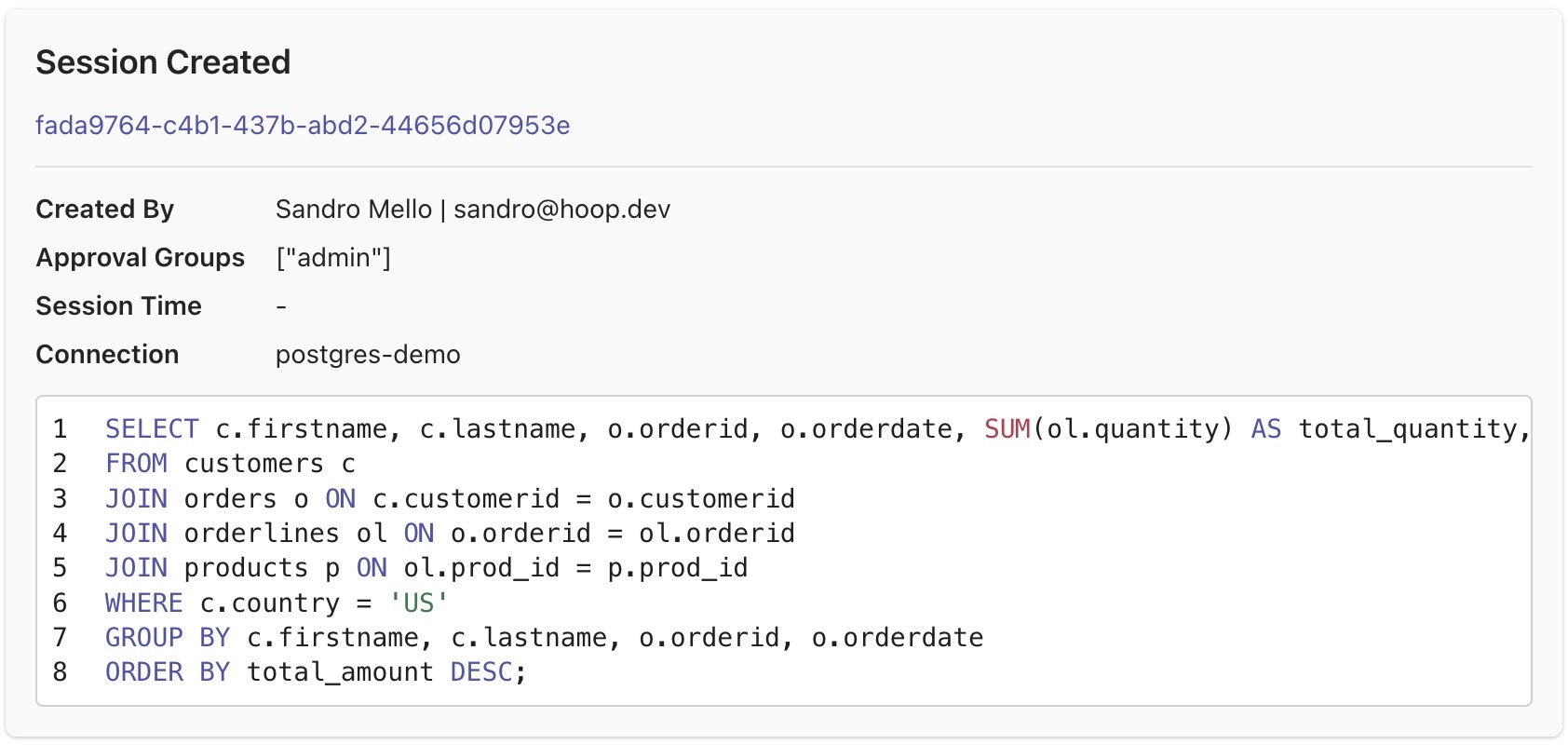
> Hoop.dev can integrate with Microsoft Teams, sending messages to a channel when a particular event happens.
## Requirements
* Permissions to obtain the incoming webhook URL from Microsoft Teams
* Admin user on hoop
* hoop.dev CLI installed in your local machine
 ## Configuring
1. First, obtain the incoming webhook URL. Refer to [this section of the Microsoft Teams article](https://learn.microsoft.com/en-us/microsoftteams/platform/webhooks-and-connectors/how-to/add-incoming-webhook?tabs=dotnet#create-incoming-webhooks-1).
2. Log in to your hoop instance and create a plugin that allows access to the webhook dashboard.
```bash theme={"dark"}
hoop login
hoop admin create plugin webhooks --overwrite
```
For self-hosted deployments it requires the Svix webhook provider deployed locally or using their SaaS instance. Refer to the [Svix documentation](/integrations/svix) for more information.
Access the webhook provider dashboard.
```bash theme={"dark"}
hoop admin webhooks-dashboard
```
### Create an Endpoint
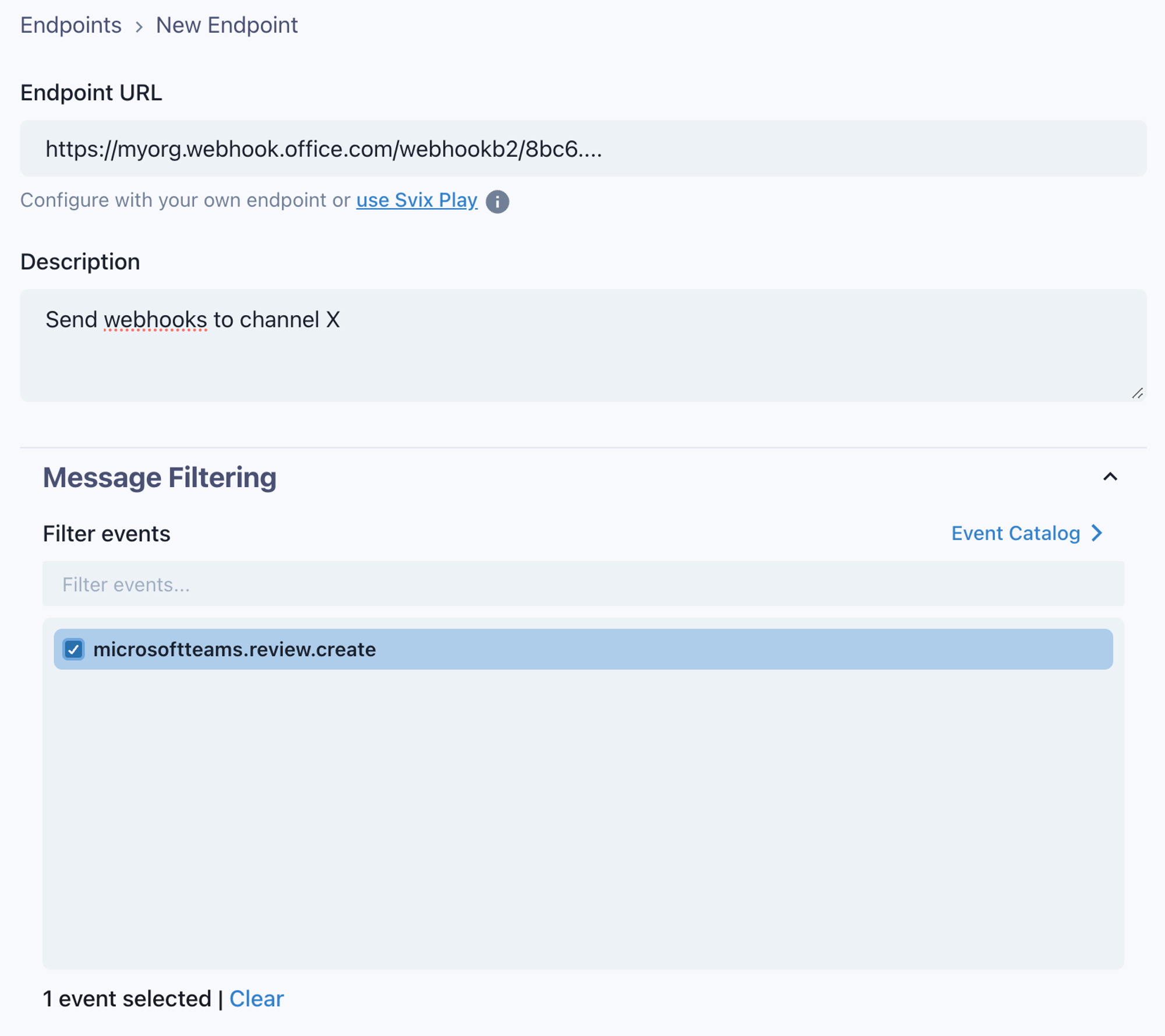
Create an endpoint by adding the URL obtained when creating an incoming webhook in the previous step. And select the events that you wish to send.
## Configuring
1. First, obtain the incoming webhook URL. Refer to [this section of the Microsoft Teams article](https://learn.microsoft.com/en-us/microsoftteams/platform/webhooks-and-connectors/how-to/add-incoming-webhook?tabs=dotnet#create-incoming-webhooks-1).
2. Log in to your hoop instance and create a plugin that allows access to the webhook dashboard.
```bash theme={"dark"}
hoop login
hoop admin create plugin webhooks --overwrite
```
For self-hosted deployments it requires the Svix webhook provider deployed locally or using their SaaS instance. Refer to the [Svix documentation](/integrations/svix) for more information.
Access the webhook provider dashboard.
```bash theme={"dark"}
hoop admin webhooks-dashboard
```
### Create an Endpoint
Create an endpoint by adding the URL obtained when creating an incoming webhook in the previous step. And select the events that you wish to send.
 In the advanced section, make sure to **enable the endpoint rate limit and set it to 4 (per second).** This will respect the limitations enforced by the Microsoft Teams service.
### Send a Test Event
Go to the Testing tab, select the available event, and click on the **Send Example** button. This event should be received in the configured Teams channel.
In the "Overview" tab, the test with the sent event will be displayed.
In the advanced section, make sure to **enable the endpoint rate limit and set it to 4 (per second).** This will respect the limitations enforced by the Microsoft Teams service.
### Send a Test Event
Go to the Testing tab, select the available event, and click on the **Send Example** button. This event should be received in the configured Teams channel.
In the "Overview" tab, the test with the sent event will be displayed.
 ## Resource Roles
Now, you can define which resource roles will send this event based on the plugin configuration. Update or add a new resource role to enable this plugin.
```bash theme={"dark"}
hoop admin create conn bash -a --overwrite \
--plugin webhooks \
--reviewers admin -- bash
```
Interacting with the resource role via the webapp or the CLI will trigger an alert indicating that an access request has been created. A message will be sent to the Microsoft Teams channel.
```bash theme={"dark"}
hoop exec bash -i 'ls -l'
```
## Supported Events
* `microsoftteams.review.create` - Triggered when an access request is created
## Resource Roles
Now, you can define which resource roles will send this event based on the plugin configuration. Update or add a new resource role to enable this plugin.
```bash theme={"dark"}
hoop admin create conn bash -a --overwrite \
--plugin webhooks \
--reviewers admin -- bash
```
Interacting with the resource role via the webapp or the CLI will trigger an alert indicating that an access request has been created. A message will be sent to the Microsoft Teams channel.
```bash theme={"dark"}
hoop exec bash -i 'ls -l'
```
## Supported Events
* `microsoftteams.review.create` - Triggered when an access request is created