> ## Documentation Index
> Fetch the complete documentation index at: https://mintlify.hoop.dev/docs/llms.txt
> Use this file to discover all available pages before exploring further.
# Slack
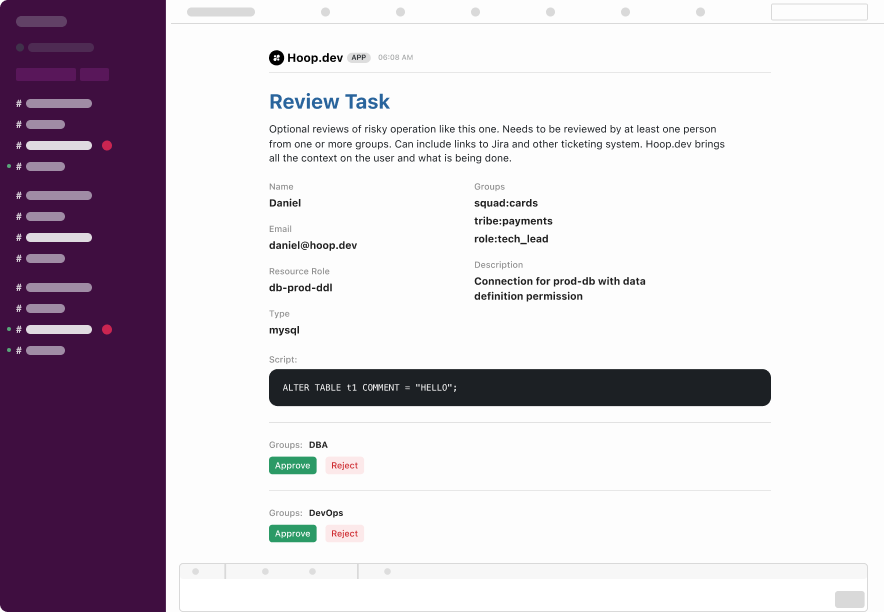
> Manage access requests directly from your Slack workspace.
 ## Requirements
* Privileges to [create an application on Slack](https://api.slack.com/apps)
* Privileges to install the new app in a workspace
* Admin user on hoop
## App Installation - Slack
1. Create [a slack app from **an app manifest**](https://api.slack.com/apps?new_app=1)
2. Select the workspace > click next > paste the manifest below
```json theme={"dark"}
{
"display_information": {
"name": "hoop",
"description": "An app to interact with a hoop gateway instance",
"background_color": "#7a7879"
},
"features": {
"bot_user": {
"display_name": "Hoop Bot",
"always_online": true
},
"slash_commands": [
{
"command": "/hoop",
"description": "Subscribe to notifications sent by Hoop",
"usage_hint": "subscribe",
"should_escape": false
}
]
},
"oauth_config": {
"scopes": {
"bot": [
"app_mentions:read",
"channels:read",
"chat:write",
"commands",
"im:write",
"channels:manage",
"groups:write",
"mpim:write",
"chat:write.public"
]
}
},
"settings": {
"event_subscriptions": {
"bot_events": [
"app_mention"
]
},
"interactivity": {
"is_enabled": true
},
"org_deploy_enabled": false,
"socket_mode_enabled": true,
"token_rotation_enabled": false
}
}
```
1. Follow the guide and click on **Install to Workspace**
2. Scroll below and create an **App-Level Token** and **copy the token**
* Token Name: `hoop`
* Scopes: `connections:write`, `app_configurations:write`
3. Go to **Install App** on the left side bar and copy the **Bot User Oauth Token**
***
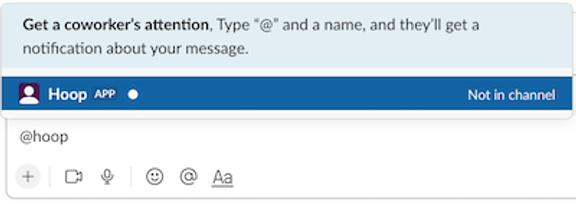
Lastly, invite the bot in the slack channel that you wish to receive notifications by typing the name of the bot `@hoop`
## Requirements
* Privileges to [create an application on Slack](https://api.slack.com/apps)
* Privileges to install the new app in a workspace
* Admin user on hoop
## App Installation - Slack
1. Create [a slack app from **an app manifest**](https://api.slack.com/apps?new_app=1)
2. Select the workspace > click next > paste the manifest below
```json theme={"dark"}
{
"display_information": {
"name": "hoop",
"description": "An app to interact with a hoop gateway instance",
"background_color": "#7a7879"
},
"features": {
"bot_user": {
"display_name": "Hoop Bot",
"always_online": true
},
"slash_commands": [
{
"command": "/hoop",
"description": "Subscribe to notifications sent by Hoop",
"usage_hint": "subscribe",
"should_escape": false
}
]
},
"oauth_config": {
"scopes": {
"bot": [
"app_mentions:read",
"channels:read",
"chat:write",
"commands",
"im:write",
"channels:manage",
"groups:write",
"mpim:write",
"chat:write.public"
]
}
},
"settings": {
"event_subscriptions": {
"bot_events": [
"app_mention"
]
},
"interactivity": {
"is_enabled": true
},
"org_deploy_enabled": false,
"socket_mode_enabled": true,
"token_rotation_enabled": false
}
}
```
1. Follow the guide and click on **Install to Workspace**
2. Scroll below and create an **App-Level Token** and **copy the token**
* Token Name: `hoop`
* Scopes: `connections:write`, `app_configurations:write`
3. Go to **Install App** on the left side bar and copy the **Bot User Oauth Token**
***
Lastly, invite the bot in the slack channel that you wish to receive notifications by typing the name of the bot `@hoop`
 ## App Installation - Hoop
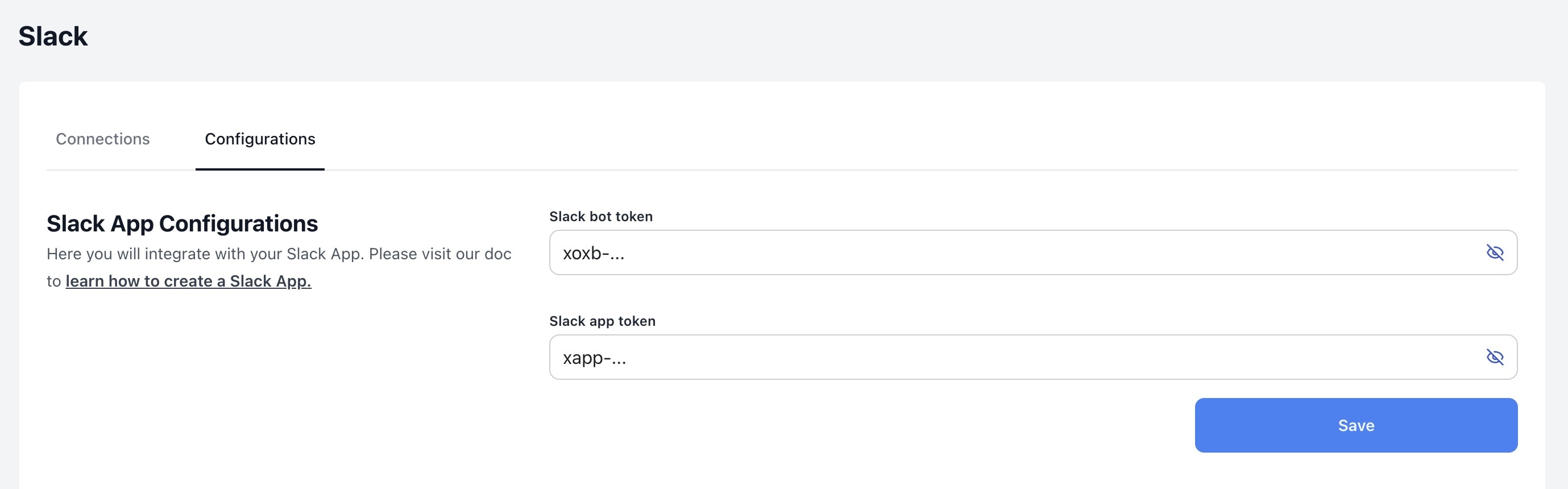
For this step, you'll need both the Slack bot token and app-level token to configure the plugin. You can obtain these tokens at:
* **SLACK\_BOT\_TOKEN:** `Oauth & Permissions > OAuth Tokens for Your Workspace` (*This is the token created in the app installation process*)
* **SLACK\_APP\_TOKEN:** `Basic Information > App-Level Tokens`
Configure the Slack App:
1. Go to **Integrations** > **Slack** > **Configurations Tab**
2. Type both tokens in the input
## App Installation - Hoop
For this step, you'll need both the Slack bot token and app-level token to configure the plugin. You can obtain these tokens at:
* **SLACK\_BOT\_TOKEN:** `Oauth & Permissions > OAuth Tokens for Your Workspace` (*This is the token created in the app installation process*)
* **SLACK\_APP\_TOKEN:** `Basic Information > App-Level Tokens`
Configure the Slack App:
1. Go to **Integrations** > **Slack** > **Configurations Tab**
2. Type both tokens in the input
 Alternatively, it's possible to use the Hoop command line to configure the integration:
```bash theme={"dark"}
# login to your instance
hoop login
# configure the slack integration
hoop admin create plugin slack \
--overwrite \
--config SLACK_BOT_TOKEN=xoxb-... \
--config SLACK_APP_TOKEN=xapp-...
```
## Subscribing to Slack channels
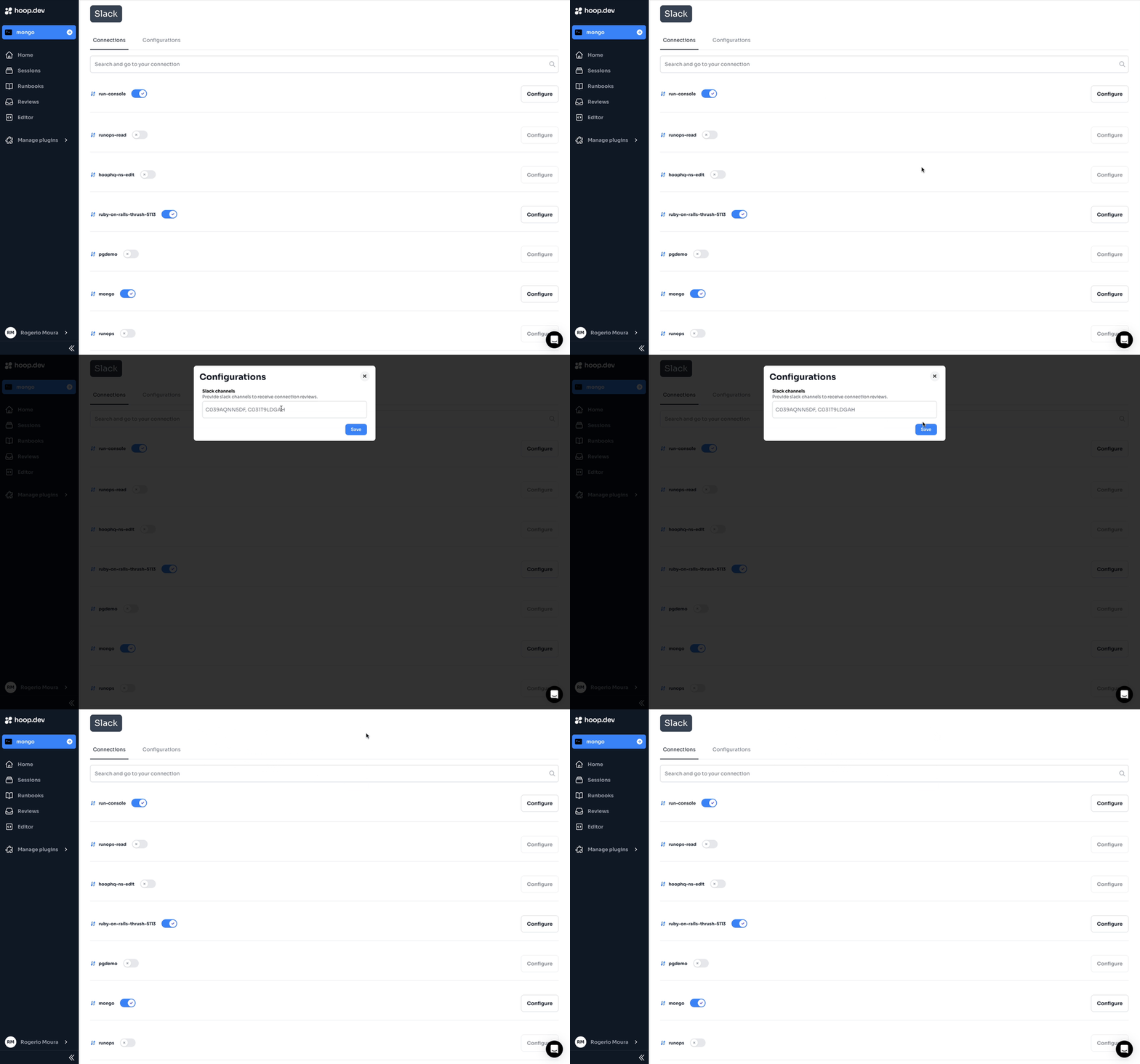
We need to go to the Slack plugin page and access the menu → Manage plugins → Slack.
Then, click on settings and add all the channels (separated by commas) you would like to receive access request notifications from that resource role.
Alternatively, it's possible to use the Hoop command line to configure the integration:
```bash theme={"dark"}
# login to your instance
hoop login
# configure the slack integration
hoop admin create plugin slack \
--overwrite \
--config SLACK_BOT_TOKEN=xoxb-... \
--config SLACK_APP_TOKEN=xapp-...
```
## Subscribing to Slack channels
We need to go to the Slack plugin page and access the menu → Manage plugins → Slack.
Then, click on settings and add all the channels (separated by commas) you would like to receive access request notifications from that resource role.
 ## Subscribe to Notifications
To subscribe and sign up to receive notifications from the Hoop Bot, type `/hoop subscribe` and access the generated link. After signing in, the user will start to receive notifications when there's an access request approved and ready to be executed.
### Subscribing Manually (Optional)
To add approvers who are allowed to approve access requests, fetch the user's Slack ID and update it using the command line.
```bash theme={"dark"}
hoop admin create user --overwrite \
--groups admin,sre \
--slackid
```
### Copy the Slack ID
* In the Slack app, click on the top right corner of your profile photo
* Select Profile
* Click on the More options button (see image below) and copy the member’s ID
## Subscribe to Notifications
To subscribe and sign up to receive notifications from the Hoop Bot, type `/hoop subscribe` and access the generated link. After signing in, the user will start to receive notifications when there's an access request approved and ready to be executed.
### Subscribing Manually (Optional)
To add approvers who are allowed to approve access requests, fetch the user's Slack ID and update it using the command line.
```bash theme={"dark"}
hoop admin create user --overwrite \
--groups admin,sre \
--slackid
```
### Copy the Slack ID
* In the Slack app, click on the top right corner of your profile photo
* Select Profile
* Click on the More options button (see image below) and copy the member’s ID
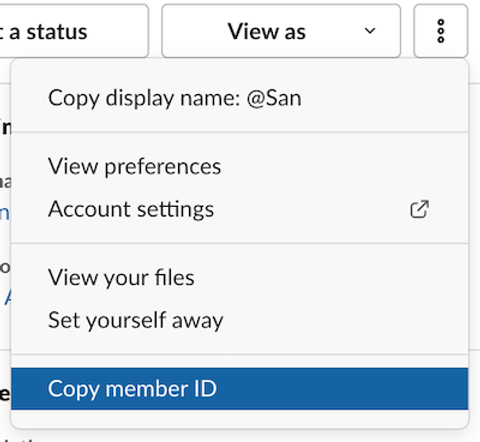 You can copy the ID of other members too on Slack.
## Usage
To use this integration, access requests must be enabled for a resource role. When interacting with it, a message will be sent to the configured Slack channel.
**Associate the resource role with the `slack` plugin and configure reviewers**
```bash theme={"dark"}
hoop admin create conn bash \
--overwrite \
--agent default \
--reviewers 'admin,sre' \
--plugin slack \
-- bash
```
Then, interacting with the resource role will send a message to your Slack channel. After it’s approved, it will send a message to the creator.
```bash theme={"dark"}
hoop connect bash
```
```bash theme={"dark"}
hoop exec bash -i 'ls'
```
You can copy the ID of other members too on Slack.
## Usage
To use this integration, access requests must be enabled for a resource role. When interacting with it, a message will be sent to the configured Slack channel.
**Associate the resource role with the `slack` plugin and configure reviewers**
```bash theme={"dark"}
hoop admin create conn bash \
--overwrite \
--agent default \
--reviewers 'admin,sre' \
--plugin slack \
-- bash
```
Then, interacting with the resource role will send a message to your Slack channel. After it’s approved, it will send a message to the creator.
```bash theme={"dark"}
hoop connect bash
```
```bash theme={"dark"}
hoop exec bash -i 'ls'
```