> ## Documentation Index
> Fetch the complete documentation index at: https://mintlify.hoop.dev/docs/llms.txt
> Use this file to discover all available pages before exploring further.
# AWS Connect
> Database Resource Discovery and Automatic Resource Role Creation.
This feature enables you to discover and provision common database roles to your RDS databases in AWS seamlessly.
Using either IAM credentials or the instance role of the Hoop Gateway, you can quickly grant database access to users.
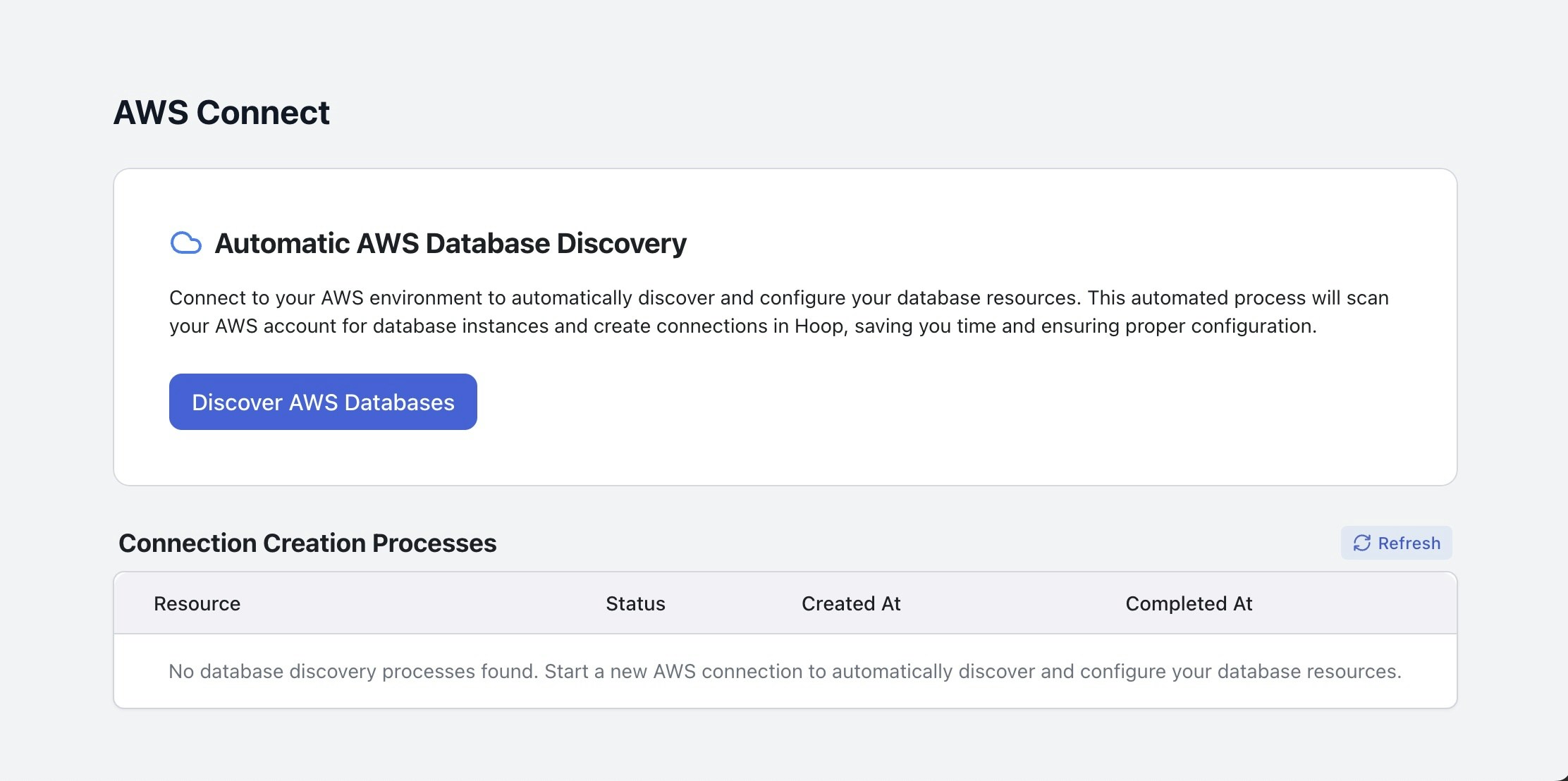 Be aware that our current implementation **resets the master password** for RDS instances and stores the new credentials in the Hoop database.
In upcoming releases, we aim to support additional authentication methods for accessing these instances,
including AWS Secrets Manager integration and IAM database authentication.
## Requirements
* Access to AWS account with privileges to setup roles and/or IAM credentials
* Admin access to the Hoop Gateway instance
## Configuration
To configure the AWS Connect integration, it needs proper permissions to list resources and modify RDS instances.
### Main Account Setup
The policy `HoopAWSConnect` must be created in your AWS account.
It will grant the necessary permissions to the IAM user or role that will be used for the integration.
* Go to **IAM > Policy > Create Policy**
* Switch the Policy Editor to `JSON` and paste the policy below
```json theme={"dark"}
{
"Version": "2012-10-17",
"Statement": [
{
"Effect": "Allow",
"Action": [
"organizations:ListAccounts",
"rds:DescribeDBInstances",
"rds:ModifyDBInstance",
"rds:ModifyDBCluster",
"ec2:DescribeSecurityGroups",
"ec2:AuthorizeSecurityGroupIngress",
"ec2:CreateSecurityGroup",
"ec2:CreateTags",
"sts:AssumeRole"
],
"Resource": "*"
}
]
}
```
* Click in Next and create it naming the policy as `HoopAWSConnect`
Create the IAM user associated with the role created in the previous step to obtain the access key credentials.
* Go to **IAM > Users > Add user**
* Enter a user name, e.g., `hoop-aws-connect`
* Select **Attach policies directly**
* Search for the policy `HoopAWSConnect` created in first step
* After creating the user, select the user and go to the **Security credentials** tab
* Click on **Create access key**
* Select the option **Third-party service**
* Add the description as `Hoop AWS Connect`
* Click on **Create access key**
* Copy the **Access key ID** and **Secret access key** to use in the next step
If you want to use the instance role instead of IAM credentials, skip this step.
You will find instructions below on how to configure the instance role.
These steps should be sufficient to begin the provisioning process in your main account.
### Multi Account Setup
For multi-account setup, you can configure your IAM user or instance role to access resources across different accounts.
#### Invite your AWS Account
To allow Hoop to access your AWS account, you need to invite it to your AWS Organization.
The list of AWS accounts will be displayed in the integration configuration page, and you can select the accounts you want to provision roles for.
* Login to your main account
* Go to **AWS Organizations > AWS Accounts > Invite an Existent AWS Account**
* Enter the email address or the account id to invite this account
* Login to the invited account
* Go to **AWS Organizations > AWS Accounts > Invitations**
* Accept the invitation from your main account
#### Policy and Role Creation
To allow Hoop to access your AWS account, you need to create a policy and a role in each AWS account that you want to allow Hoop to access.
The policy grants the necessary permissions to the role, which is then assumed by Hoop to perform actions on your behalf.
The policy `HoopAWSConnect` must be created in your AWS account.
* Go to **IAM > Policy > Create Policy**
* Switch the Policy Editor to `JSON` and paste the policy below
```json theme={"dark"}
{
"Version": "2012-10-17",
"Statement": [
{
"Effect": "Allow",
"Action": [
"rds:DescribeDBInstances",
"rds:ModifyDBInstance",
"rds:ModifyDBCluster",
"ec2:DescribeSecurityGroups",
"ec2:AuthorizeSecurityGroupIngress",
"ec2:CreateTags",
"ec2:CreateSecurityGroup"
],
"Resource": "*"
}
]
}
```
* Click in Next and create it naming the policy as `HoopAWSConnect`
This step will grant the necessary permissions to assume the role in your main account
Create the role that will use the policy created in the previous step.
* Go to **IAM > Roles > Create Role**
* In Trusted entity type, select **AWS Account**
* In the input below, select **Another AWS Account**
* Add the account ID of your main account
* Select the Policy `HoopAWSConnect` created in the previous step
* Name the role as `HoopOrganizationAccountAccessRole`
It's important to name the policy as `HoopOrganizationAccountAccessRole` because the name is hard-coded in the integration.
In future releases, we may allow users to provide a custom role name.
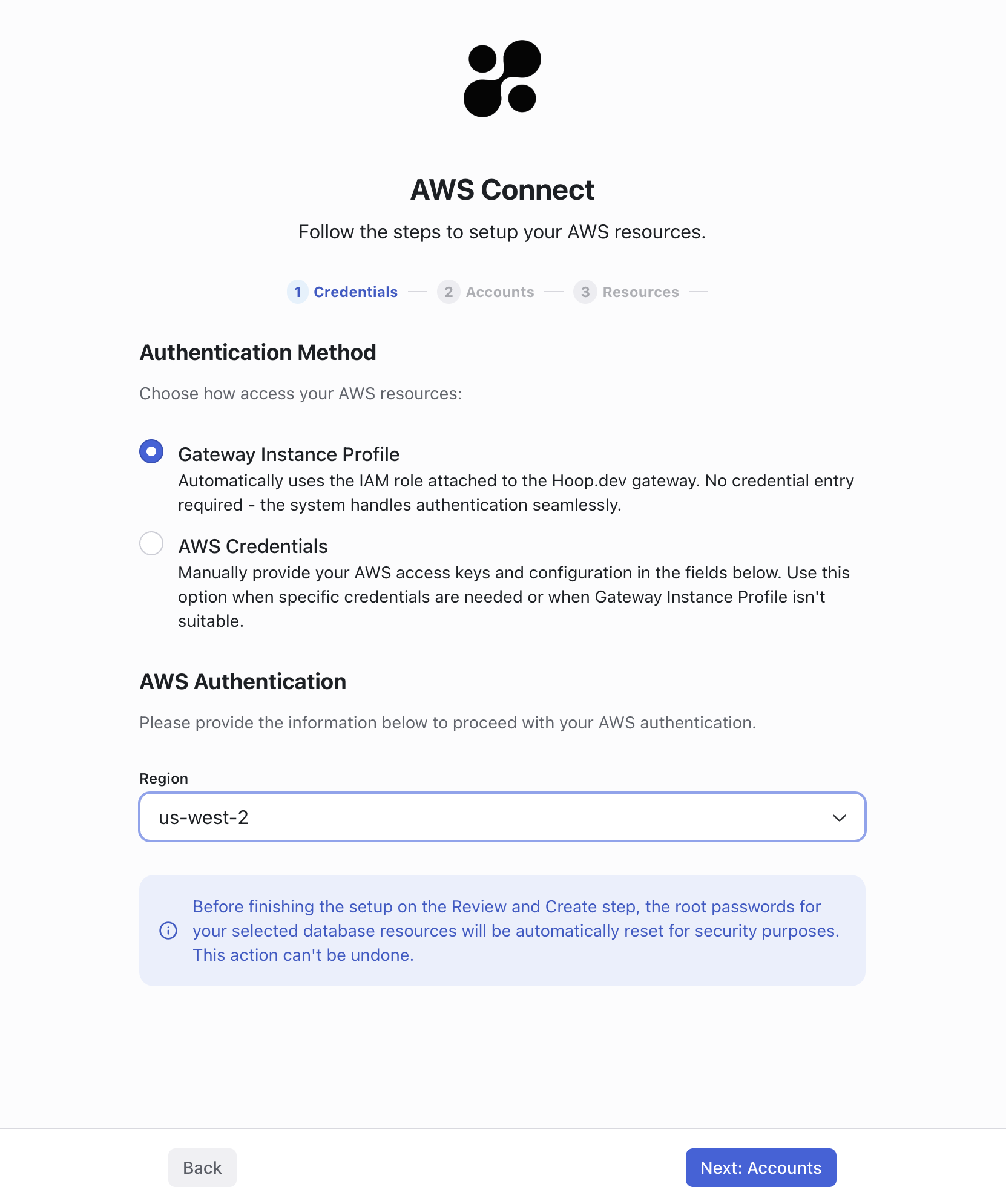
### Instance Role
To use the instance role of the Hoop Gateway, you need to configure the environment variable:
* `INTEGRATION_AWS_INSTANCE_ROLE_ALLOW=true`
This allows the integration to use the instance role of the Hoop Gateway to access AWS resources.
Make sure to create an **IAM role** in the account that you're hosting the Hoop Gateway and associate with the policy `HoopAWSConnect`.
See the step above to create the IAM role.
## Web Interface
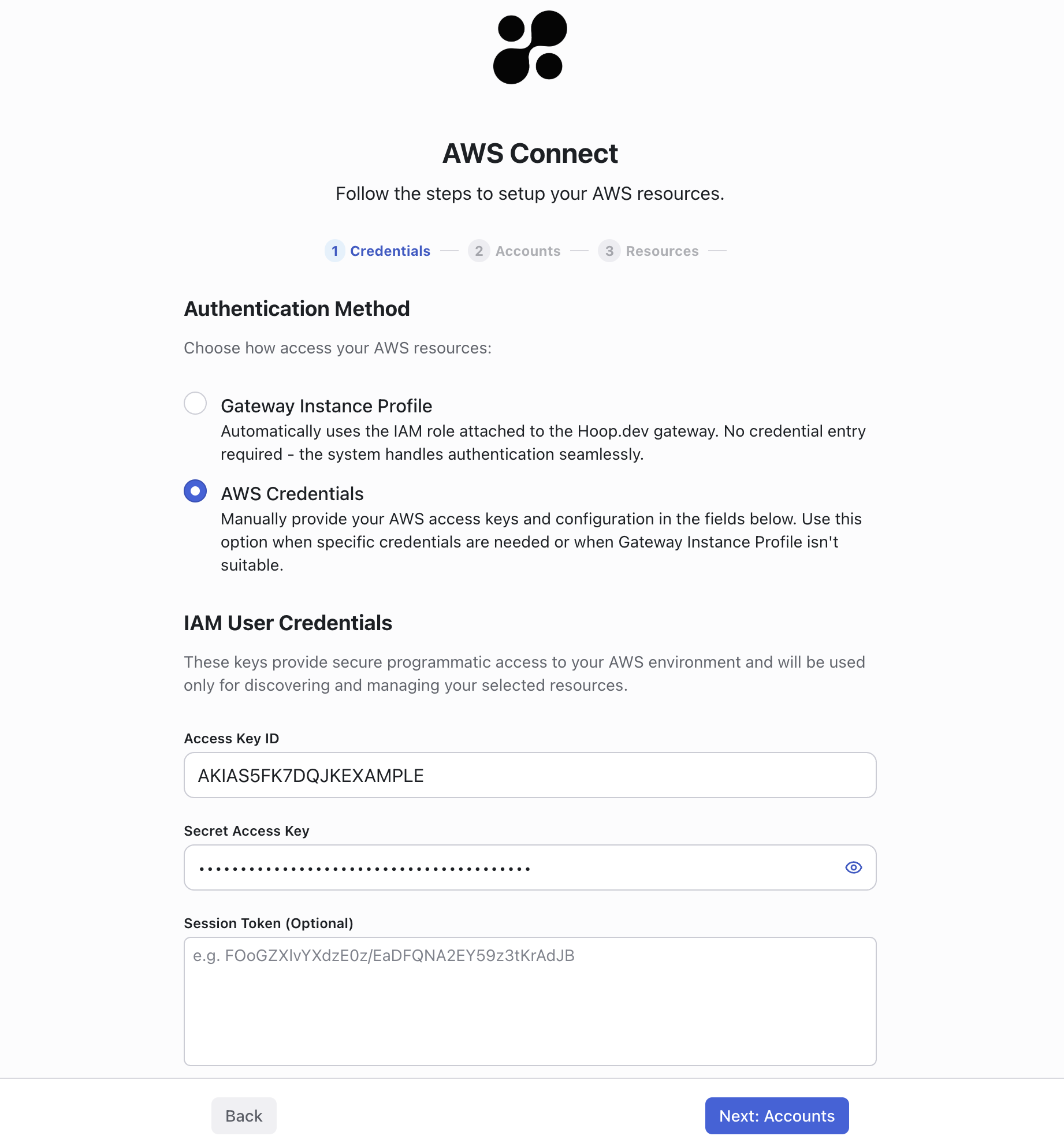
The web interface allows you to configure the AWS Connect integration and manage the provisioning of database roles.
It will list the available AWS accounts and the databases that can be provisioned.
### Access Key Credentials
Be aware that our current implementation **resets the master password** for RDS instances and stores the new credentials in the Hoop database.
In upcoming releases, we aim to support additional authentication methods for accessing these instances,
including AWS Secrets Manager integration and IAM database authentication.
## Requirements
* Access to AWS account with privileges to setup roles and/or IAM credentials
* Admin access to the Hoop Gateway instance
## Configuration
To configure the AWS Connect integration, it needs proper permissions to list resources and modify RDS instances.
### Main Account Setup
The policy `HoopAWSConnect` must be created in your AWS account.
It will grant the necessary permissions to the IAM user or role that will be used for the integration.
* Go to **IAM > Policy > Create Policy**
* Switch the Policy Editor to `JSON` and paste the policy below
```json theme={"dark"}
{
"Version": "2012-10-17",
"Statement": [
{
"Effect": "Allow",
"Action": [
"organizations:ListAccounts",
"rds:DescribeDBInstances",
"rds:ModifyDBInstance",
"rds:ModifyDBCluster",
"ec2:DescribeSecurityGroups",
"ec2:AuthorizeSecurityGroupIngress",
"ec2:CreateSecurityGroup",
"ec2:CreateTags",
"sts:AssumeRole"
],
"Resource": "*"
}
]
}
```
* Click in Next and create it naming the policy as `HoopAWSConnect`
Create the IAM user associated with the role created in the previous step to obtain the access key credentials.
* Go to **IAM > Users > Add user**
* Enter a user name, e.g., `hoop-aws-connect`
* Select **Attach policies directly**
* Search for the policy `HoopAWSConnect` created in first step
* After creating the user, select the user and go to the **Security credentials** tab
* Click on **Create access key**
* Select the option **Third-party service**
* Add the description as `Hoop AWS Connect`
* Click on **Create access key**
* Copy the **Access key ID** and **Secret access key** to use in the next step
If you want to use the instance role instead of IAM credentials, skip this step.
You will find instructions below on how to configure the instance role.
These steps should be sufficient to begin the provisioning process in your main account.
### Multi Account Setup
For multi-account setup, you can configure your IAM user or instance role to access resources across different accounts.
#### Invite your AWS Account
To allow Hoop to access your AWS account, you need to invite it to your AWS Organization.
The list of AWS accounts will be displayed in the integration configuration page, and you can select the accounts you want to provision roles for.
* Login to your main account
* Go to **AWS Organizations > AWS Accounts > Invite an Existent AWS Account**
* Enter the email address or the account id to invite this account
* Login to the invited account
* Go to **AWS Organizations > AWS Accounts > Invitations**
* Accept the invitation from your main account
#### Policy and Role Creation
To allow Hoop to access your AWS account, you need to create a policy and a role in each AWS account that you want to allow Hoop to access.
The policy grants the necessary permissions to the role, which is then assumed by Hoop to perform actions on your behalf.
The policy `HoopAWSConnect` must be created in your AWS account.
* Go to **IAM > Policy > Create Policy**
* Switch the Policy Editor to `JSON` and paste the policy below
```json theme={"dark"}
{
"Version": "2012-10-17",
"Statement": [
{
"Effect": "Allow",
"Action": [
"rds:DescribeDBInstances",
"rds:ModifyDBInstance",
"rds:ModifyDBCluster",
"ec2:DescribeSecurityGroups",
"ec2:AuthorizeSecurityGroupIngress",
"ec2:CreateTags",
"ec2:CreateSecurityGroup"
],
"Resource": "*"
}
]
}
```
* Click in Next and create it naming the policy as `HoopAWSConnect`
This step will grant the necessary permissions to assume the role in your main account
Create the role that will use the policy created in the previous step.
* Go to **IAM > Roles > Create Role**
* In Trusted entity type, select **AWS Account**
* In the input below, select **Another AWS Account**
* Add the account ID of your main account
* Select the Policy `HoopAWSConnect` created in the previous step
* Name the role as `HoopOrganizationAccountAccessRole`
It's important to name the policy as `HoopOrganizationAccountAccessRole` because the name is hard-coded in the integration.
In future releases, we may allow users to provide a custom role name.
### Instance Role
To use the instance role of the Hoop Gateway, you need to configure the environment variable:
* `INTEGRATION_AWS_INSTANCE_ROLE_ALLOW=true`
This allows the integration to use the instance role of the Hoop Gateway to access AWS resources.
Make sure to create an **IAM role** in the account that you're hosting the Hoop Gateway and associate with the policy `HoopAWSConnect`.
See the step above to create the IAM role.
## Web Interface
The web interface allows you to configure the AWS Connect integration and manage the provisioning of database roles.
It will list the available AWS accounts and the databases that can be provisioned.
### Access Key Credentials
 ### Instance Role
 ## Agent Deployment
The agent connects to your underlying infrastructure to provision and access your databases.
Before proceeding, make sure to provision an agent for every private network in which your database is running.
If you have connectivity with all databases from a single machine, you could deploy the agent in this network
to gain access to all databases using a single agent.
[Read more about agents](/concepts/agents)
## Supported Engines
* Postgres / Aurora
* MySQL / Aurora
* SQL Server
## Security Group Management
The gateway automatically creates and associates a dedicated security group to enable secure connectivity between the gateway and your agent.
This security group is configured with the following properties:
* **Resource Name:** `hoop-aws-connect-sg-`
* **Tag:** `hoop.dev/gateway=`
You have the option to manage these security groups directly to customize connectivity settings as needed.
## Roles and Resource Role Management
The provisioner will reset the master database credentials using a random password.
The user and password are stored in Hoop's database. Subsequent requests for provisioning roles reuse the master credentials stored in Hoop.
The provisioner will create three static user roles for all existing databases depending on the engine:
* hoop\_ro
* hoop\_rw
* hoop\_ddl
If you run the process multiple times, some database users might be removed and recreated.
The default behavior is to provision the role if it doesn't exist and change the password if the role already exists.
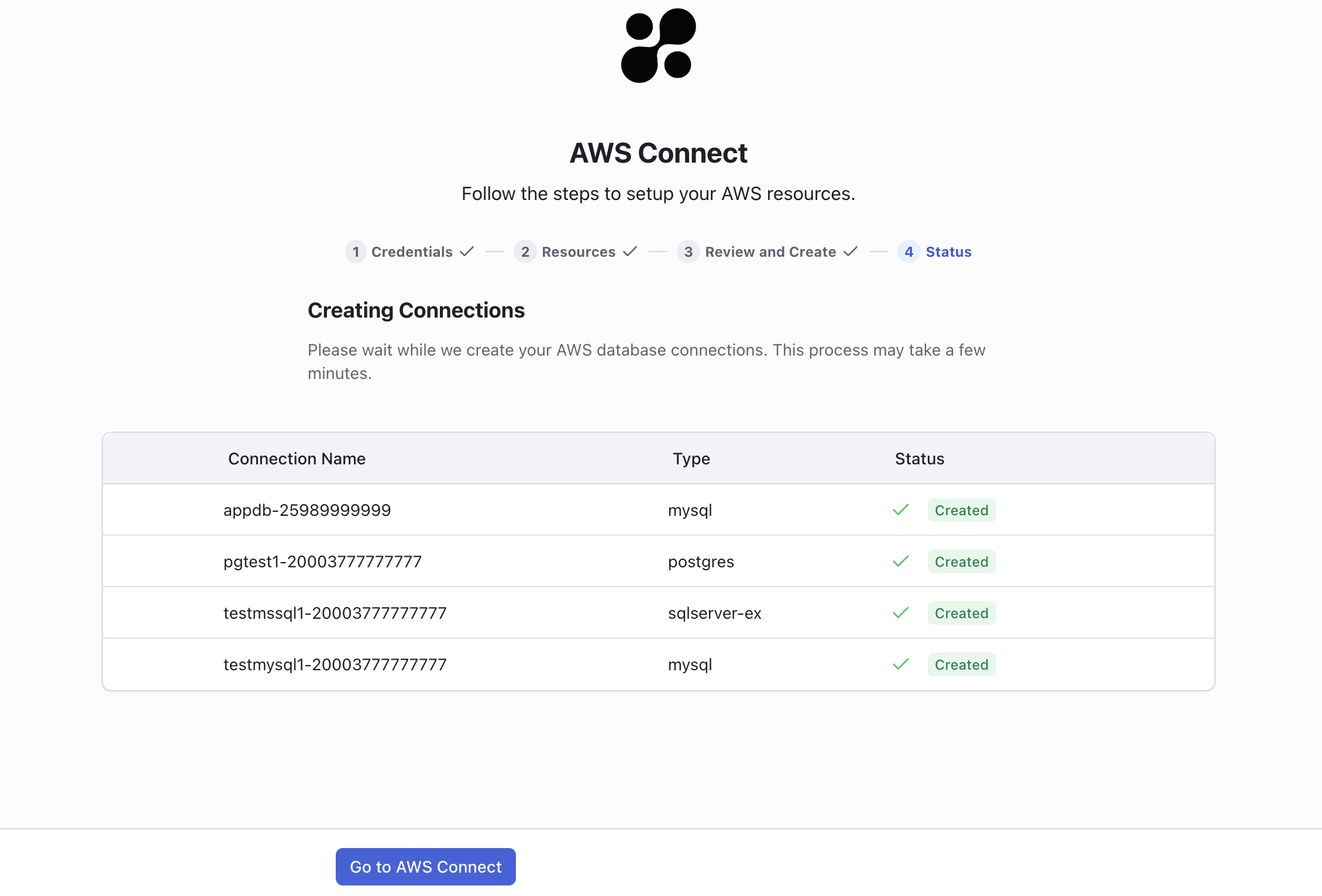
In the final step of the provisioning process, it creates resource roles with the credentials of each role.
Three resource roles are provisioned as the outcome:
* `-ro`
* `-rw`
* `-ddl`
## Agent Deployment
The agent connects to your underlying infrastructure to provision and access your databases.
Before proceeding, make sure to provision an agent for every private network in which your database is running.
If you have connectivity with all databases from a single machine, you could deploy the agent in this network
to gain access to all databases using a single agent.
[Read more about agents](/concepts/agents)
## Supported Engines
* Postgres / Aurora
* MySQL / Aurora
* SQL Server
## Security Group Management
The gateway automatically creates and associates a dedicated security group to enable secure connectivity between the gateway and your agent.
This security group is configured with the following properties:
* **Resource Name:** `hoop-aws-connect-sg-`
* **Tag:** `hoop.dev/gateway=`
You have the option to manage these security groups directly to customize connectivity settings as needed.
## Roles and Resource Role Management
The provisioner will reset the master database credentials using a random password.
The user and password are stored in Hoop's database. Subsequent requests for provisioning roles reuse the master credentials stored in Hoop.
The provisioner will create three static user roles for all existing databases depending on the engine:
* hoop\_ro
* hoop\_rw
* hoop\_ddl
If you run the process multiple times, some database users might be removed and recreated.
The default behavior is to provision the role if it doesn't exist and change the password if the role already exists.
In the final step of the provisioning process, it creates resource roles with the credentials of each role.
Three resource roles are provisioned as the outcome:
* `-ro`
* `-rw`
* `-ddl`
 The database user roles permissions are static and described below:
| ENGINE | READ ONLY | READ WRITE | DDL |
| ---------- | --------------- | -------------------------------- | --------------------------------------------------------------- |
| Postgres | `SELECT` | `SELECT, INSERT, UPDATE, DELETE` | `SELECT, INSERT, UPDATE, DELETE, TRUNCATE, REFERENCES, TRIGGER` |
| MySQL | `SELECT` | `SELECT, INSERT, UPDATE, DELETE` | `SELECT, INSERT, UPDATE, DELETE, ALTER, CREATE, DROP` |
| SQL Server | `db_datareader` | `db_datareader, db_datawriter` | `db_datareader, db_datawriter, db_ddladmin` |
## Webhooks (Svix)
In the final step of the job, you can send webhooks to an external system for integration purposes.
The webhook provider must be configured to send the message properly. More information could be found [here](./svix).
The payload structure matches the endpoint `GET /api/dbroles/:id`.
In the final step of the job it's possible to send Webhooks to an external system for integration purporses.
The Webhook provider must be configured to send the message properly. The payload is the same structure of the endpoint `GET /api/dbroles/:id`.
```json theme={"dark"}
{
"event_type": "dbroles.job.finished",
"event_payload": {}
}
```
Refer to the API Reference section in the documentation sidebar for more details about the structure of the `event_payload` attribute.
## Runbook Hook
This feature is available in version 1.35.7+.
As an alternative to using a Webhook Provider, you can execute a Python script in the final step of the job.
This functionality enables easier integration with any internal workflow by leveraging Hoop as a hook system for your process.
**Requirements for running this hook:**
* The [Runbook must be enabled with a git repository](/setup/configuration/runbooks-configuration)
* The specific file path `hoop-hooks/aws-connect-post-exec.runbook.py` must exist in your git repository to trigger the hook
* Note: Output content (stdout, stderr) is limited to 4096 bytes
Use the script below to print both the request and response objects.
```python theme={"dark"}
import os, sys, time, json
print('STARTING AWS CONNECT RUNBOOKS HOOK\n')
request = os.getenv('HOOP_AWS_CONNECT_REQUEST')
response = os.getenv('HOOP_AWS_CONNECT_RESPONSE')
if len(response) == 0 or len(request) == 0:
print('empty request (HOOP_AWS_CONNECT_REQUEST) or response (HOOP_AWS_CONNECT_RESPONSE)')
sys.exit(1)
req = json.loads(request)
print('REQUEST OBJECT')
print('--------------')
print('request sid: {}'.format(req['sid']))
print('request DB ARN: {}'.format(req['resource_id']))
print('request database tags: {}'.format(req['database_tags']))
print('request database hostname: {}'.format(req['hostname']))
print('request database port: {}'.format(req['port']))
print('request database master username: {}'.format(req['master_user']))
print('request database master password: {}'.format(req['master_password']))
print('request vault provider: {}'.format(req['vault_provider']))
resp = json.loads(response)
print('\nRESPONSE OBJECT')
print('--------------')
print('response status: {}'.format(resp['status']))
print('response message: {}'.format(resp['message']))
print('\nROLES PROVISIONING RESULT')
print('--------------')
result = resp['result'] or []
for r in result:
cred = r['db_credentials'] or {}
print(' status ->', r['status'])
print(' message ->', r['message'])
print(' completed_at ->', r['completed_at'])
print(' role_suffix_name ->', r['role_suffix_name'])
print(' credentials role user ->', cred['user'])
print(' credentials role password ->', cred['password'])
print(' credentials secrets manager provider ->', cred['secrets_manager_provider'])
print(' ---')
```
### Runbook Inputs
The request and response objects are available as environment variables in JSON
* Environment Variable `HOOP_AWS_CONNECT_REQUEST`
```json theme={"dark"}
{
"org_id": "bb5960f1-37ec-438e-93e0-2547ee4cf6cb",
"sid": "cd2fe668-2f83-4798-a0ed-41688e1891e9",
"resource_id": "arn:aws:rds:us-west-2:200070128927:db:pgtest1",
"hostname": "pgtest1.sakjksqiwuqijs.us-west-2.rds.amazonaws.com",
"port": "5432",
"master_user": "",
"master_password": "",
"database_type": "postgres",
"database_tags": [
{
"owner": "someone@mycorp.com"
},
{
"cto_email": "cto@mycorp.com"
},
{
"bu": "banking"
}
],
"vault_provider": {"secret_id": ""},
}
```
* Environment Variable `HOOP_AWS_CONNECT_REQUEST`
```json theme={"dark"}
{
"sid": "cd2fe668-2f83-4798-a0ed-41688e1891e9",
"status": "failed|completed",
"message": "One or more user roles failed to be provisioned",
"result": [
{
"db_credentials": {
"host": "pgtest1.sakjksqiwuqijs.us-west-2.rds.amazonaws.com",
"port": "5432",
"user": "hoop_ro",
"password": "PlwL0YAlv6S*N5AnQZPLwCYru",
"default_database": "postgres",
"options": {},
"secrets_manager_provider": "database",
"secret_id": "",
"secret_keys": []
},
"role_suffix_name": "ro",
"status": "completed",
"message": "",
"completed_at": "2025-04-28T15:26:31.019387233Z"
},
{
"db_credentials": {
"host": "pgtest1.sakjksqiwuqijs.us-west-2.rds.amazonaws.com",
"port": "5432",
"user": "hoop_rw",
"password": "rO*gDmye3s20P80CjTdMrRsLZ",
"default_database": "postgres",
"options": {},
"secrets_manager_provider": "database",
"secret_id": "",
"secret_keys": []
},
"role_suffix_name": "rw",
"status": "completed",
"message": "",
"completed_at": "2025-04-28T15:26:35.148832227Z"
},
{
"db_credentials": null,
"role_suffix_name": "",
"status": "failed",
"message": "dial tcp: lookup pgtest1.sakjksqiwuqijs.us-west-2.rds.amazonaws.com on 192.168.5.2:53: no such host",
"completed_at": "2025-04-28T15:26:39.201632951Z"
}
]
}
```
Example of how to parse it in python as a dictionary:
```python theme={"dark"}
import json, os
requestJson = os.getenv('HOOP_AWS_CONNECT_REQUEST')
responseJson = os.getenv('HOOP_AWS_CONNECT_RESPONSE')
request = json.loads(requestJson)
response = json.loads(responseJson)
print('request db arn: ', request['resource_id'])
print('response status: ', response['status'])
```
Be careful when printing any sensitive information.
The content will be available for inspection in the API for adminstrator users.
## Vault Secrets Manager
This integration enables you to delegate the management of secrets to HashiCorp Vault, a robust secrets management solution.
When enabled, all provisioned roles are securely stored in Vault.
For deployments with resource role provisioning enabled, the integration automatically adds the necessary reference secrets provider and secret ID.
For this integration to function properly, the agent must be configured with the correct Vault credentials.
For detailed configuration instructions, please refer to the [Vault secrets manager documentation](../learn/features/secrets-manager#hashicorp-vault-provider).
The database user roles permissions are static and described below:
| ENGINE | READ ONLY | READ WRITE | DDL |
| ---------- | --------------- | -------------------------------- | --------------------------------------------------------------- |
| Postgres | `SELECT` | `SELECT, INSERT, UPDATE, DELETE` | `SELECT, INSERT, UPDATE, DELETE, TRUNCATE, REFERENCES, TRIGGER` |
| MySQL | `SELECT` | `SELECT, INSERT, UPDATE, DELETE` | `SELECT, INSERT, UPDATE, DELETE, ALTER, CREATE, DROP` |
| SQL Server | `db_datareader` | `db_datareader, db_datawriter` | `db_datareader, db_datawriter, db_ddladmin` |
## Webhooks (Svix)
In the final step of the job, you can send webhooks to an external system for integration purposes.
The webhook provider must be configured to send the message properly. More information could be found [here](./svix).
The payload structure matches the endpoint `GET /api/dbroles/:id`.
In the final step of the job it's possible to send Webhooks to an external system for integration purporses.
The Webhook provider must be configured to send the message properly. The payload is the same structure of the endpoint `GET /api/dbroles/:id`.
```json theme={"dark"}
{
"event_type": "dbroles.job.finished",
"event_payload": {}
}
```
Refer to the API Reference section in the documentation sidebar for more details about the structure of the `event_payload` attribute.
## Runbook Hook
This feature is available in version 1.35.7+.
As an alternative to using a Webhook Provider, you can execute a Python script in the final step of the job.
This functionality enables easier integration with any internal workflow by leveraging Hoop as a hook system for your process.
**Requirements for running this hook:**
* The [Runbook must be enabled with a git repository](/setup/configuration/runbooks-configuration)
* The specific file path `hoop-hooks/aws-connect-post-exec.runbook.py` must exist in your git repository to trigger the hook
* Note: Output content (stdout, stderr) is limited to 4096 bytes
Use the script below to print both the request and response objects.
```python theme={"dark"}
import os, sys, time, json
print('STARTING AWS CONNECT RUNBOOKS HOOK\n')
request = os.getenv('HOOP_AWS_CONNECT_REQUEST')
response = os.getenv('HOOP_AWS_CONNECT_RESPONSE')
if len(response) == 0 or len(request) == 0:
print('empty request (HOOP_AWS_CONNECT_REQUEST) or response (HOOP_AWS_CONNECT_RESPONSE)')
sys.exit(1)
req = json.loads(request)
print('REQUEST OBJECT')
print('--------------')
print('request sid: {}'.format(req['sid']))
print('request DB ARN: {}'.format(req['resource_id']))
print('request database tags: {}'.format(req['database_tags']))
print('request database hostname: {}'.format(req['hostname']))
print('request database port: {}'.format(req['port']))
print('request database master username: {}'.format(req['master_user']))
print('request database master password: {}'.format(req['master_password']))
print('request vault provider: {}'.format(req['vault_provider']))
resp = json.loads(response)
print('\nRESPONSE OBJECT')
print('--------------')
print('response status: {}'.format(resp['status']))
print('response message: {}'.format(resp['message']))
print('\nROLES PROVISIONING RESULT')
print('--------------')
result = resp['result'] or []
for r in result:
cred = r['db_credentials'] or {}
print(' status ->', r['status'])
print(' message ->', r['message'])
print(' completed_at ->', r['completed_at'])
print(' role_suffix_name ->', r['role_suffix_name'])
print(' credentials role user ->', cred['user'])
print(' credentials role password ->', cred['password'])
print(' credentials secrets manager provider ->', cred['secrets_manager_provider'])
print(' ---')
```
### Runbook Inputs
The request and response objects are available as environment variables in JSON
* Environment Variable `HOOP_AWS_CONNECT_REQUEST`
```json theme={"dark"}
{
"org_id": "bb5960f1-37ec-438e-93e0-2547ee4cf6cb",
"sid": "cd2fe668-2f83-4798-a0ed-41688e1891e9",
"resource_id": "arn:aws:rds:us-west-2:200070128927:db:pgtest1",
"hostname": "pgtest1.sakjksqiwuqijs.us-west-2.rds.amazonaws.com",
"port": "5432",
"master_user": "",
"master_password": "",
"database_type": "postgres",
"database_tags": [
{
"owner": "someone@mycorp.com"
},
{
"cto_email": "cto@mycorp.com"
},
{
"bu": "banking"
}
],
"vault_provider": {"secret_id": ""},
}
```
* Environment Variable `HOOP_AWS_CONNECT_REQUEST`
```json theme={"dark"}
{
"sid": "cd2fe668-2f83-4798-a0ed-41688e1891e9",
"status": "failed|completed",
"message": "One or more user roles failed to be provisioned",
"result": [
{
"db_credentials": {
"host": "pgtest1.sakjksqiwuqijs.us-west-2.rds.amazonaws.com",
"port": "5432",
"user": "hoop_ro",
"password": "PlwL0YAlv6S*N5AnQZPLwCYru",
"default_database": "postgres",
"options": {},
"secrets_manager_provider": "database",
"secret_id": "",
"secret_keys": []
},
"role_suffix_name": "ro",
"status": "completed",
"message": "",
"completed_at": "2025-04-28T15:26:31.019387233Z"
},
{
"db_credentials": {
"host": "pgtest1.sakjksqiwuqijs.us-west-2.rds.amazonaws.com",
"port": "5432",
"user": "hoop_rw",
"password": "rO*gDmye3s20P80CjTdMrRsLZ",
"default_database": "postgres",
"options": {},
"secrets_manager_provider": "database",
"secret_id": "",
"secret_keys": []
},
"role_suffix_name": "rw",
"status": "completed",
"message": "",
"completed_at": "2025-04-28T15:26:35.148832227Z"
},
{
"db_credentials": null,
"role_suffix_name": "",
"status": "failed",
"message": "dial tcp: lookup pgtest1.sakjksqiwuqijs.us-west-2.rds.amazonaws.com on 192.168.5.2:53: no such host",
"completed_at": "2025-04-28T15:26:39.201632951Z"
}
]
}
```
Example of how to parse it in python as a dictionary:
```python theme={"dark"}
import json, os
requestJson = os.getenv('HOOP_AWS_CONNECT_REQUEST')
responseJson = os.getenv('HOOP_AWS_CONNECT_RESPONSE')
request = json.loads(requestJson)
response = json.loads(responseJson)
print('request db arn: ', request['resource_id'])
print('response status: ', response['status'])
```
Be careful when printing any sensitive information.
The content will be available for inspection in the API for adminstrator users.
## Vault Secrets Manager
This integration enables you to delegate the management of secrets to HashiCorp Vault, a robust secrets management solution.
When enabled, all provisioned roles are securely stored in Vault.
For deployments with resource role provisioning enabled, the integration automatically adds the necessary reference secrets provider and secret ID.
For this integration to function properly, the agent must be configured with the correct Vault credentials.
For detailed configuration instructions, please refer to the [Vault secrets manager documentation](../learn/features/secrets-manager#hashicorp-vault-provider).